
Logrotate is a small C-written utility used in most Linux distribution like Ubuntu, RHEL, CentOS, ... for managing log files generated by the Linux machine or the applications that are running on it.
Logrotate manages logs by rotating, compressing, or removing them automatically on daily, weekly, monthly basis or as per the size of the logs (as it grows).
There are several reasons for using logrotate:
-
If log files were not rotated, compressed, and periodically pruned, they could eventually eat up a lot of your disk space.
-
When analyzing log data, you don't want those log files to be extremely large and long (not sure the exact log message you are looking for).
-
Also, logrotate help you oraganize log files by dates to make tracking and analyzing changes easier.
The moving parts that make logrotate run on any Linux machine are:
-
The logrotate command itself. (/usr/bin/logrotate)
-
Logrotate's configuration file /etc/logrotate.conf. This file holds the configuration for all log files that Logrotate manages.
-
A daily cron job /etc/cron.daily/logrotate that issues the logrotate command to run everyday based on settings in its configuration file. (You can wait for logrotation to happen when the cron runs or you can also run the logrotate command manually: /usr/sbin/logrotate /etc/logrotate.conf)
-
If you look inside /etc/logrotate.conf, you will see that it has the line include /etc/logrotate.d in it. What this line does is tell Logrotate to look inside the /etc/logrotate.d directory and run every configuration file in it. This directory is typically where applications installed on your linux system will add their logrotate configurations. For example, Apache2 will typically create a /etc/logrotate.d/apache configuration file upon installation.
-
When you try to look inside /var/log or any of its sub-directories, you may encounter log files with names such as daemon.log.1 , daemon.log.2.gz , and so on. What are these log files? They are "rotated" log files. They have automatically been renamed after being rotated with a predefined time-frame (hourly, daily, weekly,...) and a new original log file (daemon.log) is created in their place. Some of the log files are compressed with the gzip utility, for example daemon.log.2.gz .
Summary: The purpose of log rotation is to archive and compress old logs so that they consume less disk space, but are still available for inspection if needed. What handles this functionality? the logrotate command. Normally, logrotate is called daily from the system-wide cron script /etc/cron.daily/logrotate, and further defined by the configuration file /etc/logrotate.conf. Individual configuration files can also be added into /etc/logrotate.d (where the apache2 and mysql configurations are stored for example).
This lab was done by renting virtual machines on Microsoft Azure Cloud. You can create an Azure free account for practicing this lab.
After obtaining Azure account, login to Azure portal. In the Azure portal:
Create Azure Linux VM with OS image of Ubuntu Server 20.04 LTS. I am going to name this VM ub01 You can choose the name of VM as you want. Allow your VM's port 22 (SSH) to be accessible from the Internet.

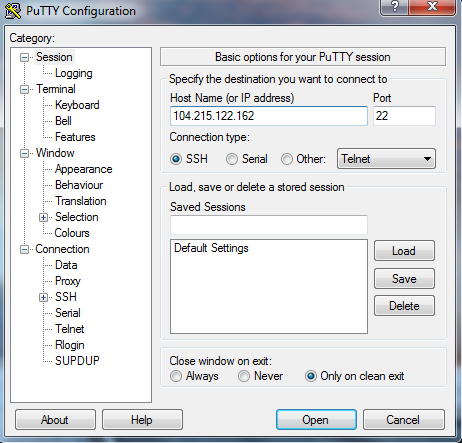
Use PuTTY for connecting to the Linux Virtual Machine. Enter your Linux machine's public IP address in Host Name and Port will be 22. Click on Open button to connect.
You are now inside the Linux Virtual machine.
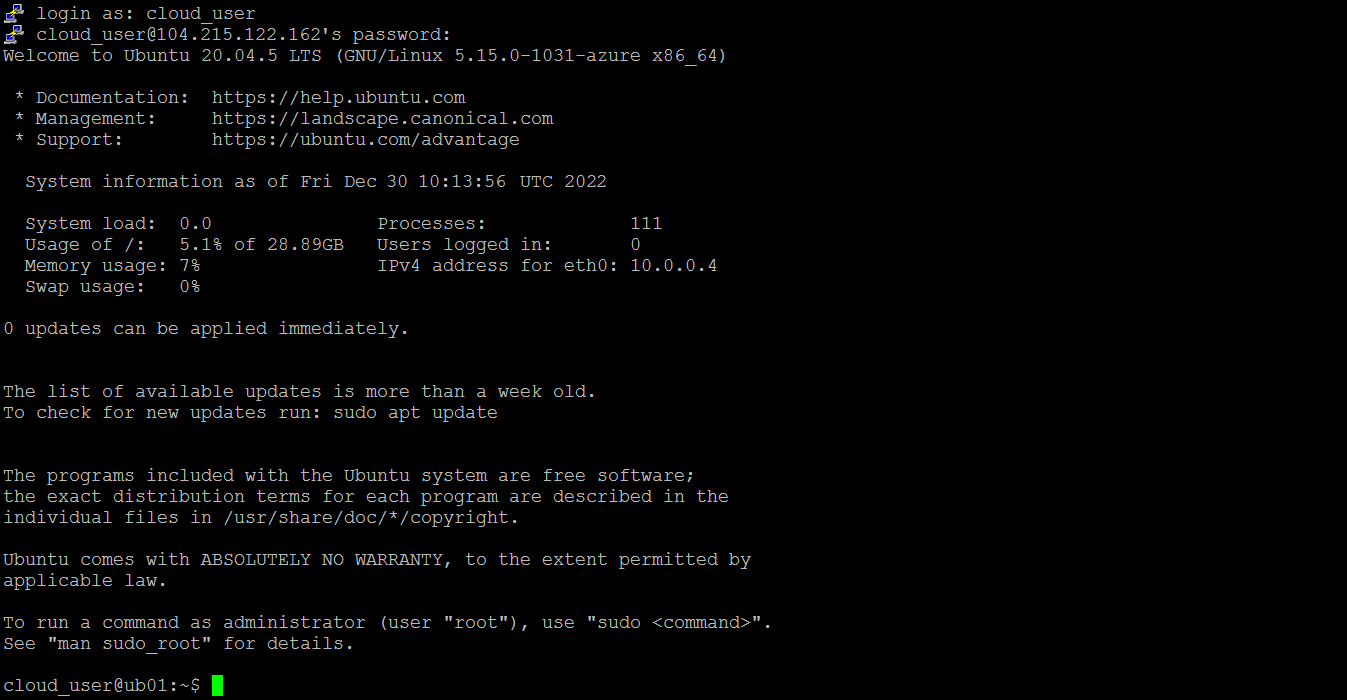
Most Linux distros come with Logrotate installed by default. Check if you have it installed on your VMs by issuing the logrotate command.
If you don't have it installed, perform the steps below to install logrotate:
sudo apt-get update
sudo apt-get install logrotate
Create a test log file for a custom application.
sudo mkdir /var/log/myapp
sudo touch /var/log/myapp/myapp.log
In a real-world scenario, the log entries in the log file will be produced by the application itself. But in this example, we can create a simple script to fill your test log file with some fictional logging data.
sudo nano log_gen_script.sh#!/bin/bash
echo "$(date '+%b %d %H:%M:%S') $(hostname) MyApp[2022]: MyApp's log messages" >> /var/log/myapp/myapp.logMake your script executable.
sudo chmod 755 log_gen_script.sh
Open an editor to edit the root user crontab
sudo crontab -e
no crontab for root - using an empty one

Select an editor.  To change later, run 'select-editor'.
  1. /bin/nano        <---- easiest
  2. /usr/bin/vim.basic
  3. /usr/bin/vim.tiny
  4. /bin/ed

Choose 1-4 [1]: 1
This cron job will schedule the script to run every minute.
* * * * * /home/cloud_user/log_gen_script.shFrow now on, every minute, a line of log messages will appear in your test log file.

To manage log files using logrotate for applications outside of the pre-packaged and pre-configured system services, create a new Logrotate configuration file and place it in /etc/logrotate.d/. This will be run daily along with all the other standard Logrotate jobs.
Create a new myapp configuration file in the /etc/logrotate.d directory with your text editor:
sudo nano /etc/logrotate.d/myappThe name of the file doesn't really matter but the contents of the file should look something like this.
/var/log/myapp/myapp.log {
        size 100
        missingok
        rotate 3
        dateext
        dateformat -%Y-%m-%d_%H:%M:%S
        create 644 root root
}
The configuration options in the content above instruct Logrotate to:
-
/var/log/myapp/myapp.log: the path where logrotate will monitor the log file.
-
size 100: Rotate the log file when file size reaches a specific limit (greater than or equal to 100 byte in this case).
-
missingok: Do not generate error messages if the log file to rotate is missing.
-
rotate 3: Limit the number of log file rotation. So, this would keep only the recent 3 rotated log files and will delete the oldest logs when there are already 3 files to add new one.
-
dateext: Add date to rotated log file name.
-
dateformat -%Y-%m-%d_%H:%M:%S: Format the date you plan to add to log file name.
-
create 644 root root: rotate the original file and create the new file with specified permission, user and group.
If you left everything as default, logrotate is running as a daily cron job. It will not modify a log file multiple times in one day unless the criteria for log rotation is based on the size of the log file or logrotate is configured to be invoked from cron to run multiple times each day.
This example is set up with the scenario that log rotation will happen every 5 minutes.
To do that, add another line to your root crontab file.
sudo crontab -eThis will force the logrotate command to run every five minute.
*/5 * * * * /usr/sbin/logrotate /etc/logrotate.d/myapp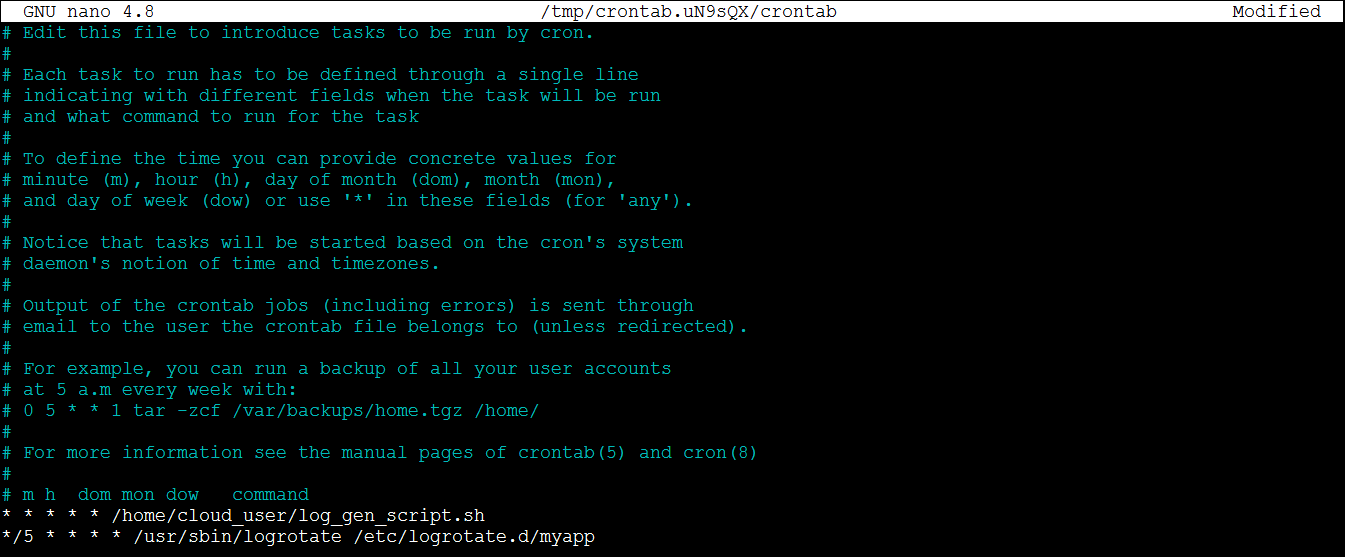
Your two cron jobs work together to demonstrate a basic example of log rotation.
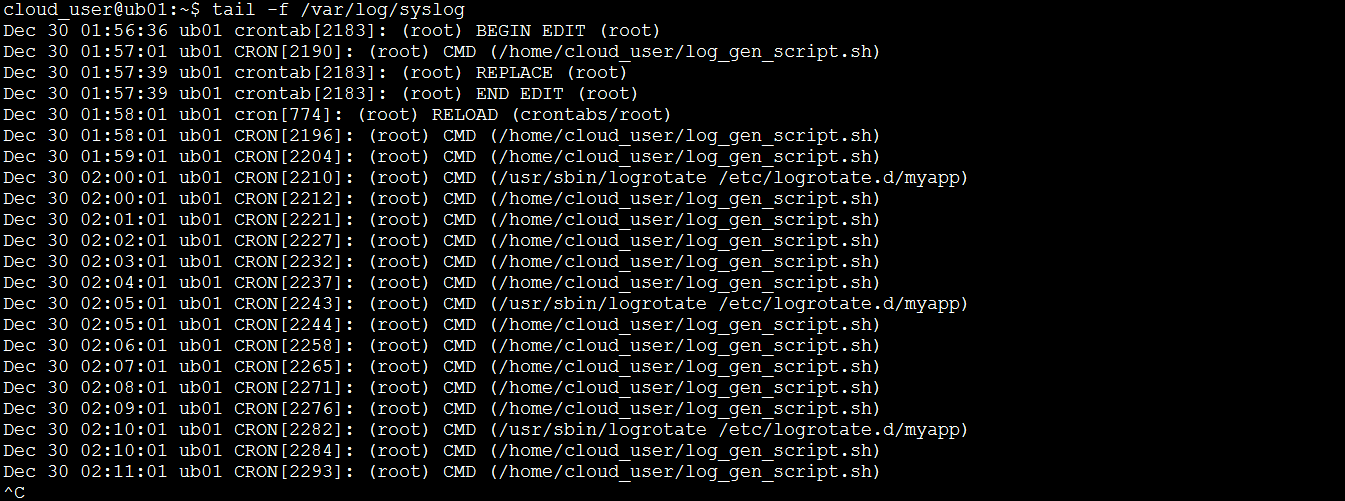
Log rotation is the process that renames a current log file (example: "myapp.log" becomes "myapp.log.1") and replaces it with a diffrent log file ("myapp.log") for continuing log entries.
Eventually this will keep following the setup of rotated log files:
myapp.log.3
myapp.log.2
myapp.log.1
myapp.log
While the log rotating process is running, you might see:
"myapp.log.1" becomes "myapp.log.2" and current log file becomes "myapp.log.1" before the new log file ("myapp.log") is created in place of it.
or
"myapp.log.2" becomes "myapp.log.3" (with the old "myapp.log.3" disappeared) depends on the number of log files configured to be retained.
In this note's example, I configure logrotate to add date-time format to the rotated log files, as you can see:
Every five minute, your test log file will get trimmed once. The old trimmed parts will be renamed with the suffixes according to the time-frame.
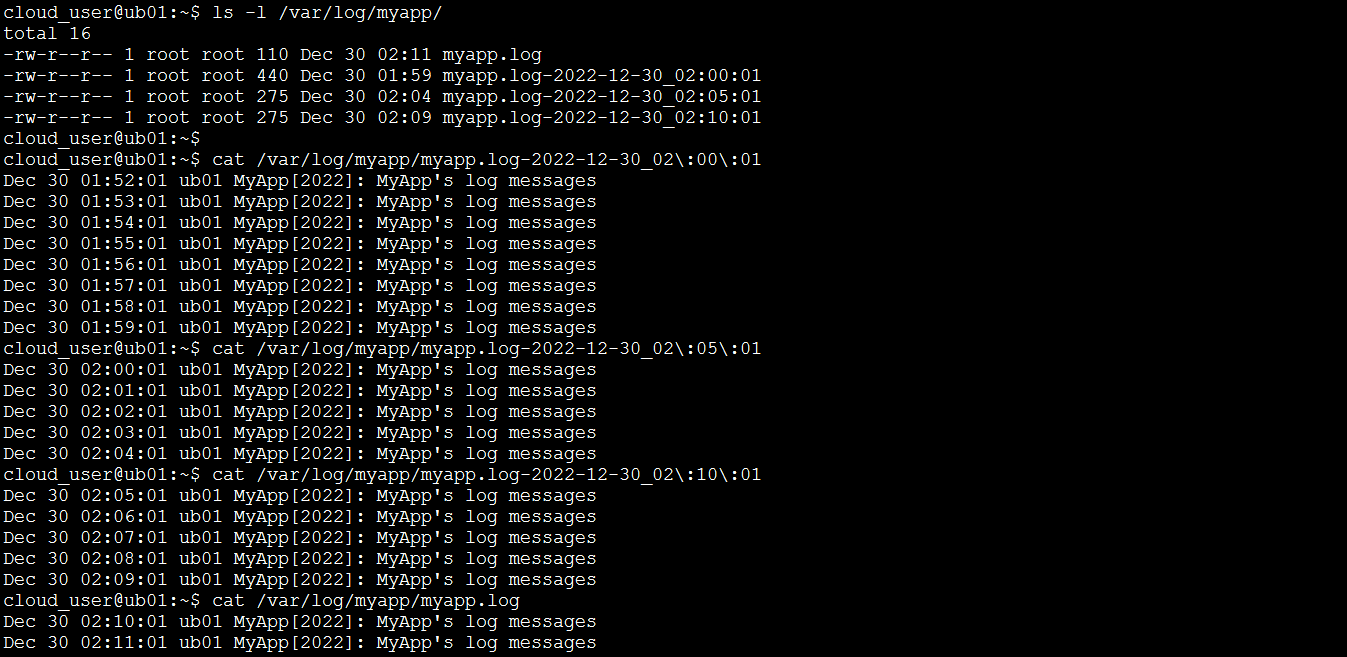
This shows here that after counting 3 rotated log files, it will simply delete the oldest one.
Logrotate removes an older log file "myapp.log-2022-12-30_02:00:01" so it can add a new one "myapp.log-2022-12-30_02:15:01"
