===========================================================================
CONTENTS
2. Installing Docker Engine on Linux machine
===========================================================================
INTRODUCTION
Container is roughly analogous to the Virtual Machine, and like VMs, containers live on top of a host machine and use its resources, however, instead of virtualising the underlying hardware, they virtualise the host OS. Meaning containers don’t need to have their own OS, making them much more lightweight than VMs, and consequently quicker to spin up.
Docker is the containerization platform that is used to package your application and all its dependencies together in the form of containers to make sure that your application works seamlessly in any environment which can be developed or tested or in production. Docker is a tool designed to make it easier to create, deploy, and run applications by using containers.
===========================================================================
DESCRIPTION OF TASKS
This is intended to help get your feet wet with the basics of Docker by presenting a number of tasks.
Basically, the tasks for you is to build Docker containers:
1 database container database
-
database image: microsoft sqlserver 2019 ubuntu based
-
sa password: zaQ@123456!
-
version: express
-
port:
- container: 1433
- published: 1434
-
install node exporter and will automatically run when starting the container
-
must have a volume to store data for backup.
1 web api container that connects to the database
-
Web api needs to configure connection string to connect to database:
ConnectionStrings__AppDatabase=Server={sqlserverIp};Database=AppDatabase;User Id={user};Password={Password};
-
port:
- container: 80
- published: 10005
1 web app container
-
Web app UI needs to display the web api
WebApi={ApiUrl}
-
port:
- container: 80
- published: 10000
First practice using docker command normally to build images and run the containers, then using docker compose to deploy all the apps together.
===========================================================================
Login to Azure portal with your Microsoft Azure account.
Create Azure Linux VM with OS image of Ubuntu Server 20.04 LTS. I am going to name this VM ub01 You can choose the name of VM as you want.

Allow your VM's port 22 (SSH) to be accessible from the Internet.

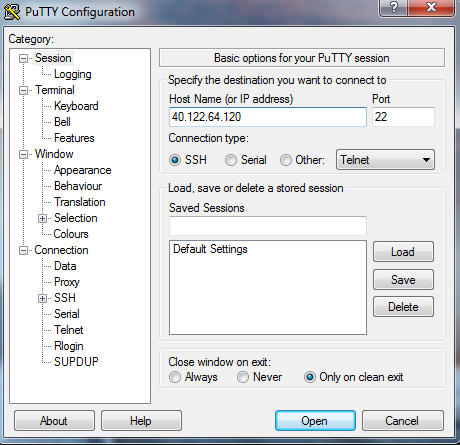
Use PuTTY for connecting to the Linux Virtual Machine. Enter your Linux machine's public IP address in Host Name and Port will be 22. Click on Open button to connect.
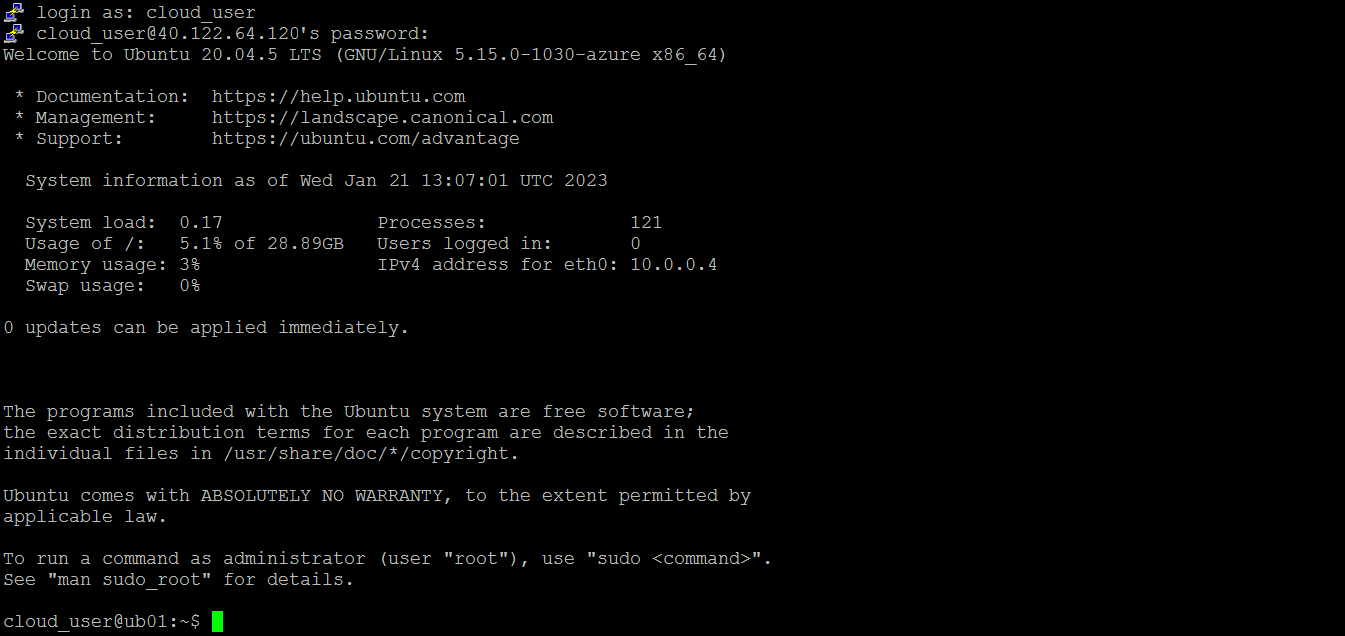
When you are inside the Linux VM:
Check for working Internet connection.
Update your system.
sudo apt-get updateInstall some required packages:
sudo apt-get install -y wget apt-transport-httpsDocker provides a convenience script at https://get.docker.com/ to install Docker. By default, the script installs the latest stable release of Docker, containerd, and runc.
Downloads the script from https://get.docker.com/ and runs it to install the latest stable release of Docker on your Linux machine:
wget -qO- https://get.docker.com/ | sh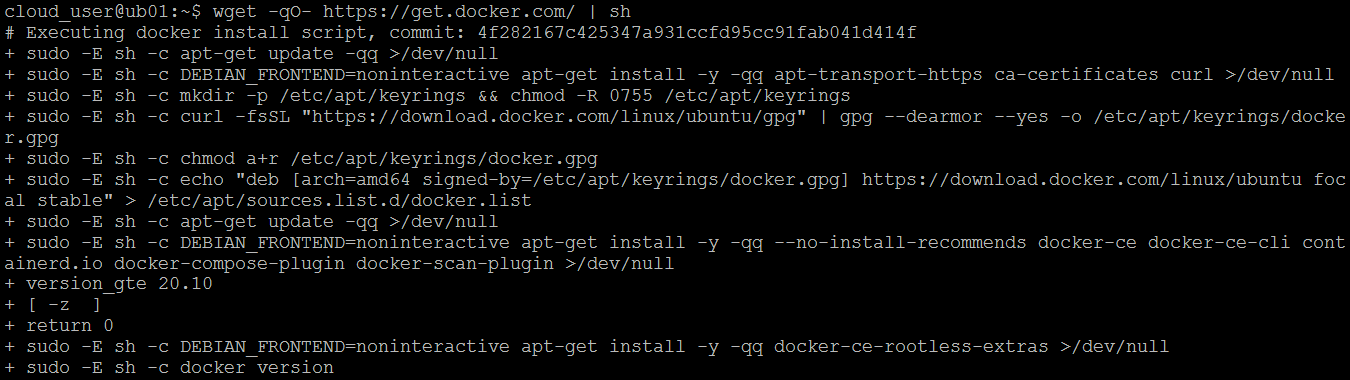
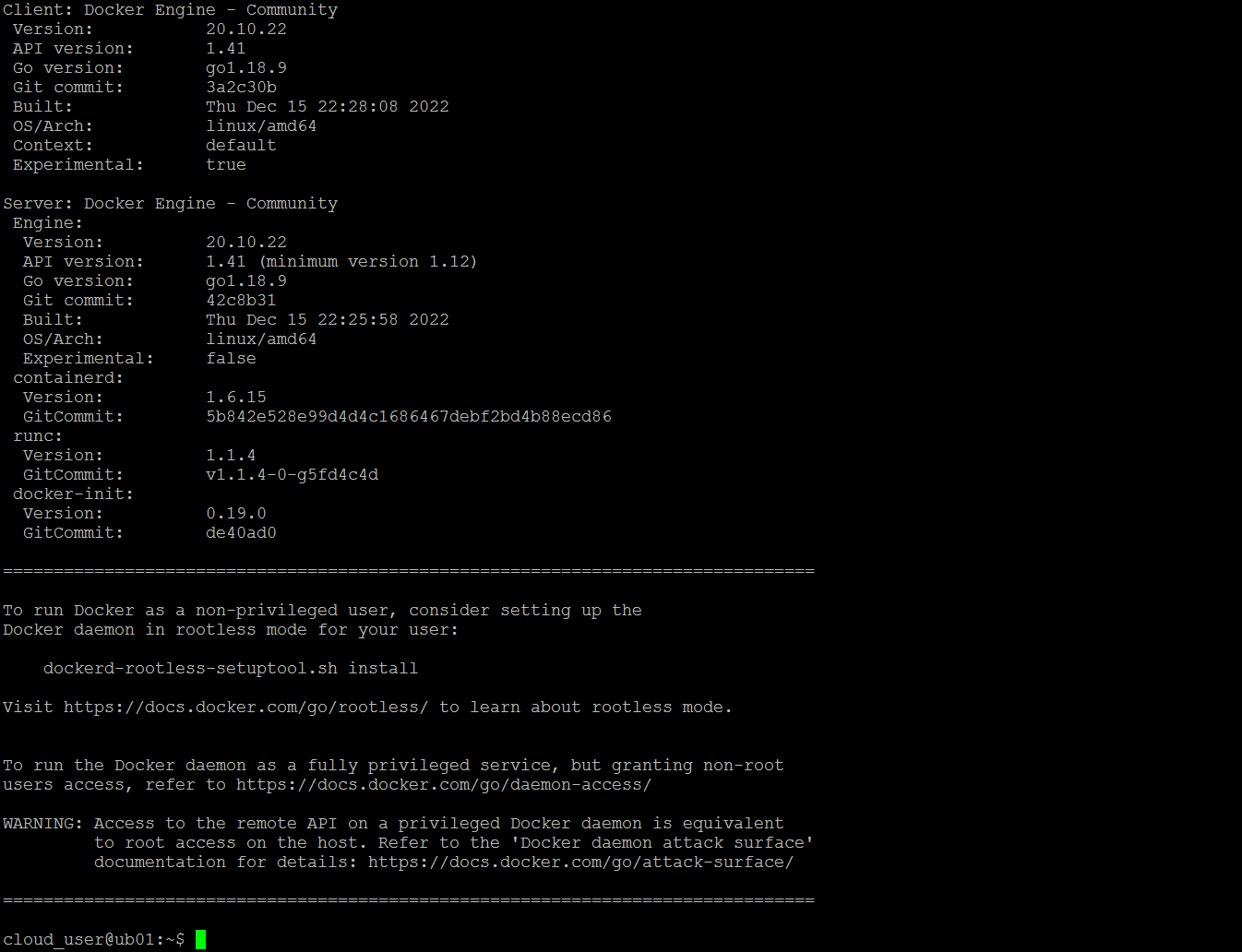
To run Docker as a non-root user, create a Unix group called docker and add users to it. When the Docker daemon starts, it creates a Unix socket accessible by members of the docker group. On some Linux distributions, the system automatically creates this group when installing Docker Engine using a package manager. In that case, there is no need for you to manually create the group.
Add your user to the docker group.
sudo usermod -aG docker cloud_userActivate the changes.
newgrp dockerTry to run docker commands without sudo.
docker run hello-world
Visit GitHub and sign into your account. Click on your user icon in the upper-right hand corner and select Settings from the drop down menu.
On the page that follows, locate the Developer settings section on the left-hand menu and click Personal access tokens. Choose Tokens (classic).
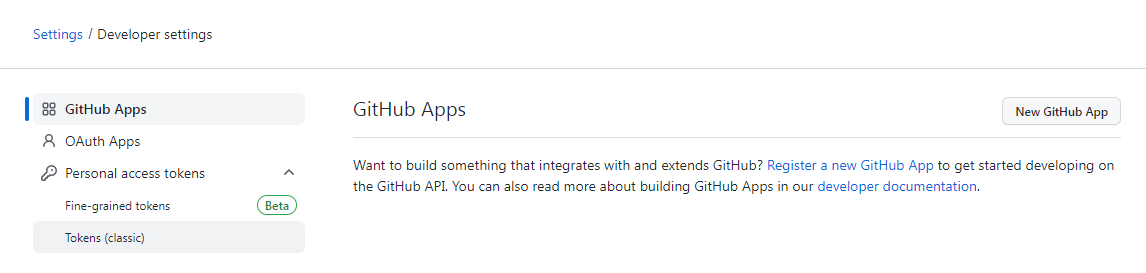
Click on Generate new token button on the next page. Also choose Generate new token (classic).
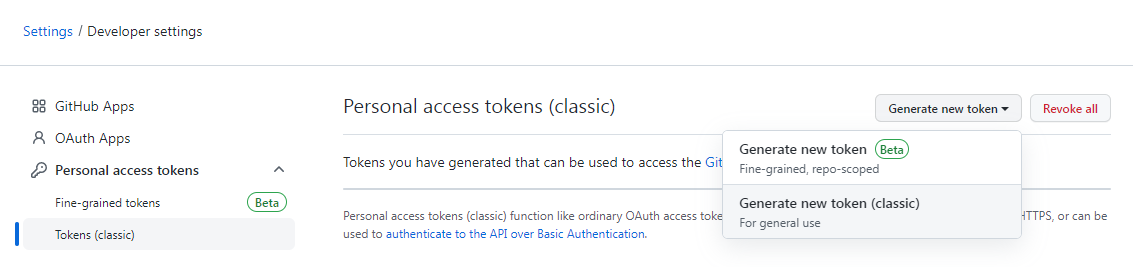
Give your token a name in the Note bar.

In the Select Scopes section, choose the same as below:
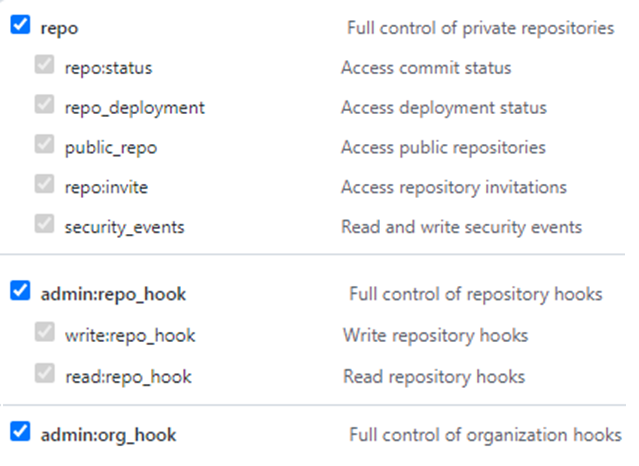
When you are finished, click Generate token at the bottom.
You get a token.
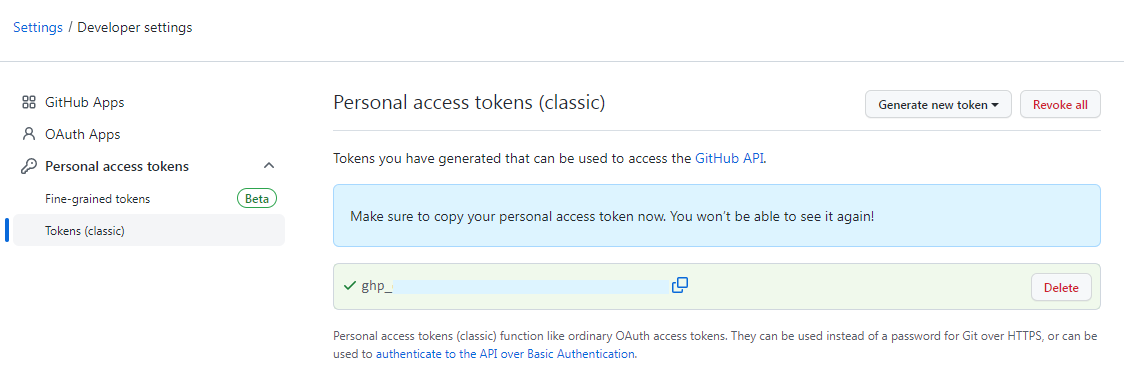
Copy the token, make a note of it so we can use it later.
On GitHub.com, navigate to the main page of the repository:
Above the list of files, click Code. Copy the URL for the repository.
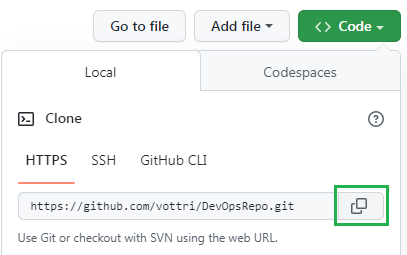
Clone your remote repository on Github to create a local copy on your Linux machine to practice Docker
Go back to your Linux machine. Navigate to the location where you want to put your local clone or repository.
Type git clone, and then paste the URL you just copied. Add your github username and the copied personal access token to the command according to the following structure:
git clone https://your-github-username:personal-access-token@github.com/your-github-username/your-repository.gitMoreover, to clone a specific branch of the remote repository on Github, you might want to add the following option.
git clone -b <branch> <remote_repository_url>I just cloned the dev branch of the repository I want on my Github account back to the Linux machine.

Go inside the local git repository that you just cloned.

The developers have already set up dockerfiles for the web app and web api.
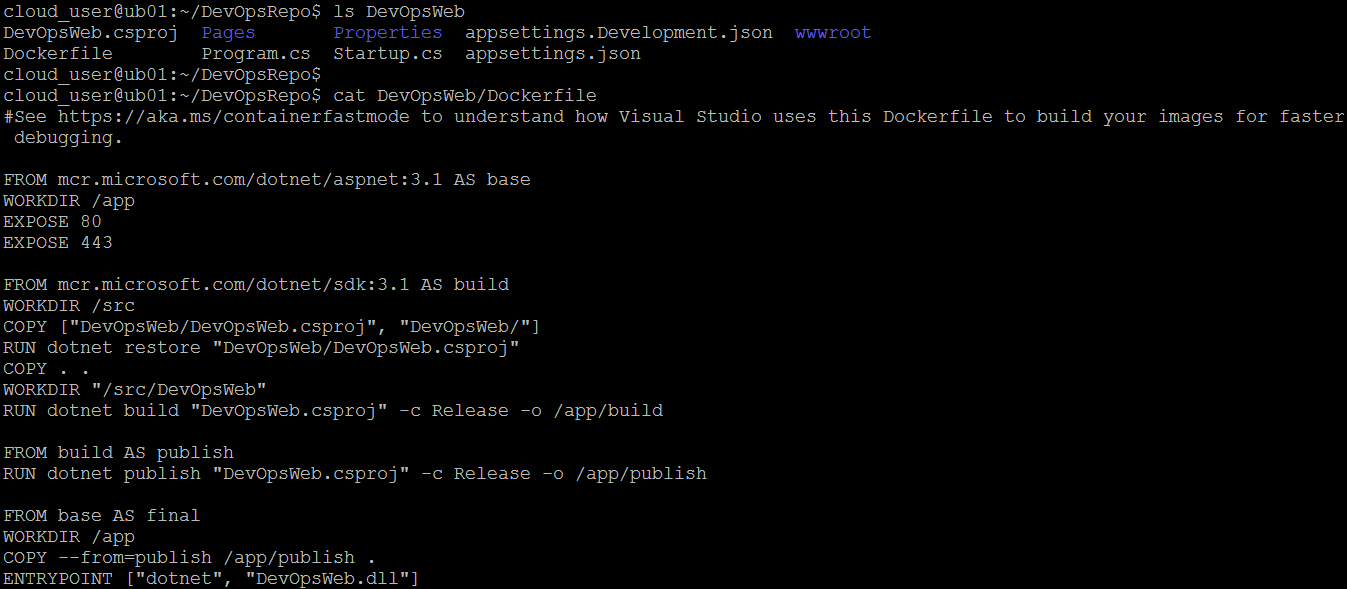
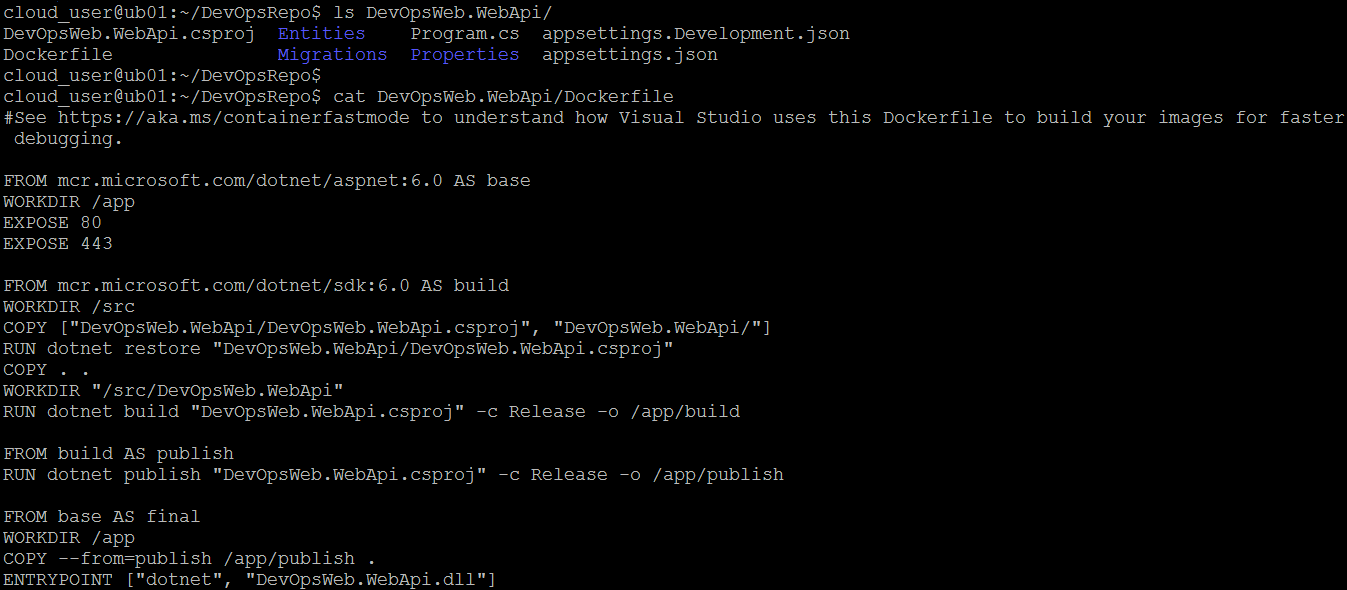
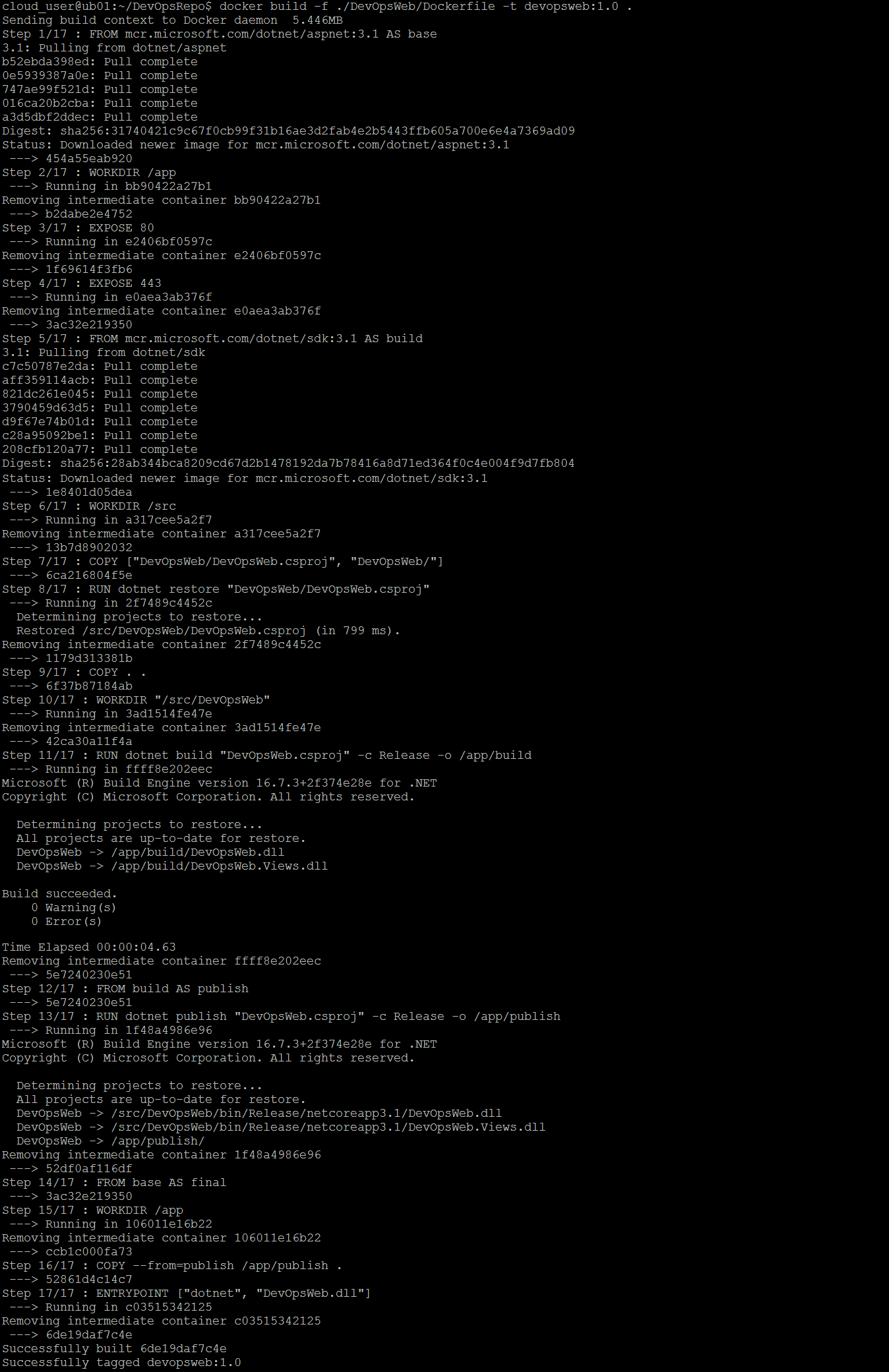
We are going to build the images using those dockerfiles.
docker build -f ./DevOpsWeb/Dockerfile -t devopsweb:1.0 .-
-f: lets you specify the path to the Dockerfile (The above command will use the current directory as the build context and read a Dockerfile from ./DevOpsWeb/).
-
-t: lets you tag the image (The image name will be devopsweb and the tag will be 1.0).
docker build -f ./DevOpsWeb.WebApi/Dockerfile -t devopsweb-api:1.0 .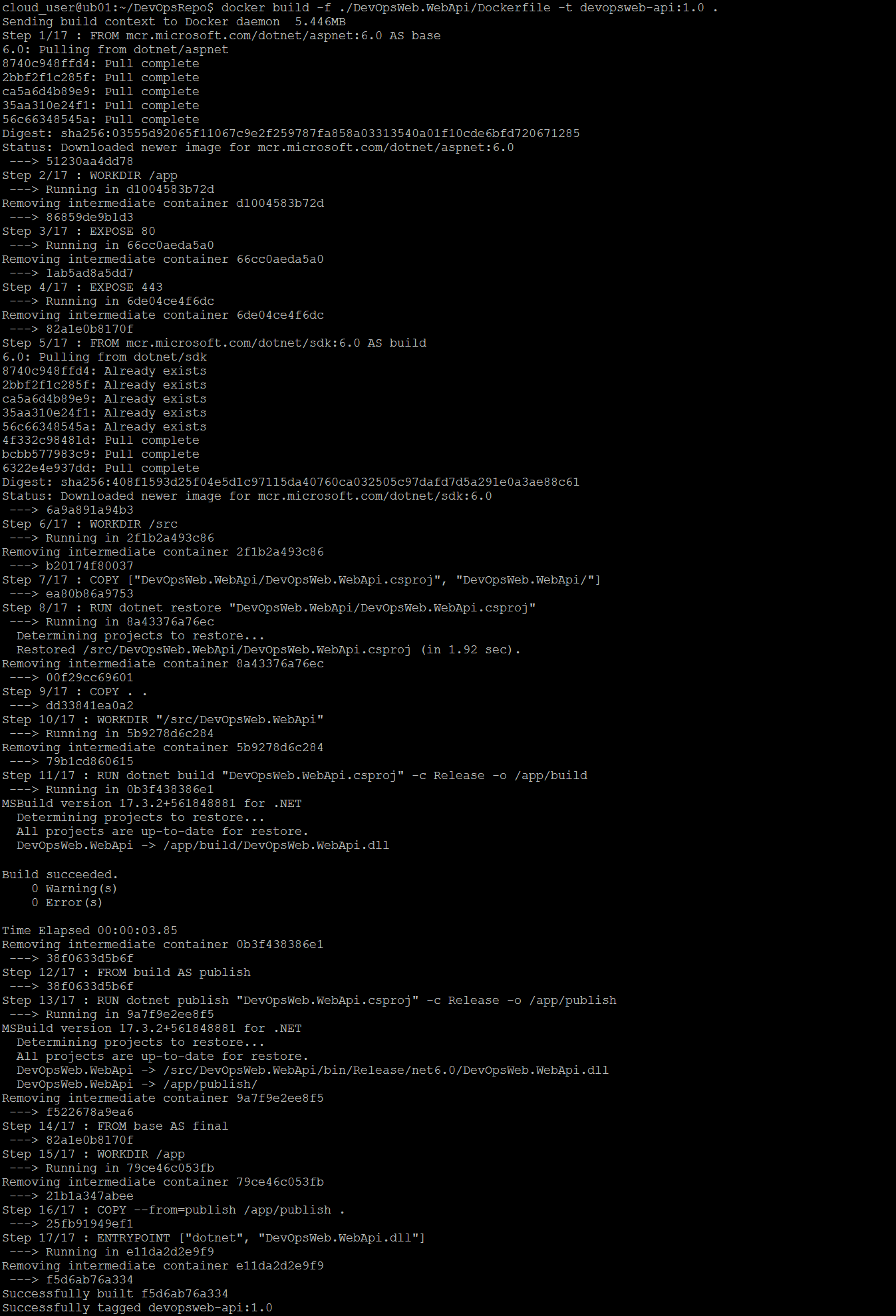
The developers didn't provide source code or any dockerfile for building the database image.
We need to pull pre-built Docker image for Microsoft SQL Server based on Ubuntu back to the Linux machine.
Docker Hub provides a lot of container images for Microsoft SQL Server on Linux at https://hub.docker.com/_/microsoft-mssql-server/. You can go through the list to search for the image you want.
When you are ready, pull the image back to your Linux machine
docker pull mcr.microsoft.com/mssql/server:2019-CU18-ubuntu-20.04- docker pull [image-name]:[tag]

Remove unused images for efficiency's sake (optional).
docker image prune -fYou now can list the images you have on your machine.
docker image ls
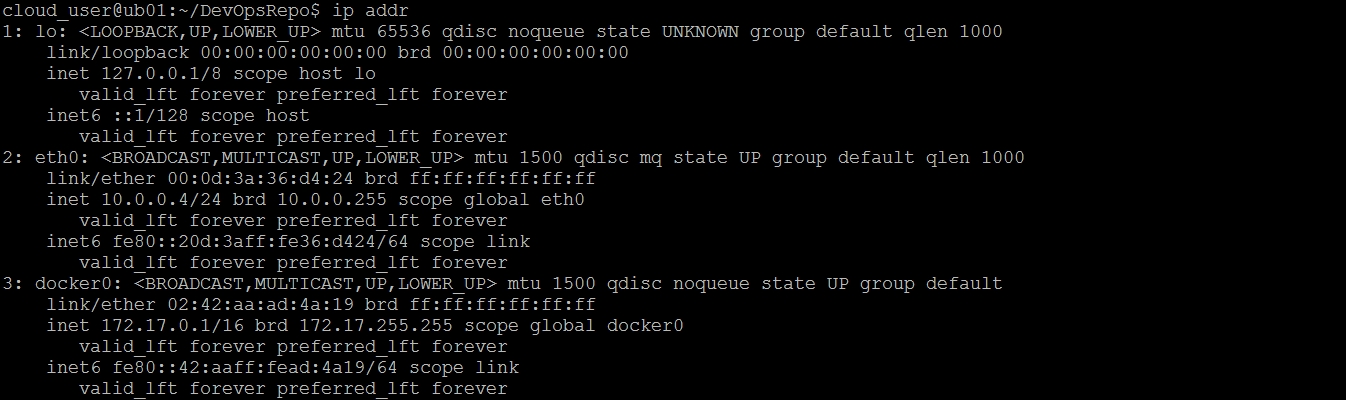
Check for your Linux machine's internal IP address. Sometimes you may need your host's IP address for your Docker container. For example, you need to be able to connect to the host network from inside a Docker container to access your app or database running locally on the host.
docker run -e "ACCEPT_EULA=Y" -e "MSSQL_SA_PASSWORD=zaQ@123456!" -e "MSSQL_PID=Express" -p 1433:1433 --name mssql-server -d mcr.microsoft.com/mssql/server:2019-CU18-ubuntu-20.04-
-e: lets you set environment variables in the container you’re running.
-
--name: lets you assign a name to the container (with "mssql-server" being the name in this case).
-
-p [host-port]:[container-port]: lets you publish a container's port(s) to the host (-p 1433:1433 map port 1433 from the host (your Linux machine) to port 1433 on docker container).
-
-d: lets you run containers in the background.

List the running containers by using one of these commands.
docker container ls

docker ps
docker run -e 'ConnectionStrings__AppDatabase=Server=10.0.0.4,1433;Database=AppDatabase;User Id=sa;Password=zaQ@123456!;' --name devopsweb-api-1 -p 10005:80 -d devopsweb-api:1.0
Verify that web api container is running.

docker run -e 'WebApi=http://10.0.0.4:10005' --name devopsweb1 -p 10000:80 -d devopsweb:1.0
Verify that web app container is also running.

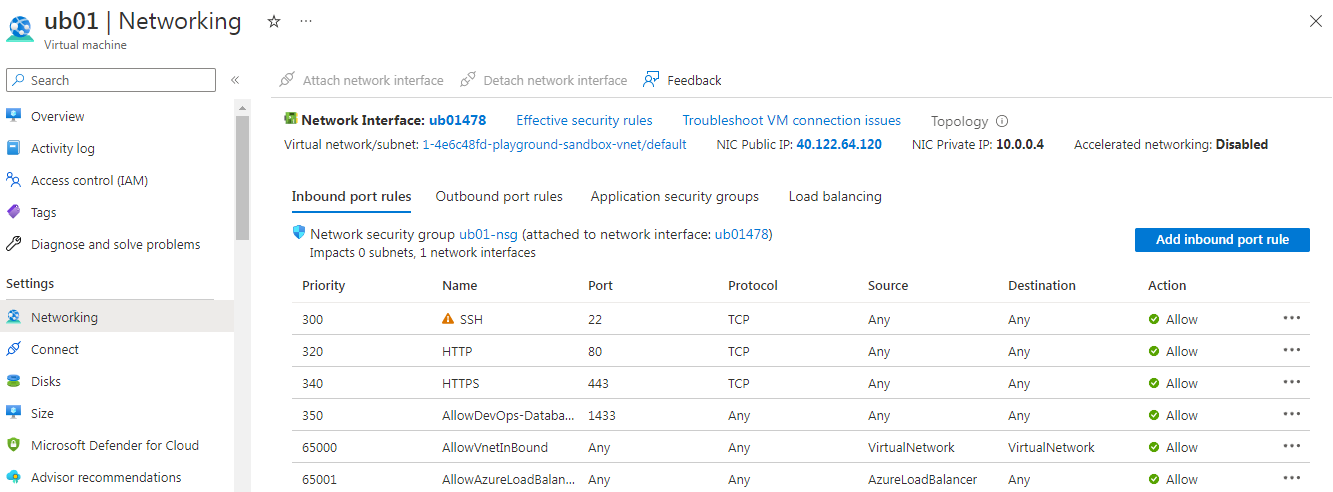
Inside Inbound port rules, add another rule that allow the VM's port 1433 to be access over the Internet.
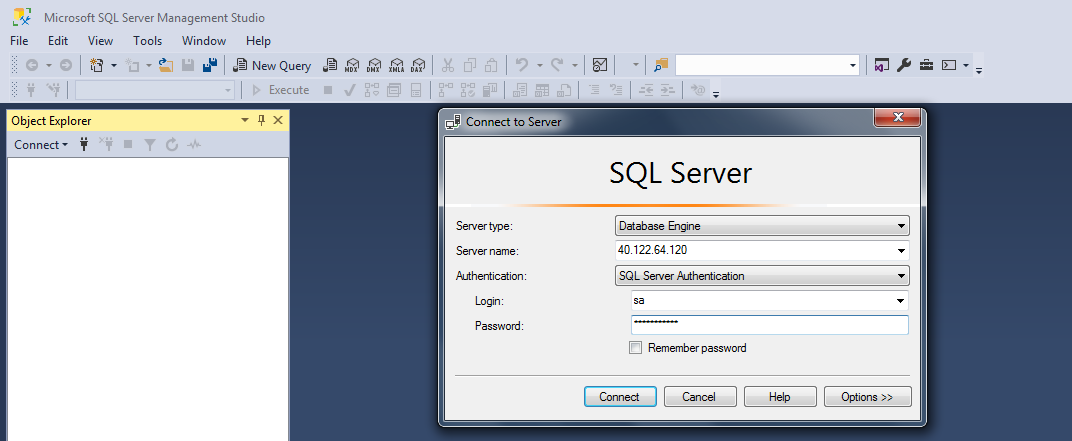
Use SQL Server Management Studio (SSMS) to connect to the mssql-server container on your Linux machine.
Note: You will need to install SSMS on your own computer. Follow these steps to accomplish that:
-
Go to this link: https://learn.microsoft.com/en-us/sql/ssms/download-sql-server-management-studio-ssms?view=sql-server-ver16&tabs=command-line and click on Download SQL Server Management Studio for SSMS download.
-
Once downloaded we will get a .exe file named as SSMS-Setup-ENU.exe. Double click on it.
-
Click on Install button to install SQL Server Management Studio (SSMS) on your system. Just wait for it to finish installing.
Once you are done with download and setup. Open SQL Server Management Studio and it will let you connect to a Microsoft Sql Server if you provide it with appropriate informations.
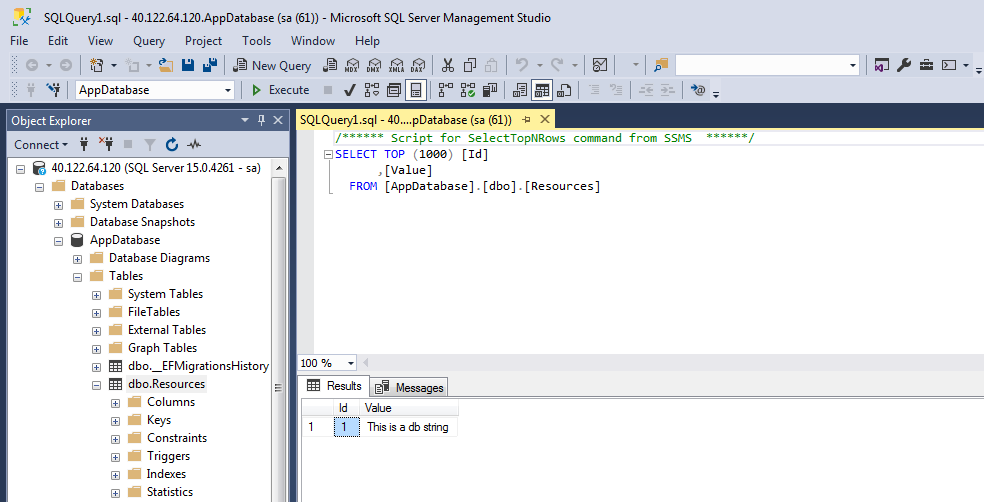
This is a sample table inside a sample database for learning purpose.
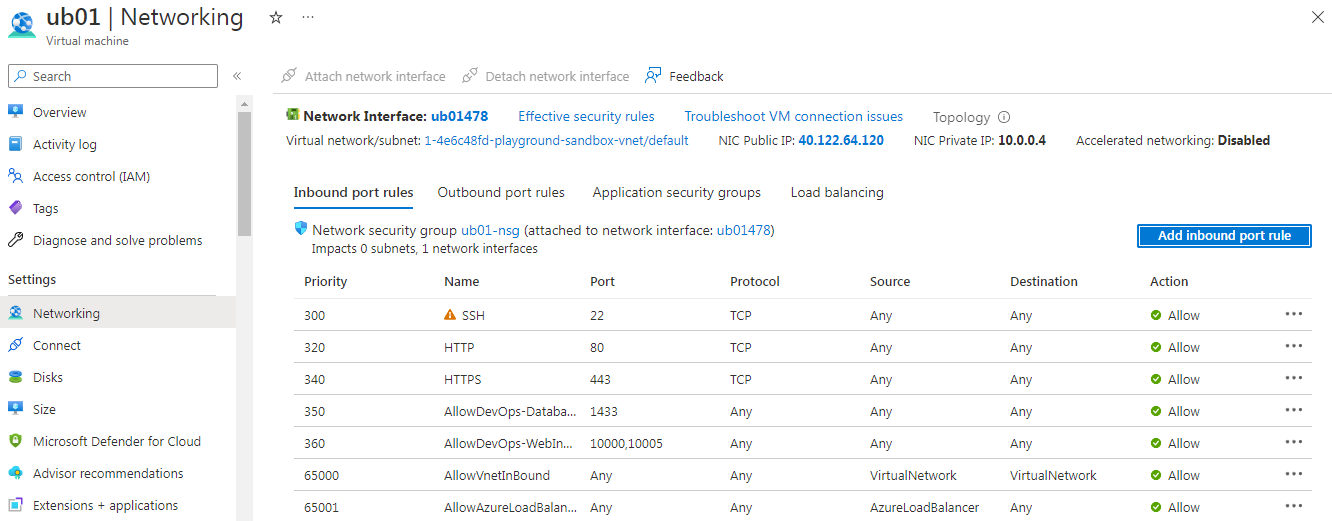
Inside Inbound port rules, add another rule that allow the VM's port 10000 and 10005 to be access over the Internet.
Access your VM's Public IP Address over port 10005 to check for connection toward web api container.


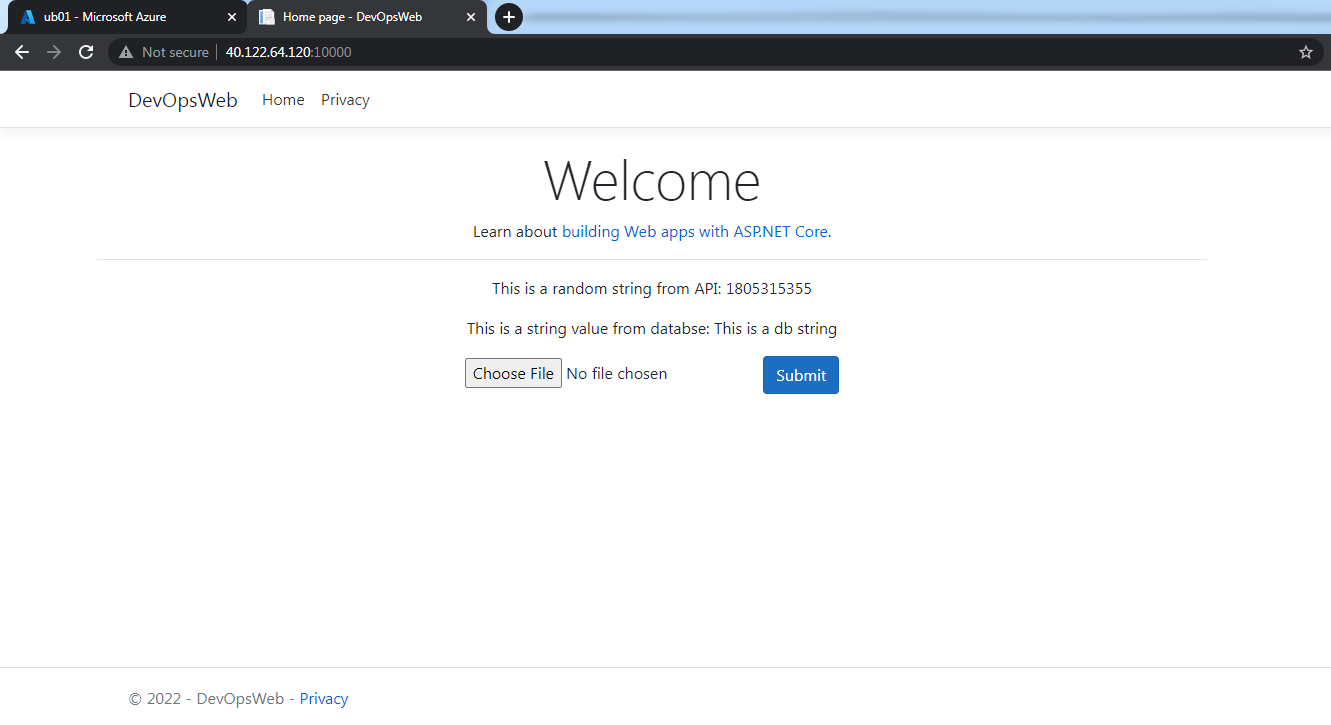
Access your VM's Public IP Address over port 10000 to check for connection toward web app container.
Dockerfile is a plain-text document that tells Docker how to build an app and dependencies into a Docker image. This time, we are going to manually create a Dockerfile ourselves.
nano Dockerfile
Fill the dockerfile with these contents.
FROM mcr.microsoft.com/mssql/server:2019-CU18-ubuntu-20.04 AS base

WORKDIR /database

USER root

# Download node exporter and extract it.

RUN wget https://github.com/prometheus/node_exporter/releases/download/v1.5.0/node_exporter-1.5.0.linux-amd64.tar.gz \
        && tar xvfz node_exporter-1.5.0.linux-amd64.tar.gz

COPY /CustomDB/script.sh .

CMD ["/bin/bash","-c","./script.sh"]

USER mssql
Create a script file that will execute when the custom database container starts running.
nano script.sh
Add these contents to the file.
#!/bin/bash

# Run node exporter and launch the SQL Server when we start the custom database container.

/database/node_exporter-1.5.0.linux-amd64/node_exporter & \
/opt/mssql/bin/sqlservr
Change permission for the script.sh file.

docker build -f ./CustomDB/Dockerfile -t customdb:1.0 .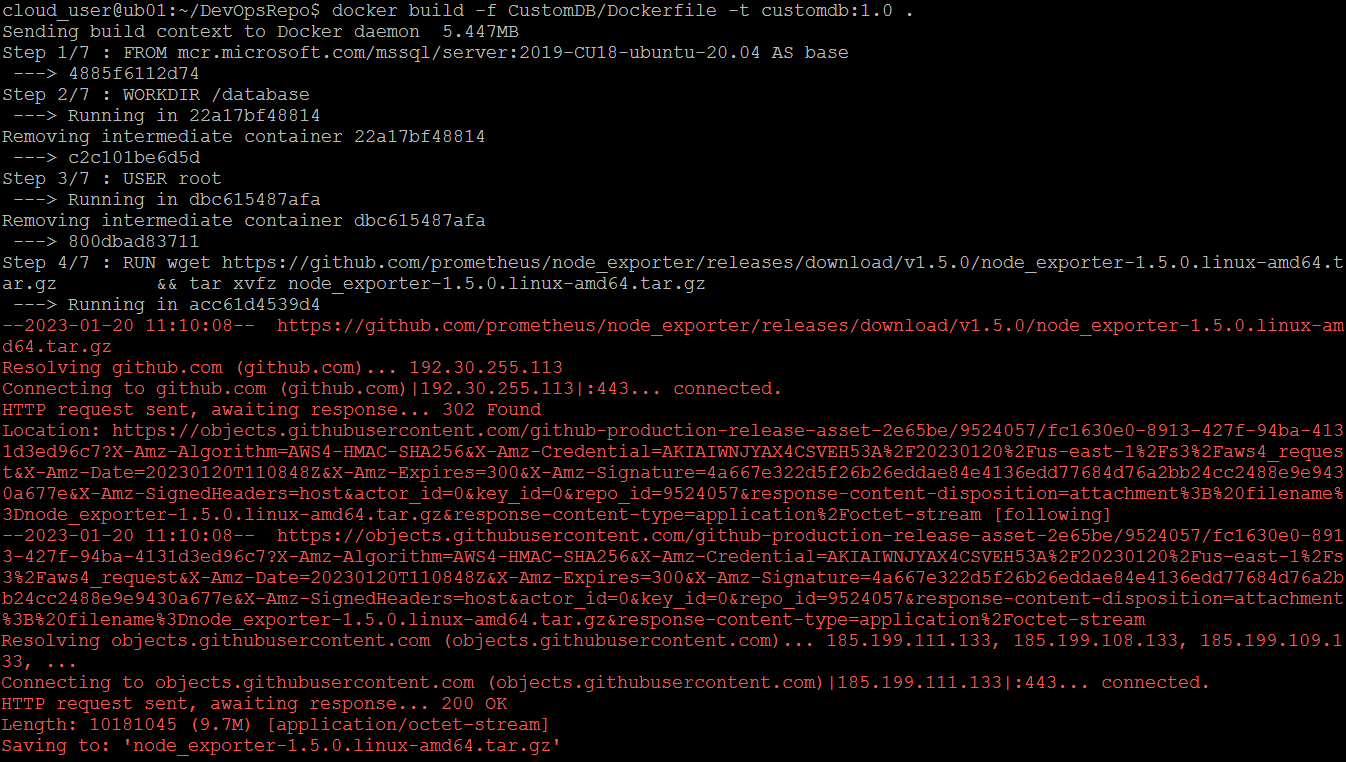
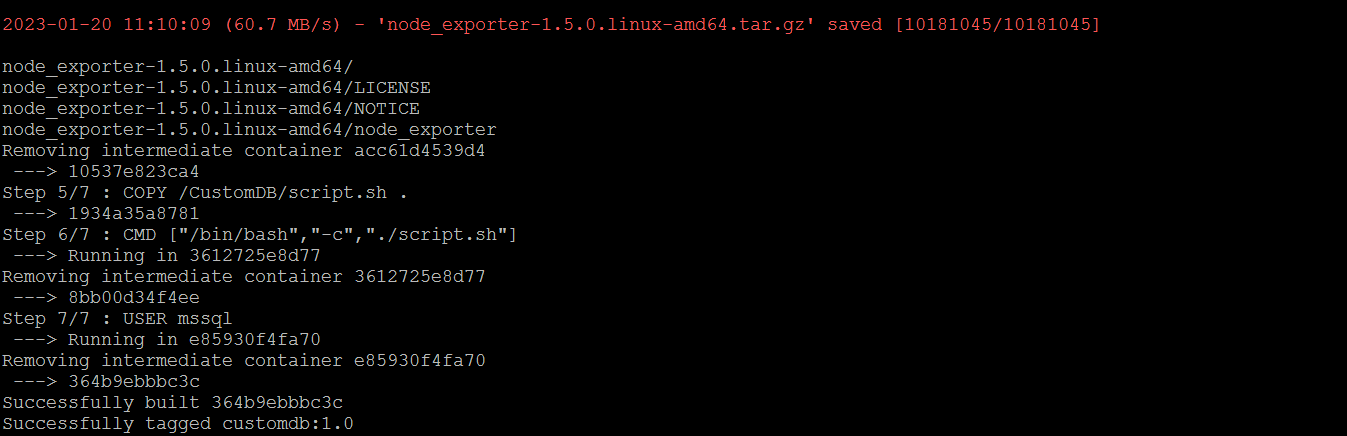
Verify the image after the build.

Volumes are the recommended way to persist data in containers. Persistent data is the data you need to keep. Things like: customer records, financial data, audit logs, ...
Basically:
-
You create a volume, then you create a container and mount the volume into it.
-
The volume is mounted into a directory in the container’s filesystem, and anything written to that directory is stored inside the volume.
-
If you delete the container, the volume and its data still exist.
Create a directory on your Linux machine so you can mount it to the container later. And to prevent permission denied error, change its permission:
mkdir -p mssqlvolume/data
sudo chown -R 10001 mssqlvolume/docker run -e "ACCEPT_EULA=Y" -e "MSSQL_SA_PASSWORD=zaQ@123456!" -e "MSSQL_PID=Express" --name customdb1 -p 1434:1433 -p 9100:9100 -d -v /home/cloud_user/mssqlvolume/data:/var/opt/mssql/data customdb:1.0- -v [host directory]:[the path where the directory are mounted in the container]: lets you mount host-directories in a container.

Verify that the container is running.

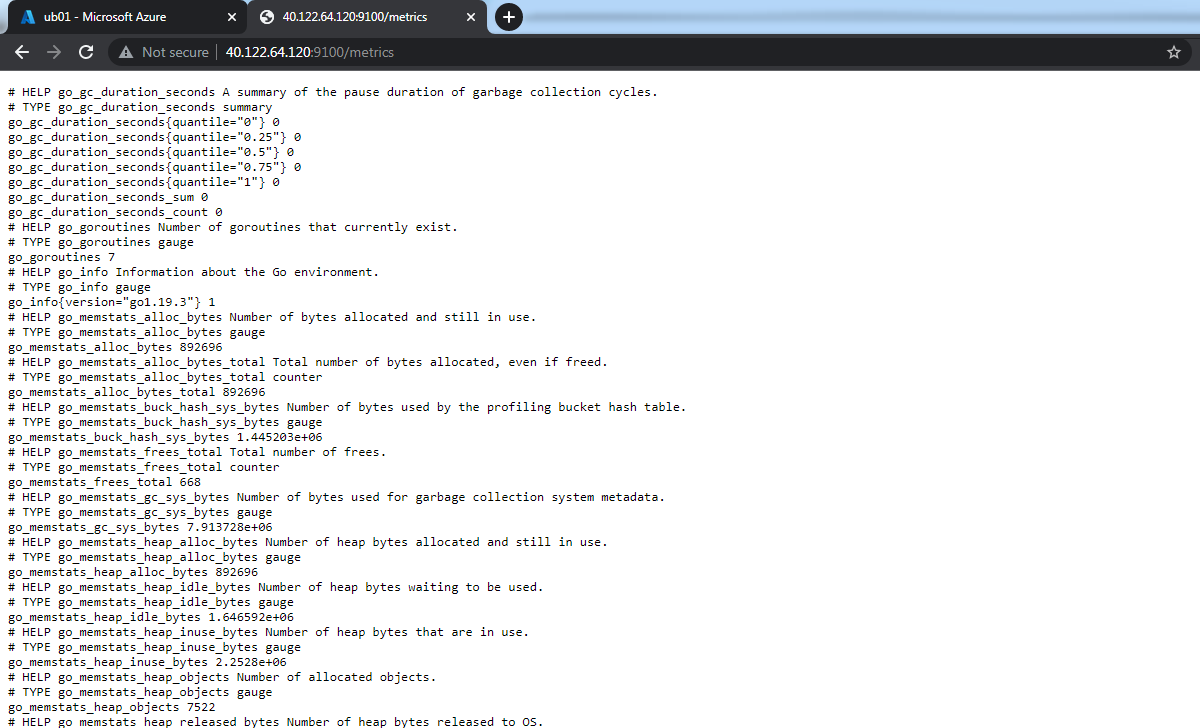
Inside Inbound port rules, add another rule that allow the VM's port 1434 and 9100 to be access over the Internet.
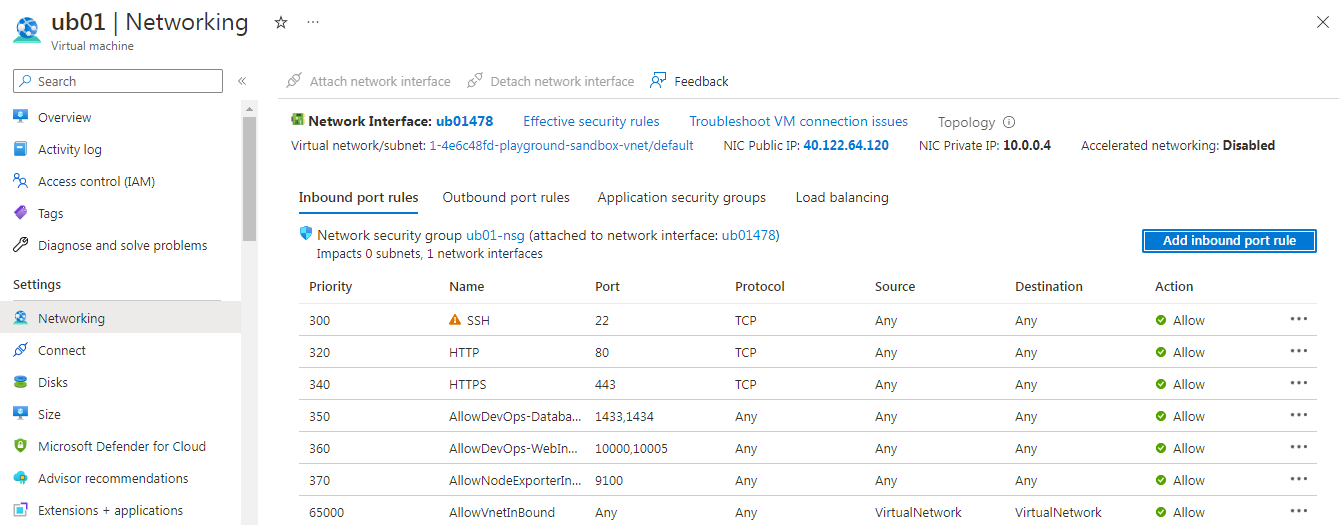
You can check if node exporter is running or not by accessing VM's Public IP Address over port 9100.
Use SQL Server Management Studio (SSMS) to connect to your custom database container (this time over port 1434).
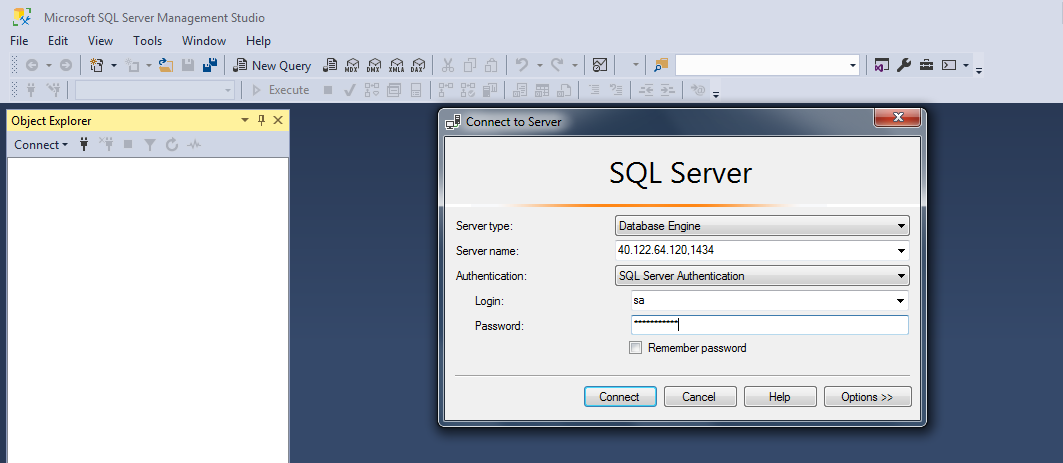
Create a Test database.
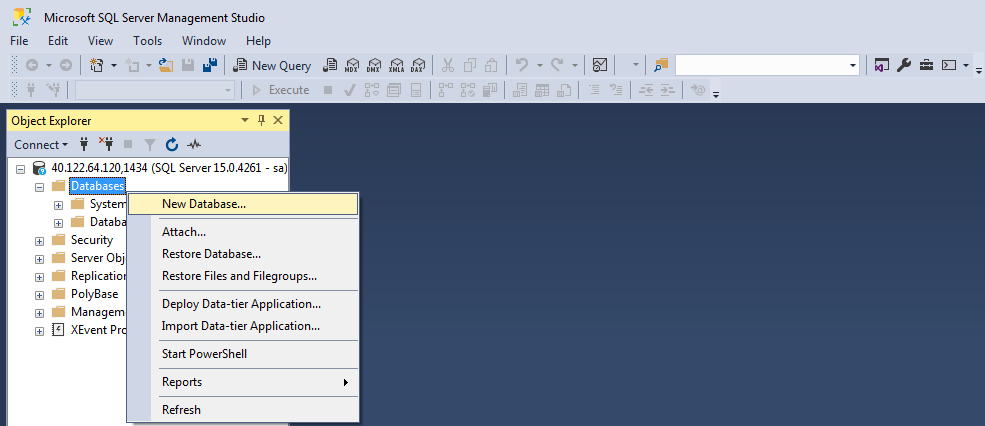
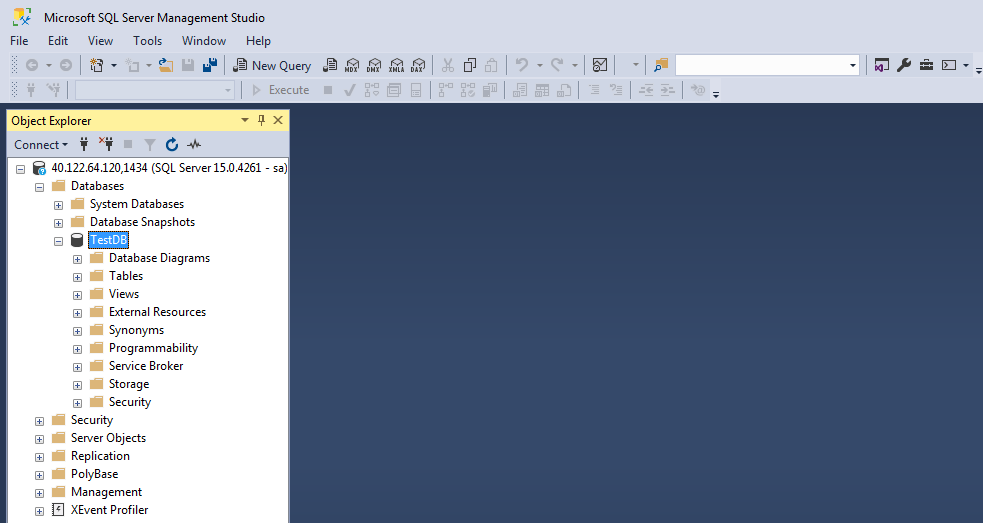
Check the volume on your Linux machine.
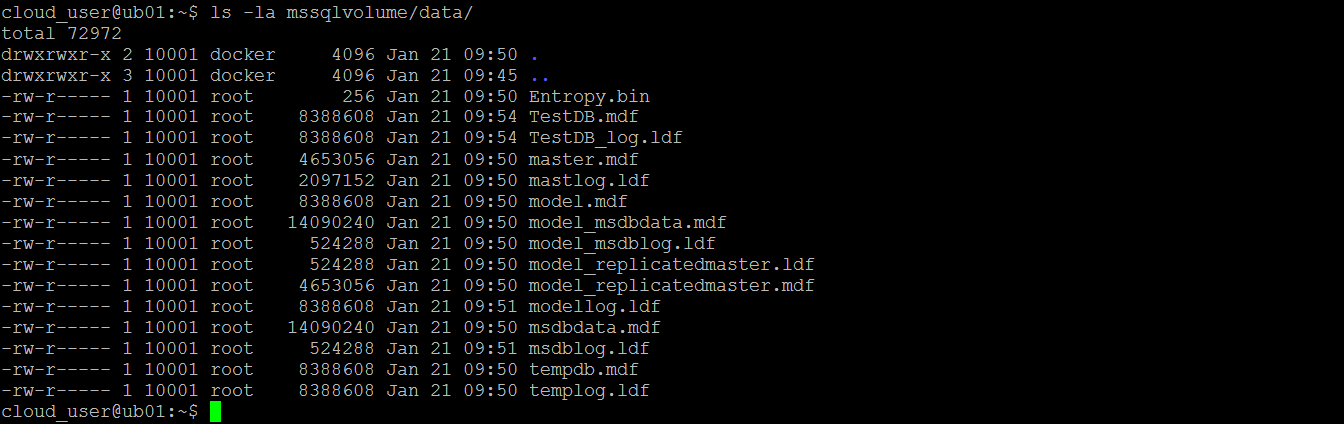
For testing purposes, stop and remove your custom database container.
docker container stop customdb1

docker container rm customdb1
Your volume data still exists.
ls -la mssqlvolume/data
Start a new custom database container but attach the same volume.
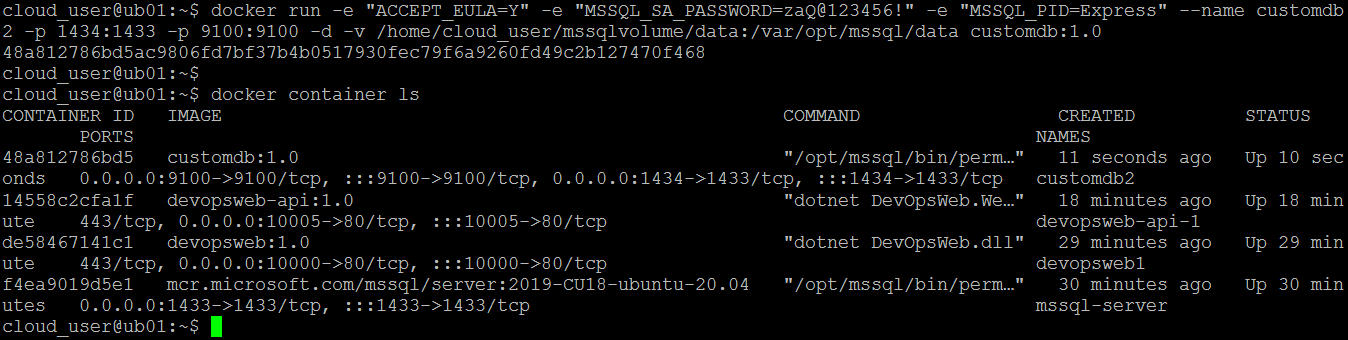
Check for your old Test database by accessing your newly created container.
Note: To start with a clean slate and remove all running Docker containers on your machine, there are a set of handy commands:
List all containers (only IDs)
docker ps -aqStop all running containers
docker stop $(docker ps -aq)Remove all containers
docker rm $(docker ps -aq)
Docker Compose lets you describe multi-container applications in a single declarative configuration file, and deploy it with a single command. Once the app is deployed, you can manage its entire lifecycle with a simple set of commands. You can even store and manage the configuration file in a version control system.
Docker Compose uses YAML file to define multi-service applications. The default name for a Docker Compose YAML file is dockercompose.yml. (you can use the -f flag to specify custom filename.)
Create a dockercompose.yml file
nano docker-compose.yml
Our specific Docker Compose file
version: "3.8"    # define the version of the Compose file format (basically the API)

services:         # define different application microservices.
  devops-web:
    image: devops-web:web-1.0
    build:
      context: .
      dockerfile: DevOpsWeb/Dockerfile
    ports:
      - target: 80
        published: 10000
      - target: 443
        published: 10001
    environment:
      - WebApi=http://devops-api
    depends_on:
      - devops-db
      - devops-api

  devops-api:
    image: devops-web:api-1.0
    build:
      context: .
      dockerfile: DevOpsWeb.WebApi/Dockerfile
    ports:
      - target: 80
        published: 10005
    environment:
      - ConnectionStrings__AppDatabase=Server=devops-db;Database=AppDatabase;User Id=sa;Password=zaQ@123456!;
    depends_on:
      - devops-db

  devops-db:
    image: devops-web:db-1.0
    build:
      context: .
      dockerfile: CustomDB/Dockerfile
    environment:
      - ACCEPT_EULA=Y
      - SA_PASSWORD=zaQ@123456!
      - MSSQL_PID=Express
    ports:
      - target: 1433
        published: 1434
      - target: 9100
        published: 9100
    volumes:
      - /home/cloud_user/mssqlvolume/data:/var/opt/mssql/data

networks:         # create new networks.
  default:
name: devops-shared-networkDocker compose up is the most common way to bring up apps. It builds or pulls all required images, creates all required networks and volumes, and then starts all containers.
docker compose up -d- -d: lets you bring those app up in the background.
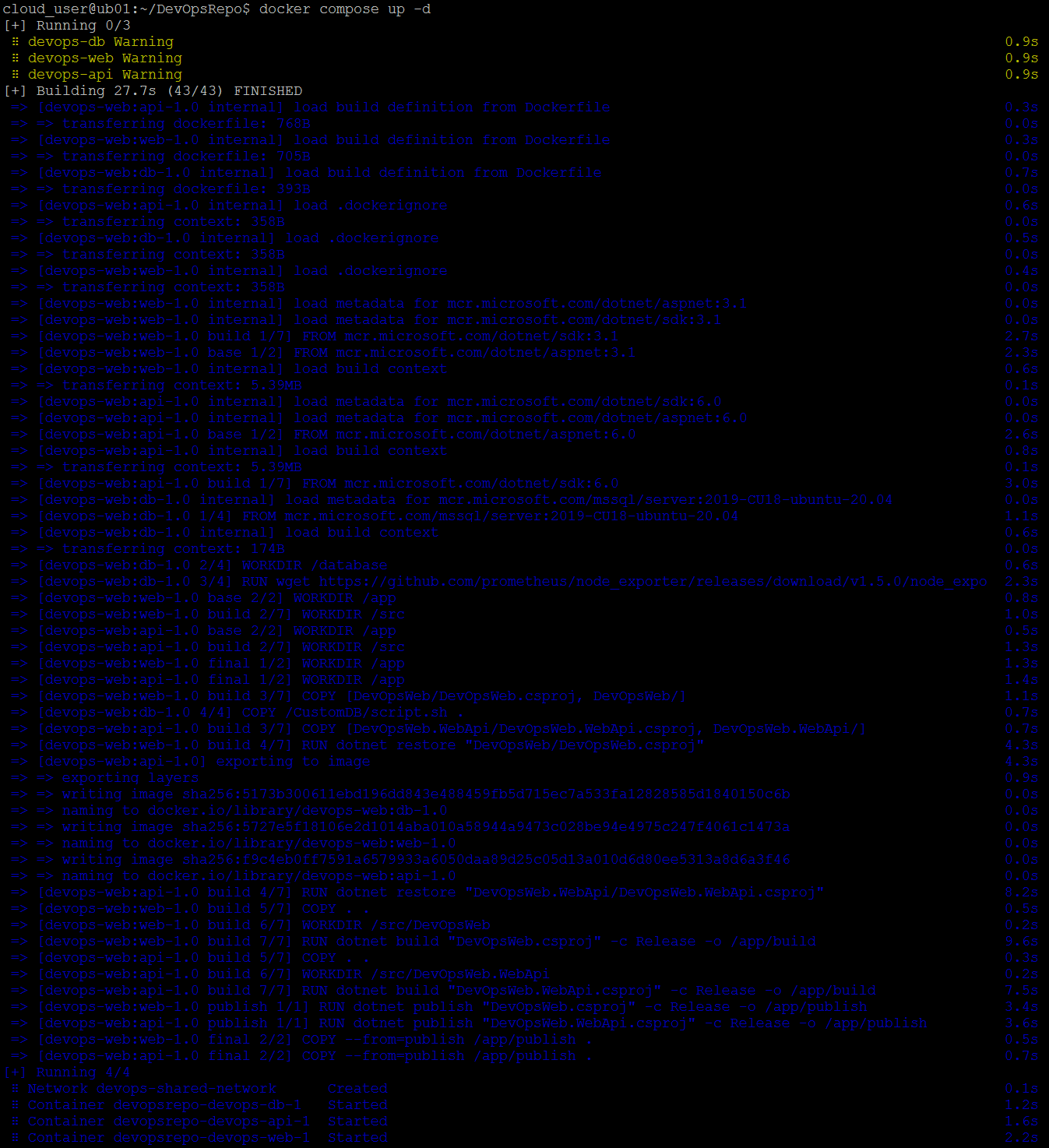
Now that the apps are built and running, we can use normal docker commands to view the images, containers, networks that Docker Compose created.
docker image ls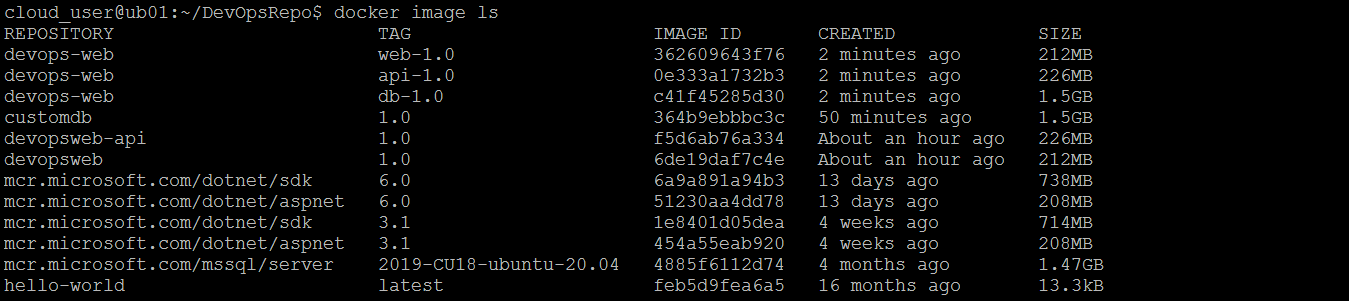
docker container ls
docker network ls
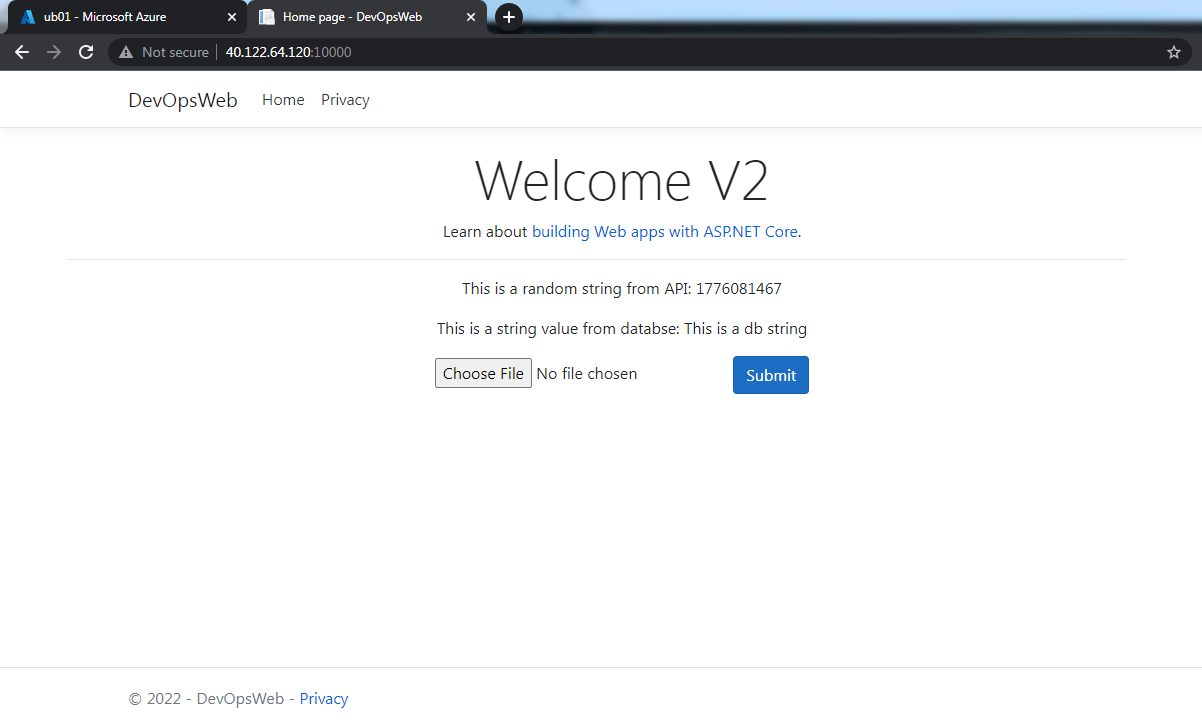
Now, with the web app successfully deployed, you can visit a web browser and access your website at port 10000 to check its content.
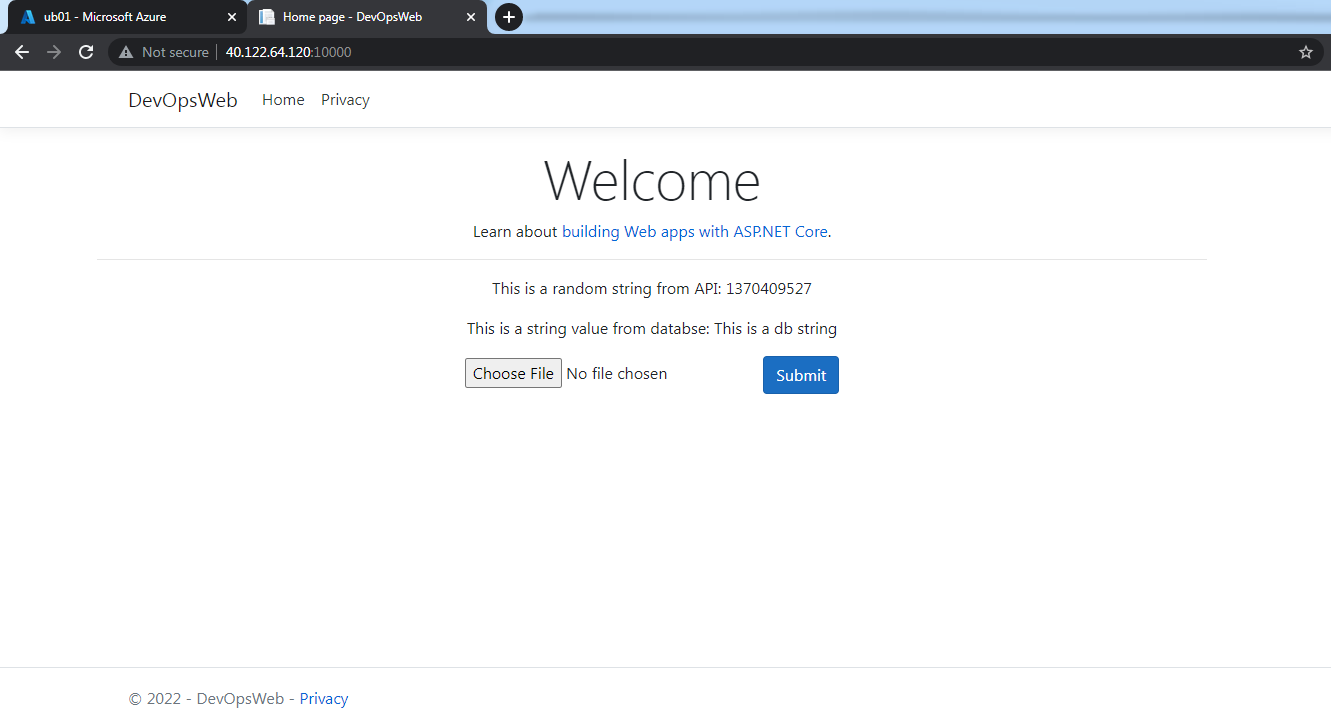
As for the custom database container, you can check for the running node exporter by accessing your VM's public IP address at port 9100.
Or you can use SQL Server Management Studio (SSMS) to connect to your custom database container and view its databases.
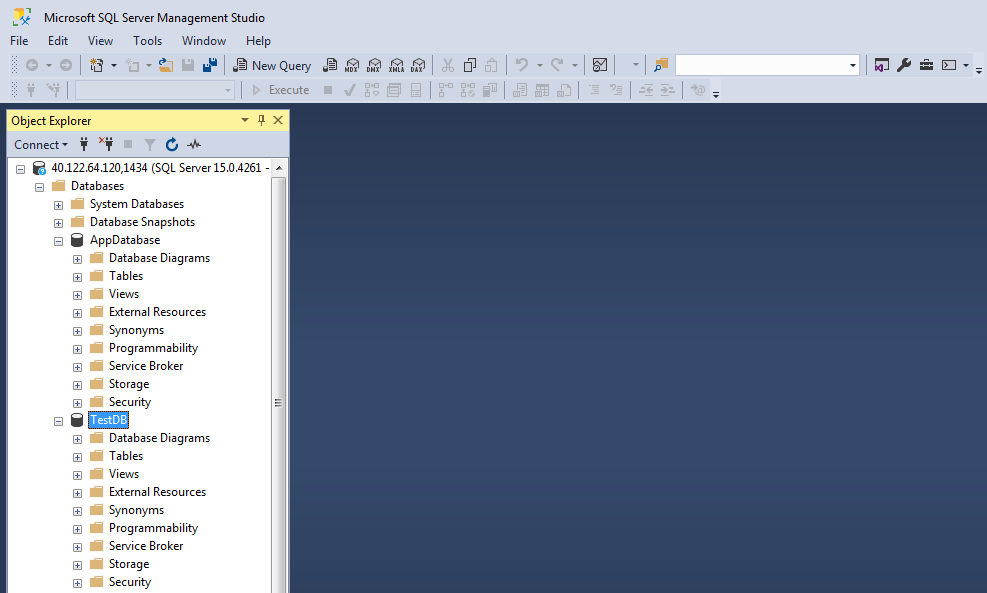
As you can see, the applications are already up, but now you want to bring them down. To do that, it is quite simple, just replace the up with down and let Docker Compose handles the rest.
docker compose down
You can check for images and containers again.
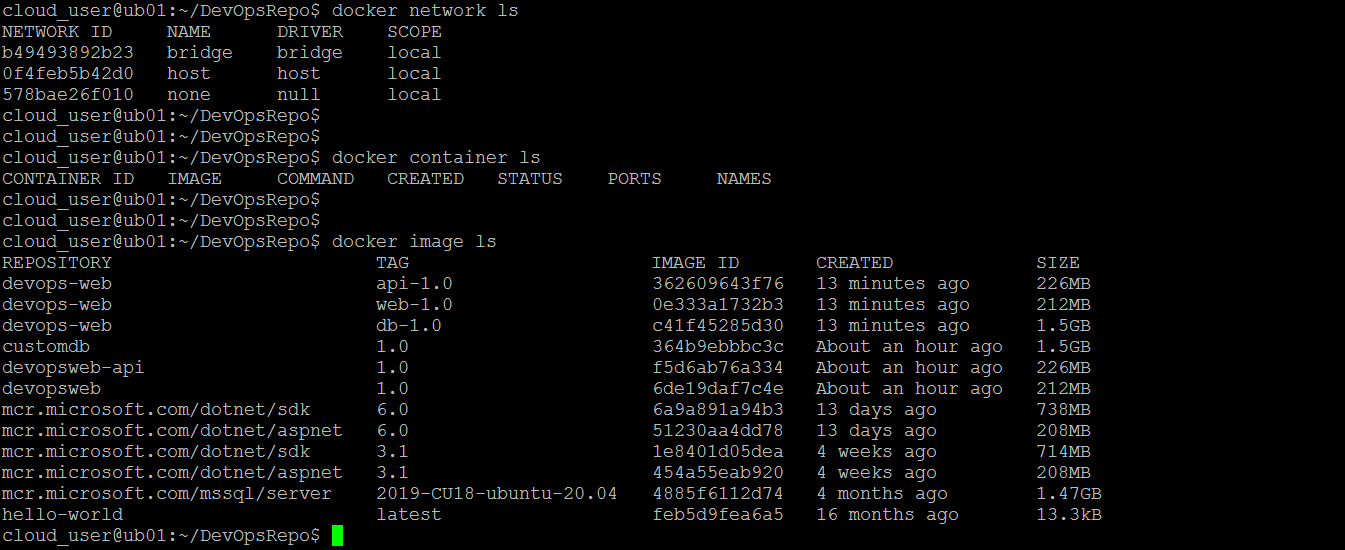
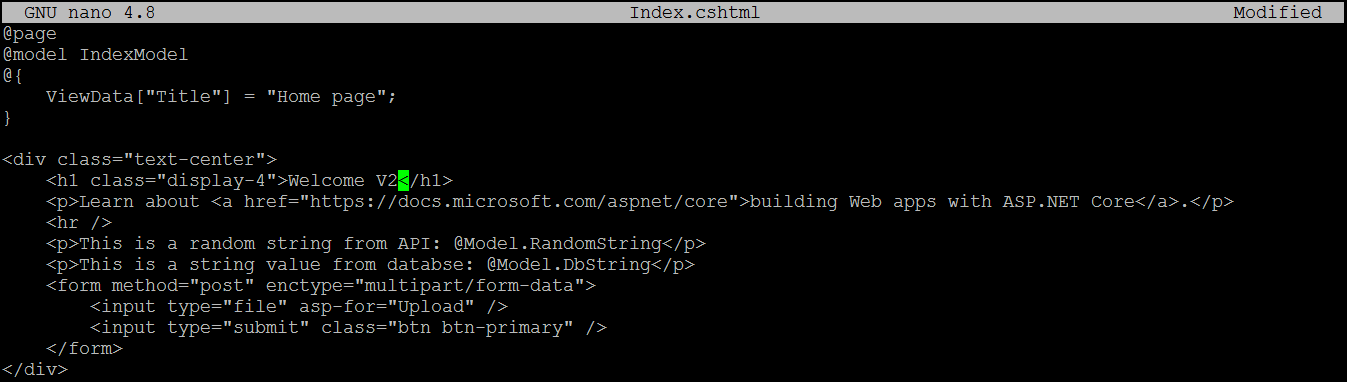
Simulate the change in source code of the web application.
Head over to the web page of the web application.

Try and modify come contents of the file.
You can use docker compose build [service/app name] to only build the wep application again.
docker compose build devops-web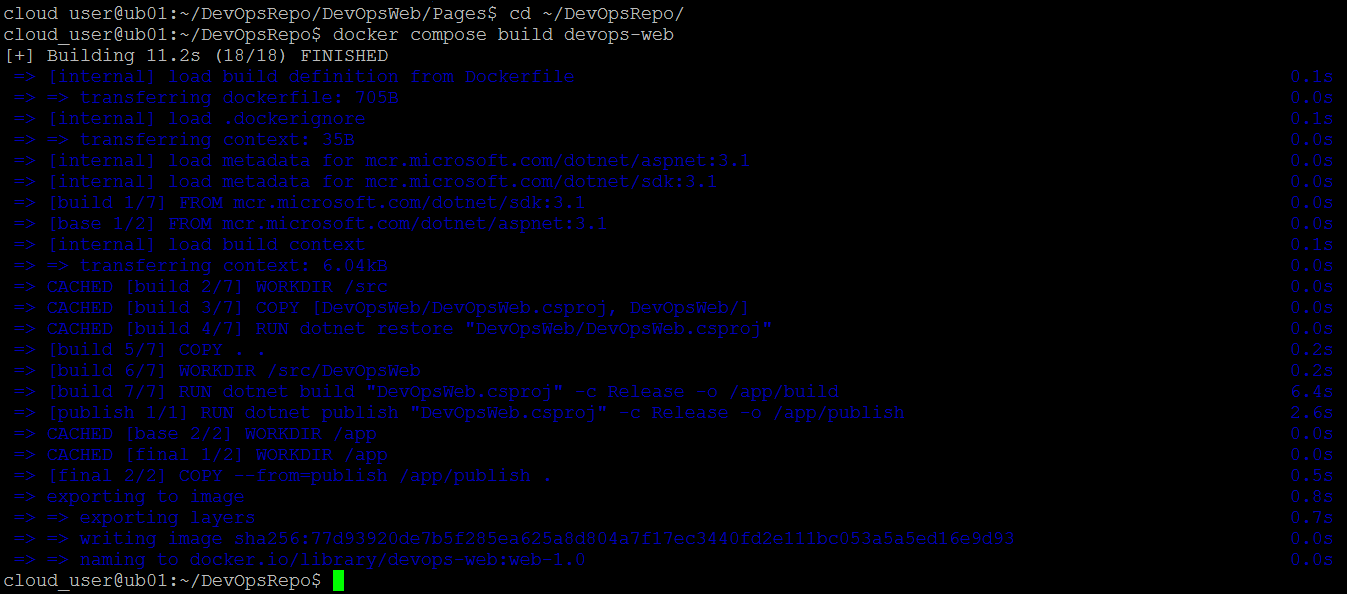
Now run docker compose up once more time to bring the apps up.

List your running containers to see whether your apps are already up.

Try accessing your website again.