
Automate script to perform database backup daily.
This lab was done by renting virtual machines on Microsoft Azure Cloud. You can create an Azure free account for practicing this lab.
Visit the Azure platform page at https://portal.azure.com/
Sign into your account. A successful sign in takes you to the Azure Dashboard page.
Click on Virtual Machines to create a Linux VM for your lab.

Choose Create > Azure virtual machine.

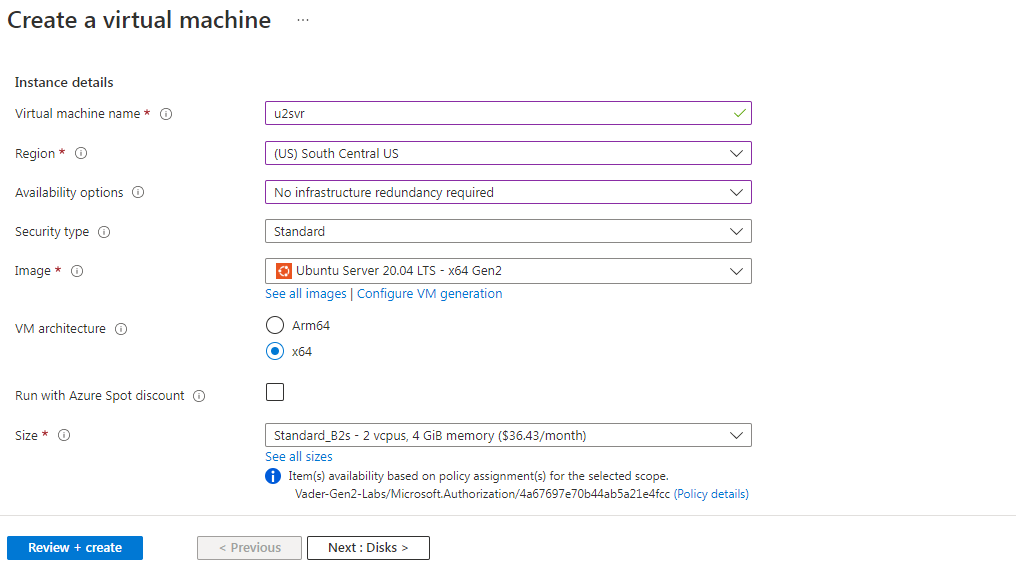
We are going to create Linux Virtual Machine on Azure with Image of Ubuntu Server 20.04 LTS.
You can choose your subscription which you have when you create your account. If you have existing resource group then you can select that or create a new resource group if you like.
I am going to name this VM u2svr. You can choose the name of VM as you want. Next, select a region, I am going with South Central US. Operation System for VM (image) is going to be Ubuntu Server 20.04 LTS – Gen2.
For the size of Virtual Machine, we don’t need a large machine for this lab, that why I have chosen Standard_B2s instance which has 2 vCPU(s) and 4GB RAM.
Provide Username & Password for the logon user.
Choose Allow selected ports and in Select inbound ports section, we are going to select port 80 (HTTP) and port 22 (SSH).

Choose Standard SSD disk type.

You can leave everything as default here.

When you are ready, click Review + create. When you pass the validation process, click Create.
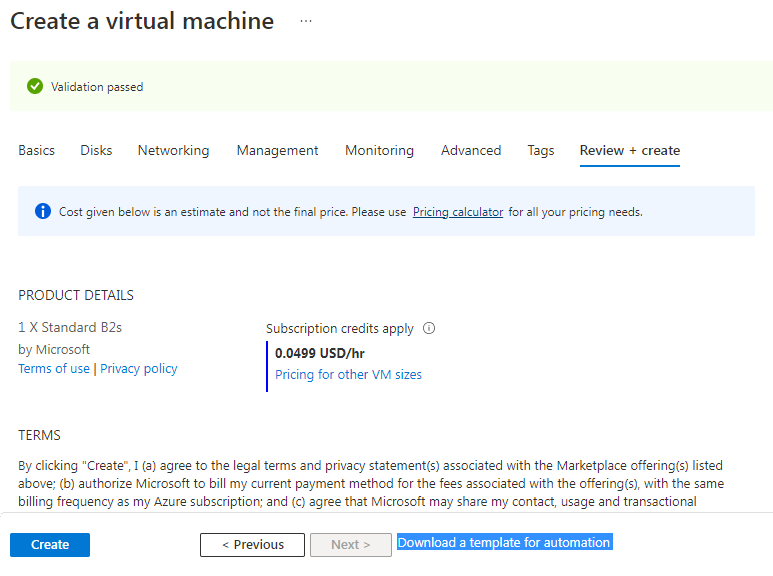
It will take some time for deployment. When your VM is ready, click Go to resource.

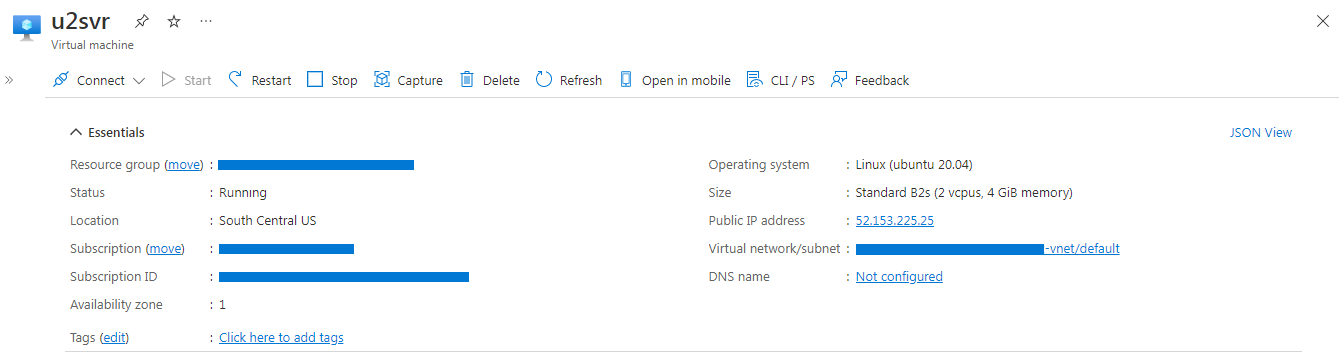
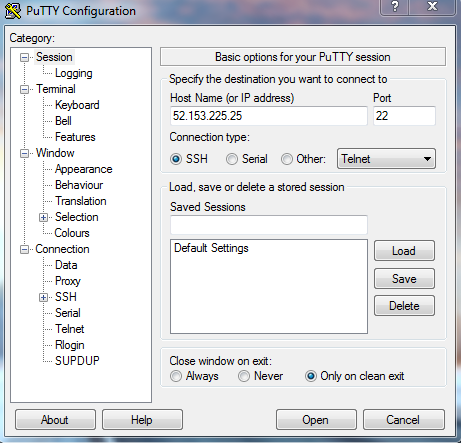
Use PuTTY for connecting to the Linux Virtual Machine. Enter your Linux machine's public IP address in Host Name and Port will be 22. Click on Open button to connect.
You are now inside the Linux Virtual machine.
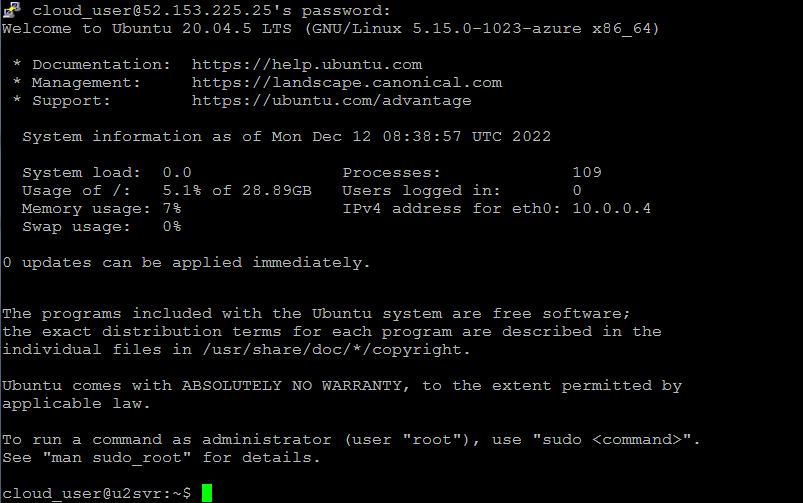
Check for working Internet connection.
Update your system
sudo apt-get updateInstall some required packages:
sudo apt-get -y install wget apt-transport-https- Download the repository configuration
wget -qO- https://packages.microsoft.com/keys/microsoft.asc | sudo apt-key add -
sudo add-apt-repository "$(wget -qO- https://packages.microsoft.com/config/ubuntu/20.04/mssql-server-2019.list)"- Install Microsoft SQL Server
sudo apt-get update
sudo apt-get install -y mssql-server- Complete the setup of Microsoft SQL Server
sudo /opt/mssql/bin/mssql-conf setupo Enter your edition(1-8): 3 # [Express]
o Do you accept the license terms? [Yes/No]: Yes
o Enter the SQL Server system administrator password: P@ssw0rd
o Confirm the SQL Server system administrator password: P@ssw0rd

- Verify MSSQL Server Service Is Running
systemctl status mssql-server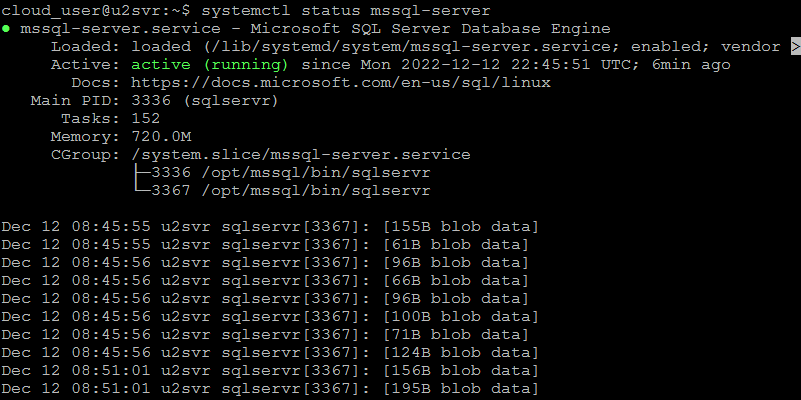
- Install MSSQL Server Command Line Tools
curl https://packages.microsoft.com/keys/microsoft.asc | sudo apt-key add -
curl https://packages.microsoft.com/config/ubuntu/20.04/prod.list | sudo tee /etc/apt/sources.list.d/msprod.list
sudo apt-get update
sudo apt-get -y install mssql-tools unixodbc-dev
echo 'export PATH="$PATH:/opt/mssql-tools/bin"' >> ~/.bash_profile
echo 'export PATH="$PATH:/opt/mssql-tools/bin"' >> ~/.bashrc
source ~/.bashrcsqlcmd -S localhost -U sa -P P@ssw0rd
1> CREATE DATABASE Shop;
2> go
1> USE Shop;
2> go
1> CREATE TABLE dbo.Inventory (
2> id INT IDENTITY(1,1) NOT NULL PRIMARY KEY,
3> name NVARCHAR(50),
4> quantity INT
5> );
6> go
1> INSERT INTO dbo.Inventory VALUES('banana',150),('orange',164),('apple',120);
2> go
1> SELECT * FROM dbo.Inventoy;
2> go
1> exit- Create Backup Directory
sudo mkdir /sql-backup
sudo chown mssql:root /sql-backup/
sudo chmod 775 /sql-backup/
SQL Server is running on behalf of the mssql user. The mssql user must have write permissions to the backup directory.
- How does SQL Server create a backup?
You can create a SQL Server backup by running the SQL command BACKUP DATABASE. This command saves the backup file to a specified directory. you just need to specify the path to the directory where you want to save your backup:
BACKUP DATABASE [database-name] TO DISK = "/sql-backup/database-name.bak";Furthermore, if you want to run your BACKUP DATABASE command as an query without the need to go inside your database, use the (-Q) parameter together with sqlcmd, like this:
sqlcmd -U sa -P my-password -Q "BACKUP DATABASE [database-name] TO DISK = '/sql-backup/database-name.bak';"Backups should be created regularly and automatically. You can automate SQL Server backups by using Shell script and crontab.
- Script to Backup Database with Date
nano sqlbackupjob.sh
#!/bin/bash

DATABASE='Shop';
USER='sa';
PASS='P@ssw0rd';

BACKUP_FOLDER='/sql-backup';
FILENAME=$(date +$DATABASE-%d-%m-%Y-%H-%M-%S.bak);

/opt/mssql-tools/bin/sqlcmd -S localhost -U $USER -P $PASS -Q "backup database $DATABASE to disk='$BACKUP_FOLDER/$FILENAME';"
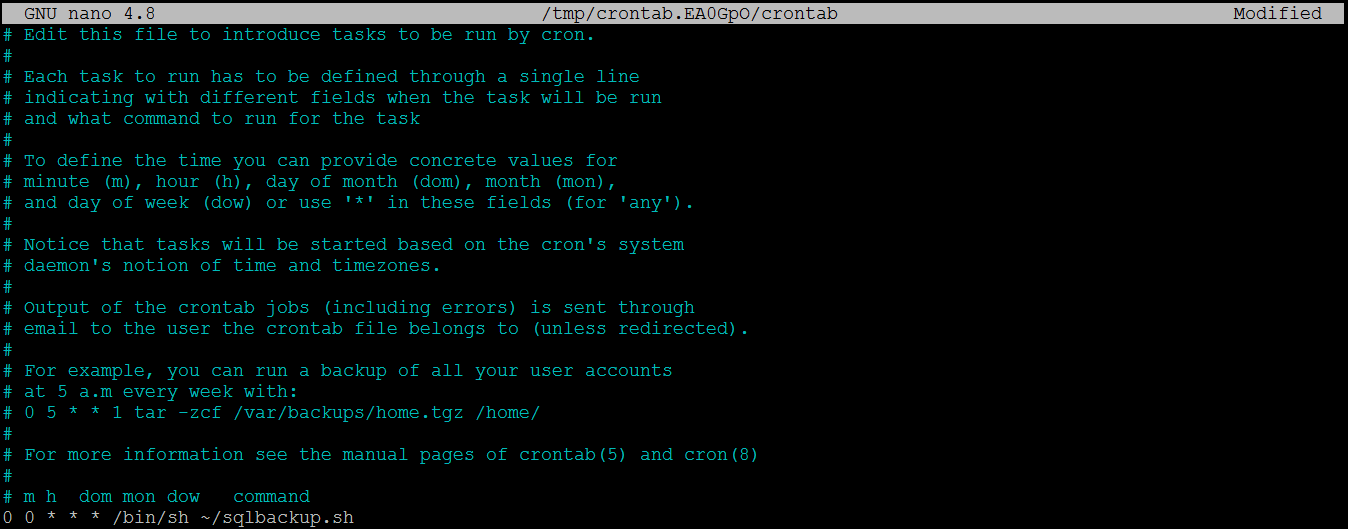
chmod 775 sqlbackupjob.sh- Schedule Crontab to Perform Database Backup Everyday at 00:00
crontab -e
0 0 * * * /bin/sh ~/sqlbackupjob.sh
- Check Your Backup Files
