Kodi's missing lipsync tool. Audio Offset Manager: Evolved is a service addon for Kodi (v20+) that remembers your lipsync corrections. Adjust the audio offset during playback however you normally would: the slider in Kodi's audio settings, a keymap, a remote app, or anything else that sets the offset. Evolved picks up the change no matter where it came from, saves the value for that stream's profile (HDR type and audio format, with optional finer splits by frame rate, spatial audio format, and channel count), and applies it automatically the next time you play matching content.
Why a separate addon? Evolved is the addon the original Audio Offset Manager set out to be. Where the original was built around a fixed (and very limited) list of formats configured in its settings, Evolved learns offsets for whatever Kodi reports, so any format or codec works, including ones Kodi adds in the future. Rebuilding the original around this model would have wiped out every existing user's configuration, so it lives on as-is and Evolved is a separate addon.
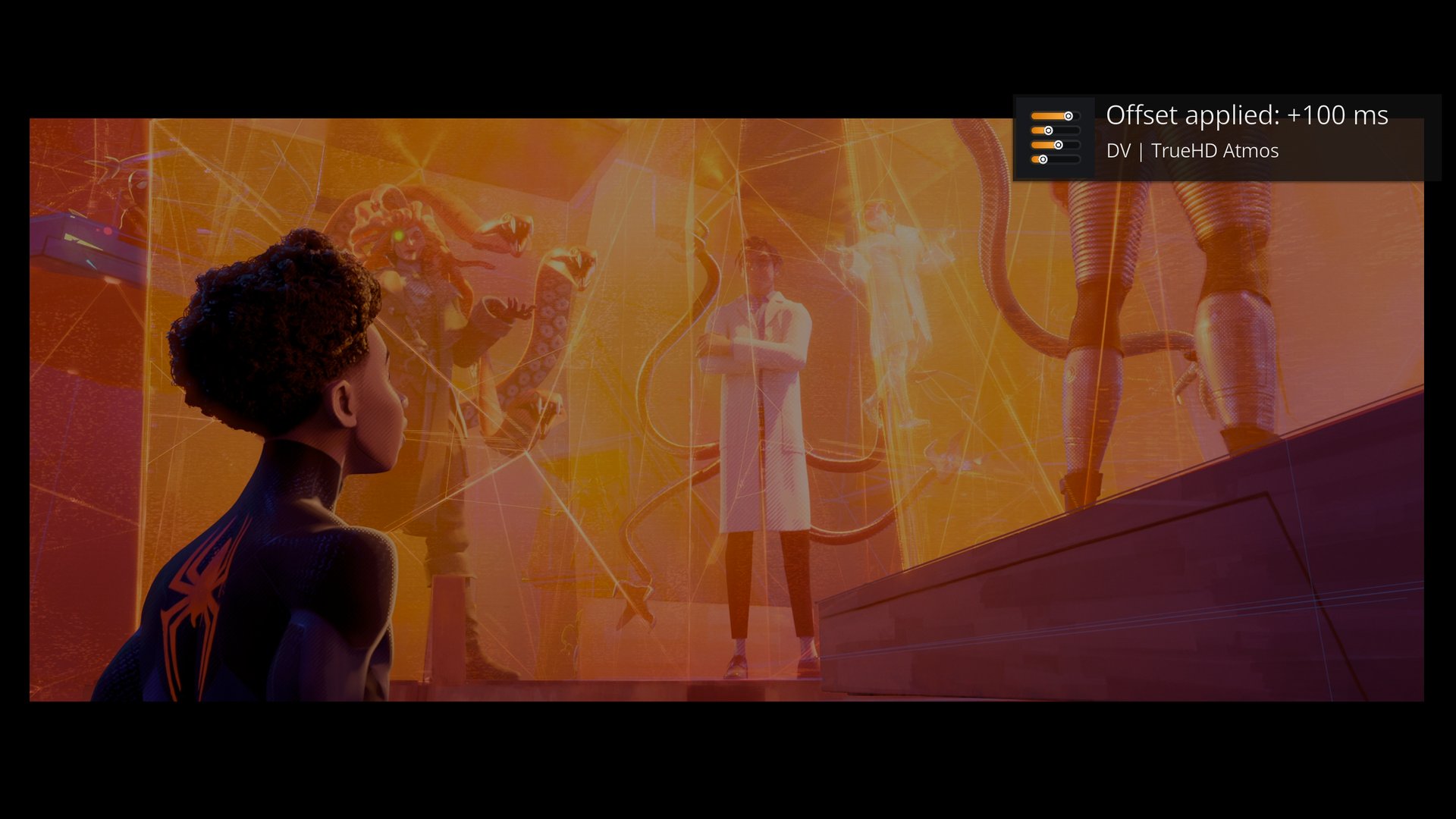
- Play a video and adjust the audio offset from wherever you prefer.
- Evolved saves the adjustment for the current stream profile: the HDR type and audio format of the video itself, refined by frame rate, spatial audio format, or channel count when the matching toggles are enabled.
- On every later playback with a matching profile, the saved offset is applied automatically.
There are no offset values to type in and no per-format settings pages. Everything the addon knows comes from adjustments you make during playback, and there are no fixed increments: whatever value you land on is stored and applied exactly as given.
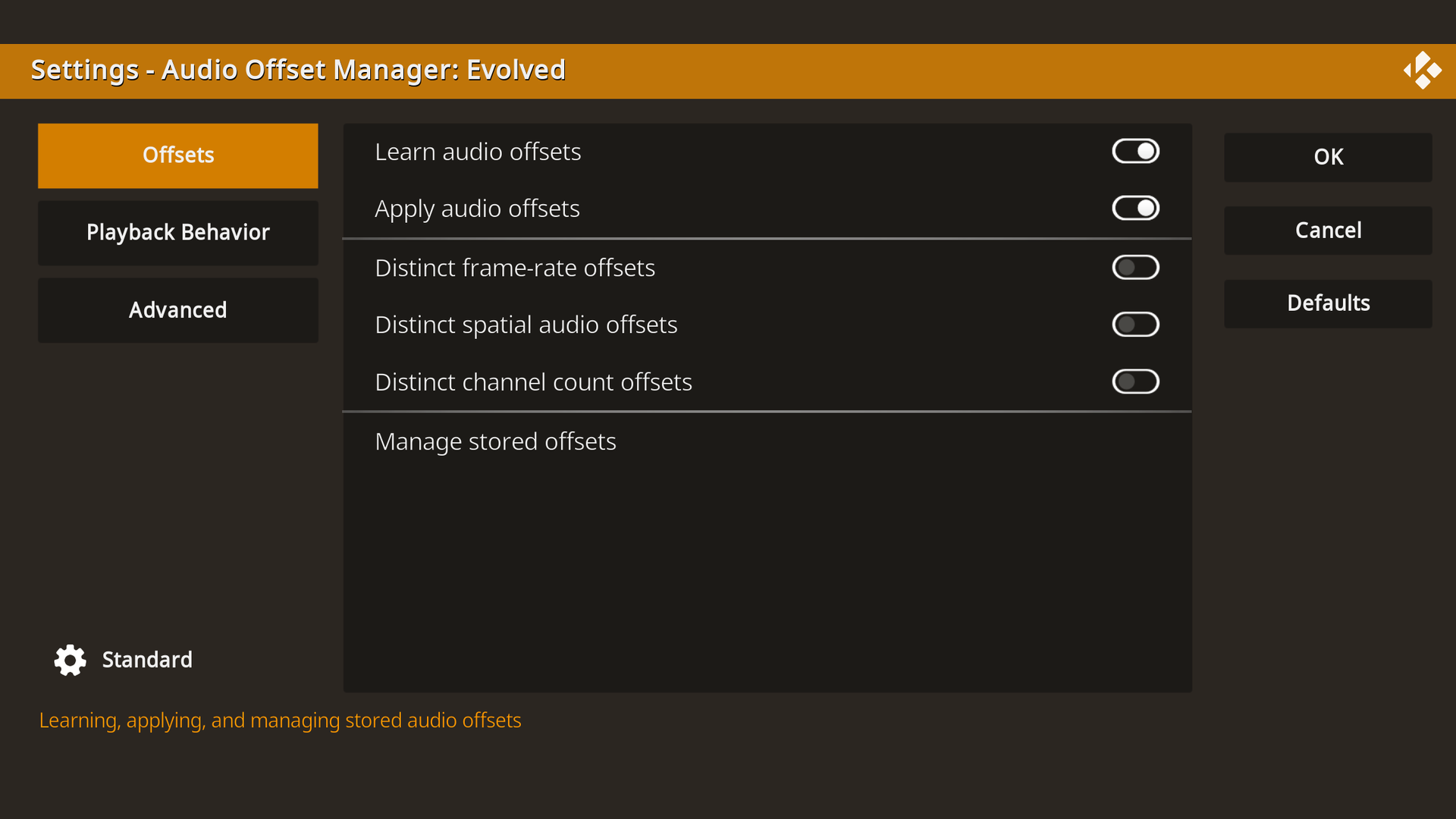
- Learn audio offsets: save adjustments you make during playback. Off stops new offsets from being saved.
- Apply audio offsets: replay saved offsets on matching playback. Off leaves playback untouched.
- Distinct frame-rate offsets: also key offsets by the video's frame rate, for setups where sync differs between, say, 24 and 60 fps content. Offsets apply only in the mode they were saved in: offsets saved while this was off cover all frame rates and are not applied while it is on, so each frame rate is taught by adjusting once during playback. Nothing is deleted by switching modes.
- Distinct spatial audio offsets: keep spatial audio formats such as Dolby Atmos and DTS:X as their own stream profiles with their own offsets. Off makes a spatial format share its base codec's offset, so for example TrueHD Atmos and plain TrueHD are taught and applied as one; offsets already saved for spatial formats are kept but not applied while this is off.
- Distinct channel count offsets: also key offsets by the source's channel count, for setups where sync differs between, say, stereo and 5.1 versions of the same format. Follows the same rule as distinct frame-rate offsets: an offset applies only in the mode it was saved in, each count is taught by adjusting once during playback, and nothing is deleted by switching modes.
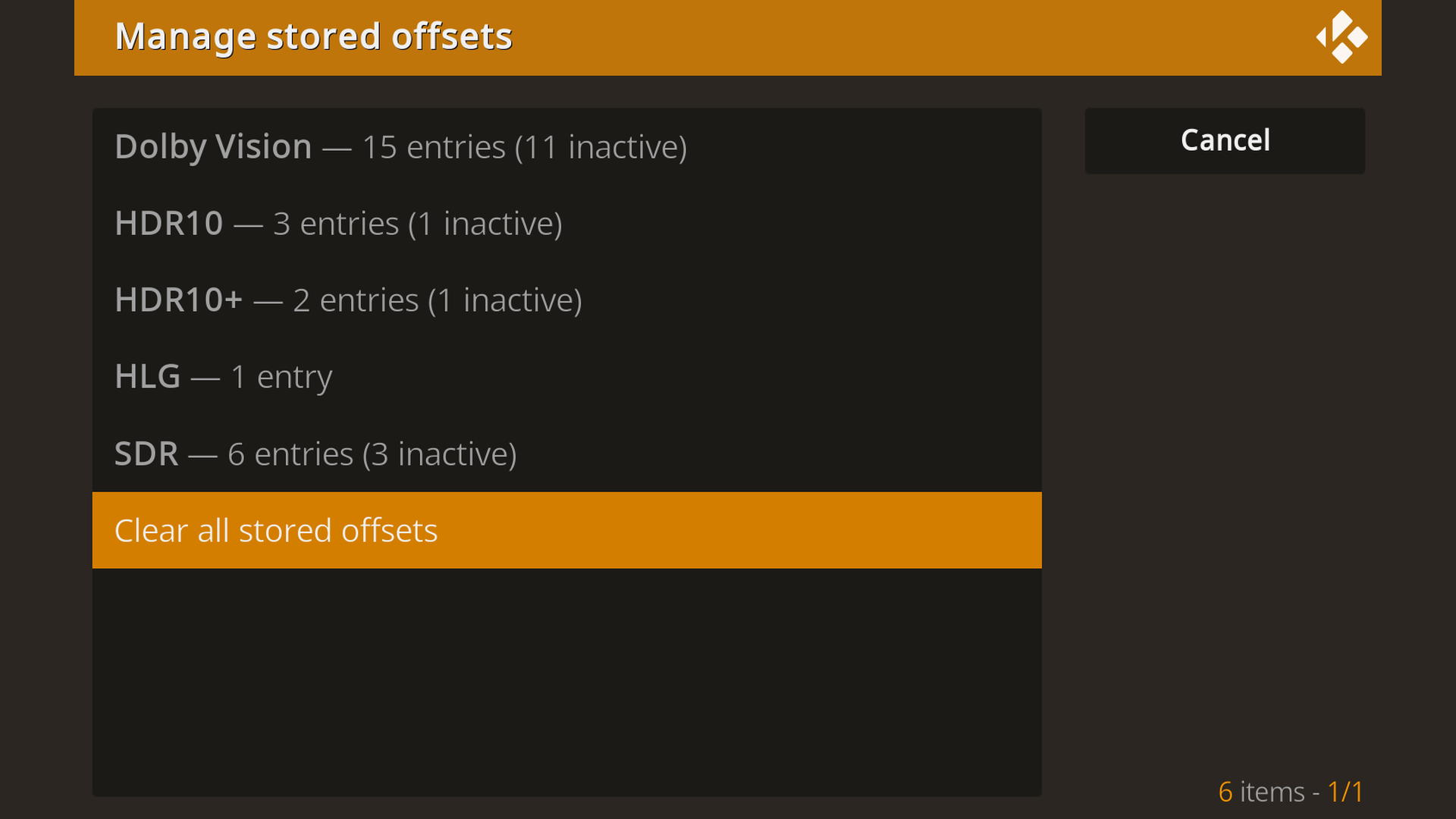
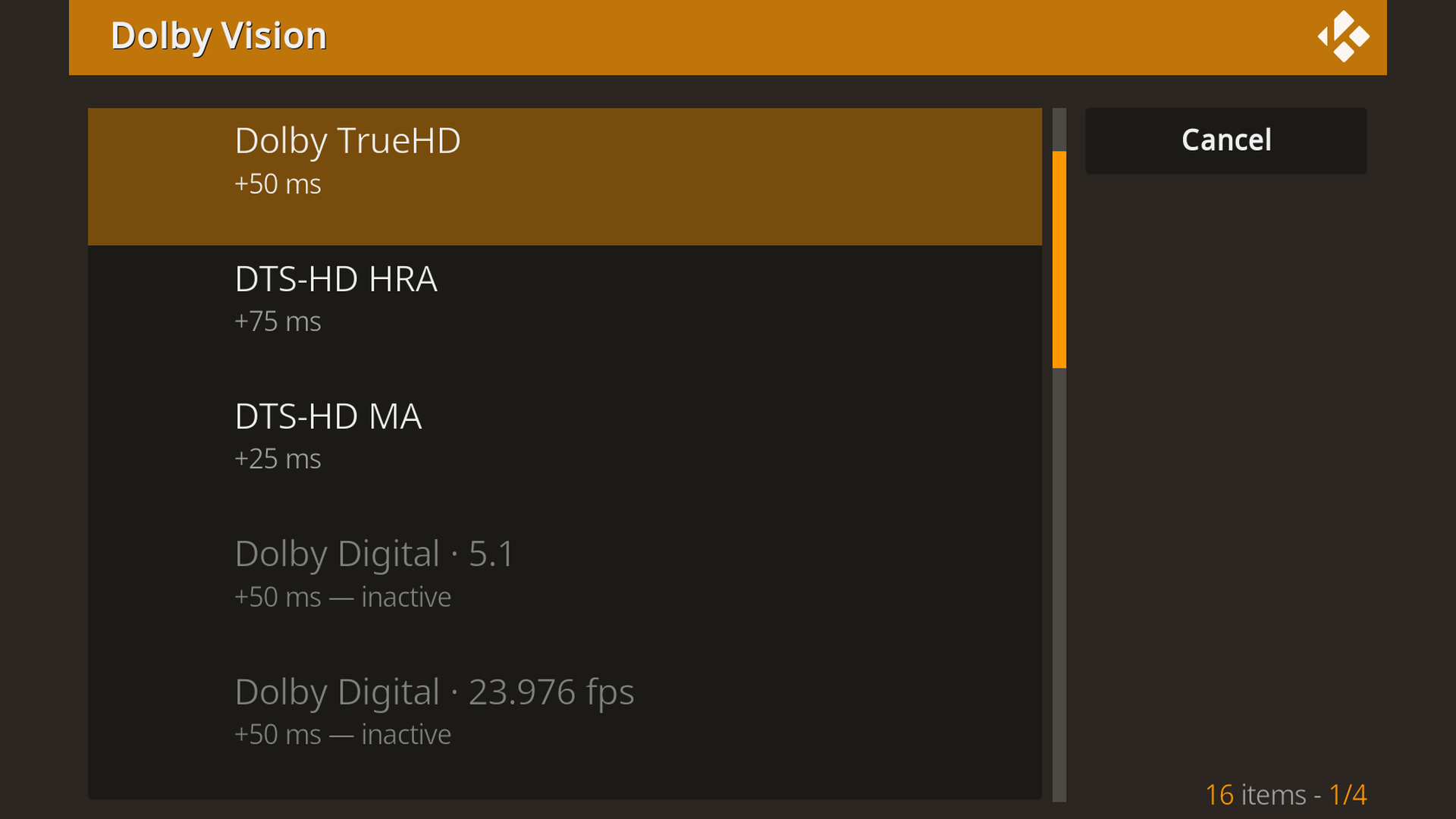
The Manage stored offsets view lists everything the addon has learned, grouped by HDR type. You can delete a single entry, clear a group, or clear everything. Entries that are inactive under the current settings are shown dimmed: frame-rate specific entries while distinct frame-rate offsets is off, all-rates entries while it is on, spatial format entries while distinct spatial audio offsets is off, and likewise for channel counts under distinct channel count offsets.
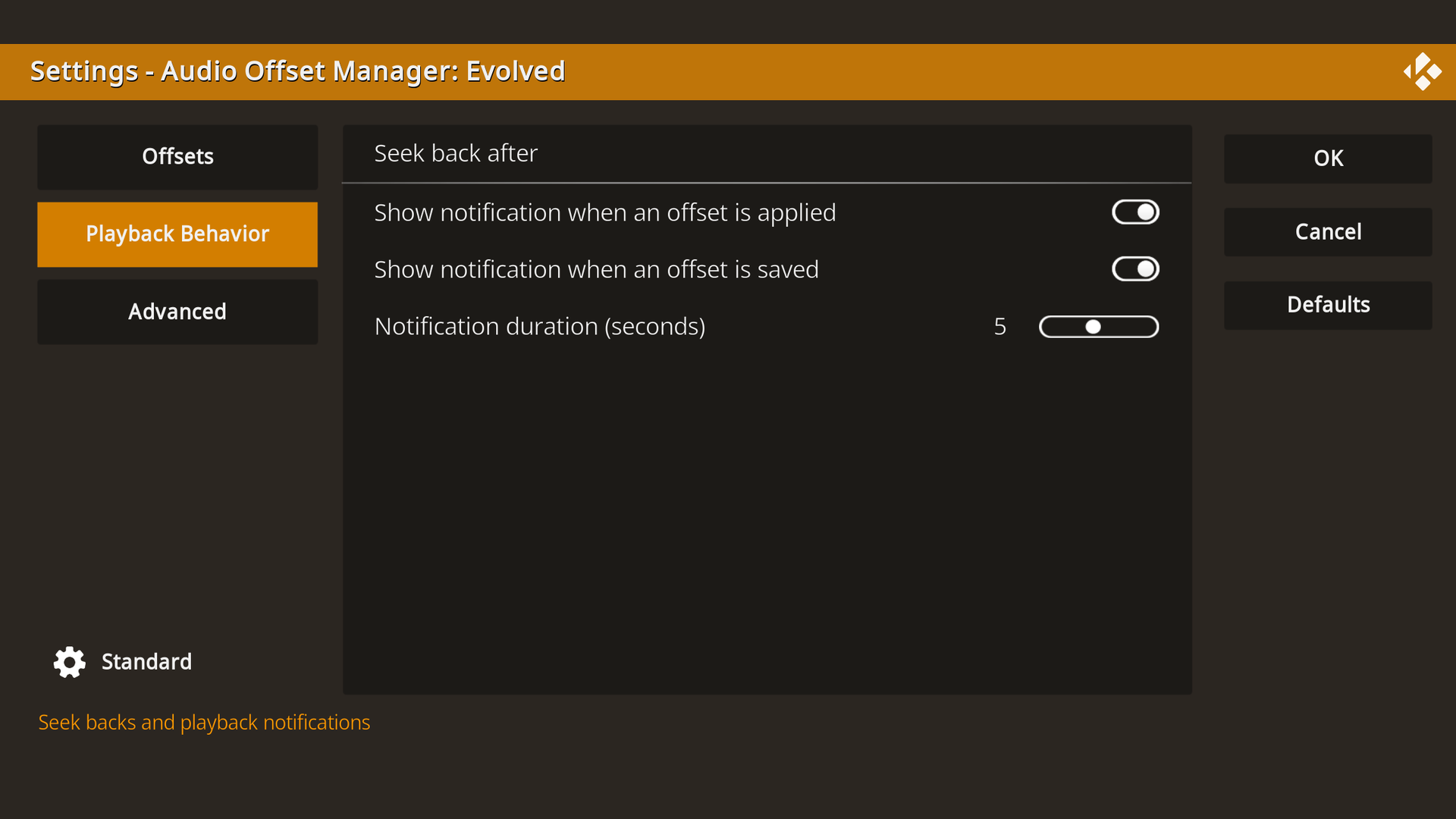
- Seek back after: rewind a few seconds after events you select so audio and video pick up in sync. The four events are playback start, unpause, audio format change, and manual offset change. The seek distance is configurable.
- Notifications: optional on-screen notifications when an offset is applied or saved, with a configurable duration.
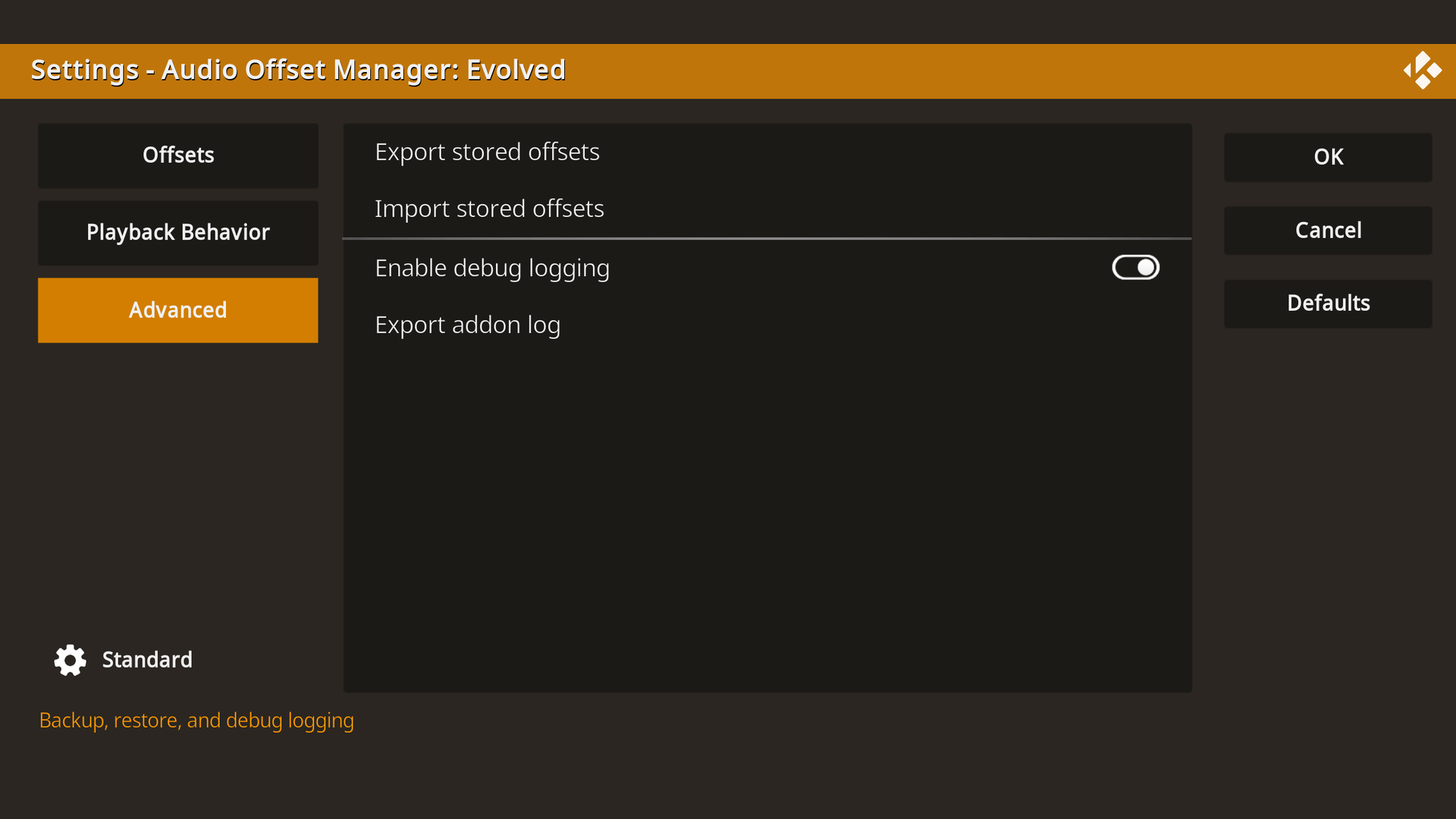
Export stored offsets writes a backup file of everything the addon has learned. Import stored offsets restores a backup, replacing the current data. Useful when moving to a new device or reinstalling Kodi.
Export addon log saves a copy of the Kodi log containing only this addon's entries, with identifiable information such as usernames and file paths removed. The result is a clean log you can attach when reporting an issue. The button is available while debug logging is enabled. Some problems still require Kodi's full debug log, so you may be asked for one when the filtered log is not enough.
- Install the addon from the official Kodi repo, or from a zip file (Add-ons > Install from zip file).
- Play a video and fix the lipsync by adjusting Kodi's audio offset.
- The addon runs as a background service from then on, saving your adjustments and applying them to matching content.
Requires Kodi v20 (Nexus) or later.
Evolved is a separate addon from the original Audio Offset Manager (script.audiooffsetmanager) and does not share its settings or data. The two should not be used together: both react to the same playback and can end up applying audio offsets twice. If Evolved detects that the original addon is enabled, it shows a one-time warning at startup ("Classic Audio Offset Manager detected") recommending that the original be disabled.
For addon developers: while Evolved performs a seek back, it sets the home window property script.audiooffsetmanager.evolved.seeking to 1 and clears it when the seek completes. Addons that react to seeks can check this property to tell Evolved's seeks apart from the user's. Evolved extends the same courtesy in the other direction: it holds its own seek backs while another addon signals seek activity through a known busy property.
The addon is currently available in English, and translations are welcome. All user-facing text lives in a single file: resources/language/resource.language.en_gb/strings.po. Every entry carries a comment describing where the string appears and what fills each placeholder, so no knowledge of the code is needed.
To add a language:
- Copy the
resource.language.en_gbfolder toresource.language.<code>for your language (for exampleresource.language.de_de), keeping thestrings.pofilename. - Fill in the
msgstrline of each entry with the translation. Keep placeholders such as{0}and{1}intact; the comments explain what each one becomes. - Update the
Language:line in the file header to match your language code.
Kodi shows the English text for any entry left untranslated, so partial translations work fine. Submit the new folder as a pull request.
Contributions are welcome. If you run into a problem or have a suggestion, please open an issue on the GitHub repository.