

A Minecraft mod containing numerous features ranging from world manipulation and information displaying to bug fixes and so on, allowing you to take more control of the game, see more internal details, and finish your tasks easier.
Just like what the name says, the Mod contains features concerning many fields, making the Mod a complete mess.
In other languages:
- More accurate hitboxes than ones on the vanilla client.
- 10 easy-to-use renderers (see below).
- Tool items which make using
/tickmore convenient. - Real-time display of entity information.
- Controlling the game at the level of the source code.
- Oscilloscopes and wave generators.
- Multifunctional accessing paths.
- Exporting given areas as a new save.
- Undo / Redoing changes to blocks with
Ctrl + ZandCtrl + Y. - Chunk grid generation.
- Fake lazy loaded chunks.
- And more...
- Fabric Loader 0.8.0+.
- The fabric-carpet by gnembon. (Strongly recommended, but not necessary)
- Minecraft 1.16.4 and above
- Everything Minecraft requires.
- Download the JAR that is suitable for your Minecraft setup from Modrinth, and copy to the
modfolder. - Launch the game and open a creative save.
- Press
F3 + E, and target any entity; - Or press
F3 + Mand move around to see how the HUD works.
- Run
/messcfg serverSyncedBox true, and found all entities wrapped by a green bounding box. - Run
/messcfg chunkLoadingInfoRenderer trueand hold a nautilus shell to check how nearby chunks are loaded.
- Run
/messcfg hayOscilloscope true - Place a hay block power it with some changing signals.
- Right click the hay block to see the wave.
- Run
/messcfg hotbarLength 18, and found the number of slots in the hotbar doubled.
You would find the usages familiar if you have used the Carpet.
-
Run
/messcfg. -
Click the label you are interested in, like
RENDERERSorCHUNK. -
Hover the cursor on an option to see a detailed description.
Try to enable / change the option as you have done just now.
The rest part of the file is a comprehensive document of MessMod, including detailed descriptions of each commands, options, and other features. Try to grab the most helpful ones for you, good luck!
Names of arguments are wrapped by pointy brackets, and optional components are wrapped by squared brackets.
Compile the custom node with the given <name> into bytecode to increase the performance. The expected input type of nodes may be specified with the argument <inputType>, in the format pkg1/Class1,pkg2/Class2, and the input type of the first node must be a reference type.
Currently, this feature may be buggy.
Define the accessing path specified by the argument as a custom accessing path node. If is false, the node will be saved in the world folder.
List all custom nodes.
Delete the custom node with the given <name>.
Get the number of entities selected by <selector>, or the total entity count of the current dimension if <selector> is not given.
Get the number of entities selected by <selector> and at the same position as the entity selected by <stackedWith>.
Get the number of entities which is selected by <selector> and whose distance to <stackedWith> on each axis is smaller than the corresponding component of <maxDistanceVec>.
Get the number of entities which is selected by <selector> and whose distance to <stackedWith> is smaller than <maxDistance>.
Draw a axis-aligned box between <corner1> and <conrner2>.
<color>: The color of edges.
<fill>: The color of faces. Use reset if the faces should be completely transparent.
<life>: The duration that the box is rendered for, in game ticks. 100 gt by default.
<space>: Shape space of the box, which you can use in /drawshape clear <space> to remove all shapes in the same space at once.
Draw a straight line between two corners.
Draw a floating text at pos.
<scale>: Size of the text, 1.0 by default.
Load a image from <url> and draw at <pos>.
<axis>: The axis to which the drawn image is perpendicular.
<scale>: Size of drawn image, in blocks. 1 block by default.
Clear drawn shapes. If the argument <space> is absent, all shapes will be removed.
Get the information of block state and block entity data (if exists) at <pos>, to check if the block is rendered wrongly or is a ghost block.
Make <targets> can/cannot step on blocks directly.
Similar to the last, but the target is always the local player.
Get the value of <field> in the object that corresponds to <target>, an accessing path can be specified if needed. Note that if the mapping is not loaded, the names here are intermediary names like field_18276, which are hard to be understood, please use a mapping to translate them to readable names.
List all fields defined or inherited by the class of <target>.
Set the value of <field> in the object which represents <target> to <newValue>. Check the document on literals in accessing paths for the format of <newValue>. Using an accessing path to specify to where the new value is written.
Start recording the Motion, position, and listened fields of <target> every tick and save them to a CSV file. Note that some of the records will temporarily be saved to a buffer rather than being written to the file immediately, /entity flush could be used to flush recent changes.
Logs are saved to the entitylog folder in the world folder, with a name like the one below:
2023-08-19_17-12-21@12-C-villager.csv
The time when the log file is created is given before '@', and after that, the numerical ID of the entity, the side to process the log ('C' for 'client', 'S' for 'Server', and 'M' for 'Mixed') and the name or the type ID of the entity, respectively, are given.
A storage policy could also be specified, whose possible values are the following:
SERVER_ONLY: Only data produced by the server is recorded.CLIENT_ONLY: Only data produced by the client is recorded.SEPARATED: The data produced by both the server and the client will be recorded, and saved in two separate files.MIXED: The data produced by both the server and the client will be recorded, and saved in a single file.
Stop monitoring <target> and save the records in the buffer to the disk.
Mark <field> as 'listened' so that its value will be recorded if any entity containing this field is subscribed by using /entitylog sub <target>. Currently, <type> wouldn't restrict the scope of influence of this command.
Stop listening to a field.
List all listened fields.
Start monitoring a kind of entity automatically.
Stop monitoring a kind of entity automatically.
Start monitoring entities with the given <name> automatically.
Stop monitoring entities with the given <name> automatically.
Save the records in the buffer to the disk without stopping recording.
Get the number of entities whose information is being logged.
Set default storage policy used when a policy isn't specified explicitly and when entities are subscribed automatically. Prior to the execution of this command, the default policy is SERVER_ONLY.
Add a new line to the entity information sidebar. You can specify where the data get updated and an accessing path if necessary.
Supported ticking phases (sorted by time):
WEATHER_CYCLE: When the calculation of weather cycling begins.CHUNK: When most stuff related to chunks (including unloading, spawning, freezing, snowing, random ticks and many other tasks) is going to be processed.SCHEDULED_TICK: When the calculating of scheduled tick starts.VILLAGE: When the states of raids are going to be updated.BLOCK_EVENT: When block events are going to be updated.ENTITY: When entities are going to be processed.TILE_ENTITY: When block entities are going to be processed.DIM_REST: When all block entities are processed.TICKED_ALL_WORLDS: When all worlds are ticked and the asynchronized tasks like inputs of players haven't got processed.SERVER_TASKS: When asynchronized tasks like player inputs are going to be processed.REST: When all asynchronized tasks are processed.
Remove a line from the entity information sidebar.
Create an explosion with the power of <power> at <pos>, and create fire blocks if the optional argument <fire> is true. The power of explosions can be any single-precise floating-point number, including Infinities and even NaN.
Add a save component to be exported. Available components:
-
REGION: Region files, contain blocks, entities (1.16-) and block entities. -
POI: POI data. -
GAMERULE: Game rules. -
ENTITYEntity Data (1.17+). -
RAID: Raid data. -
MAP_LOCAL: Data of maps intersecting the selected chunks. -
MAP_OTHER: Data of maps not intersecting the selected chunks. -
ICON: The icon of the save. -
ADVANCEMENTS_SELF: The advancement information of the exporter itself (or everyone, if the exported isn't a player). -
ADVANCEMENT_OTHER: The advancement information of everyone except the exporter itself. -
PLAYER_SELF: The player data of the exporter itself (or everyone, if the exported isn't a player). -
PLAYER_OTHER: The player data of everyone except the exporter itself. -
STAT_SELF: The statistics of the exporter itself (or everyone, if the exported isn't a player). -
STAT_OTHER: The statistics of everyone except the exporter itself. -
SCOREBOARD: Scoreboard data. -
FORCE_CHUNKS_LOCAL: Force-loaded chunks within selections. -
FORCE_CHUNKS_OTHER: Force-loaded chunks outside selections. -
DATA_COMMAND_STORAGE: Storage used in/data. -
CARPET: Configuration file of Carpet; -
MESSMOD: Configuration file of MessMod, and custom nodes.
Using DOS file name wildcards to select multiple items is allowed.
Add a selection, where <corner1> and <corener2> is two block position of two opposite vertex of a rectangle area. Any chunk intersecting the area will be selected. If the <dimension> is absent, the dimension where the sender is in will be used.
Delete a selection.
Export the save. Exported saves are stored in World Folder/exported_saves.
A world generator configuration can be given using the argument <worldGen>:
- COPY: The same as the original save.
- VOID: The void.
- BEDROCK: A layer of bedrock.
- GLASS: A layer of white stained glass block.
- PLAIN: A layer of grass block.
Get currently subscribed save components.
Get current selections.
Preview a selection. The marks will be displayed for <tick> game ticks.
Exclude a save component.
Reset the save exported.
Fill all slots of all containers (chest, hopper, etc.) between <corner1> and <corner2> with <item>.
Replace item <from> in containers (chest, hopper, etc.) between <corner1> and <corner2> with <to>.
Fill containers (chest, hopper, etc.) between <corner1> and <corner2> with the pattern used in item sorters, that is, set the first slot to 1 item specified by <main>, and set following slots to 1 <occupier>.
Pause|continue processing selected entities. It can be used to simulate lazy chunks.
Mark <field> as 'listened' so that its value will be included in the looking at entity HUD. Currently, <type> makes no difference to the execution but being used in the resolution of the field name and providing suggestions. You can specify a custom name and an accessing path for the field if necessary.
Add a listened field to the client-side/server-side player information HUD. You can specify a custom name and an accessing path for the field if necessary.
Remove a listened field from a HUD.
Set the player used in getting the data in the server-side player information HUD and the looking at entity HUD in multiplayer games.
Freeze a thread of the game for a while. If the thread is not specified explicitly, the server thread will sleep.
Freeze the current server or client at the beginning of a given <phase> for a given number of ticks, which may be used to adjust MSPT in a more flexibly.
Mark the chunk where block position <corner1> as lazy loaded. Once a chunk is marked, entities in the chunk won't be ticked.
No longer mark the chunk where block position <corner1> as lazy loaded so that its entities will be able to get ticked.
Mark the chunk within a rectangle whose two opposite vertexes are the chunks containing block position <corner1> and <corner2> as lazy loaded. Once a chunk is marked, entities in the chunk won't be ticked.
No longer mark the chunk within a rectangle whose two opposite vertexes are the chunks containing block position <corner1> and <corner2> as lazy loaded so that its entities will be able to get ticked.
Attach a Java agent to current JVM, from a local JAR file or URL.
Get subscribed to chunk events.
Start to record chunk events. Recorded events will be written to a CSV file in World Folder/chunklog.
The file has 7 columns:
Event: The name of the event.Pos: The chunk coordinate of the chunk where the event happened in (or rather, for).Dimension: The ID of the dimension where the event happened.GameTime: The game time when the event happened (ingame tick).RealTime: The relative real time when the event happened (in nanoseconds).Thread: The thread where the event happened. "Server Thread" stands for the main thread of the server.Cause: The cause of the event. It is disabled by default, but can be enabled using the optionblamingMode.Addition: The additional information of the event (if any).
Stop recording chunk events.
Subscribe to a chunk event. Supported chunk events:
LOADING: Starting loading a chunk.UNLOADING: Starting loading a chunk.GENERATION: Starting or continuing to generate a chunk.UPGRADE: Begining a chunk generation stage.END_LOADING: Finishing loading a chunk.END_UNLOADING: Finish unloading a chunk.END_GENERATION: Finish or pause generating a chunk.END_UPGARDE: Finishing a chunk generation stage.SCHEDULER_LOADING: Scheduling to load a chunk.SCHEDULER_UNLOADING: Scheduling to unload a chunk.SCHEDULER_GENERATION: Scheduling to generate a chunk.SCHEDULER_UPGARDE: Scheduling to start updating a chunk generation stage.TICKET_ADDITION: Adding a chunk ticket.TICKET_REMOVAL: Removing a chunk ticket (expiration is not included here).PLAYER_TICKER_UPDATE: Attemption to update player tickets.ASYNC_TASKS: Executing asynchronous tasks inServerChunkManager.Main.ASYNC_TASK_SINGLE: Executing a single asynchronous task.ASYNC_TASK_ADDITION: Adding an asynchronous task.SCM_TICK:ServerChunkManager.tick().CTM_TICK:ChunkTicketManager.tick().SCM_INIT_CACHE: Invalidating chunk cache inServerChunkManager.CTPS_LEVEL:ChunkTaskPrioritySystem.updateLevel().CTPS_CHUNK:ChunkTaskPrioritySystem.enqueueChunk().CTPS_REMOVE:ChunkTaskPrioritySystem.removeChunk().
Using DOS file name wildcards to select multiple items is allowed.
Unsubscribe a chunk event.
Subscribe to some deaths specified by <target>, which has following format:
killer+directKiller(cause->victim)@(min..max)
Follow is a brief description of each parameters:
killer: The type of entities killing victims "with intention".directKiller: A more direct causer of deaths. For example, when a pillager shots a villager, the pillager iskiller, while its arrow is thedirectKiller.cause: The cause of deaths. e.g.explosion,drowned, etc.victim: The entity being killed.min: The minimum damage amount of the "final hit".min: The maximum damage amount of the "final hit".
All of the following can be omitted, and the first four parameters can be a "*" to make no restriction on them.
Examples: player+tnt(explosion->zombie)@(0..1), (->item).
Following is the regular expression matching <target>:
^(?<killer>[!a-zA-Z_]*|\*)??(\+(?<directKiller>[!a-zA-Z_]*|\*))??(\((?<cause>[!a-zA-Z_\.]*|\*)\))??\-\>(?<victim>[!a-zA-Z_]*|\*)??(@(?<min>[0-9\\.]+)??\.\.(?<max>[0-9\.]+)??)?$
Unsubscribe some type of deaths. You may use syntax of DOS file name wildcard to match multiple objects.
Subscribe to some fields of the entity being killed or the DamageSource object. Note that the name is simply a name for the listener, but not the field name. The actual value of fields is gotten with the accessing path given.
Unsubscribe some fields of the entity being killed or the DamageSource object.
Set whether the "death reports" of some death causes will be outputted to the chat.
Get statistics on subscribed items.
Get statistics automatically classified by death causes.
Reset automatic statistics.
Reset statistics. If no target is supplied, the automatic statistics is also reset.
Subscribe to some entities to see how they are pushed by pistons, shulker boxes and shulkers.
Unsubscribe the entities.
Start| Stop listening to packets between the server and the client(s). For some reason, the results are only printed in the log.
Using DOS file name wildcards to select multiple items is allowed.
Record packets, and save it to a file specified with <saveTo>. Currently only the CSV format is supported.
Stop recording packets.
Get statistics. A filter may be supplied with the syntax of DOS file name wildcard.
Reset statistics.
Get the version and list option labels of the MessMod.
Get the current value of <option> and related helping information about it.
Set the save-specific value of <option> to <value>. See the next section of the document.
Read options from mcwmem.prop.
Set the global value (used as the default value of options for new saves) and the save-specific value of <option> to <value>.
List all options with a given label. If no label is given, all option will be listed.
Available labels:
MESSMOD: Options related to features of MessMod itself.ENTITY: Options related to entities.RENDERER: Options related to renderers.INTERACTION_TWEAKS: Options to simplify or enhance interactions.EXPLOSION: Options related to explosions.RESEARCH: Options that may be useful when researching the game mechanisms.REDSTONE: Options to debug redstone contraptions.CHUNK: Options related to chunks.BUGFIX: Bug fixes.BREAKING_OPTIMIZATION: Aggressive optimizations which may break some vanilla mechanisms.MISC: Miscellaneous.
Change the value <key> in the entities with to <val>. Much simpler than /entityfield.
Remove <target> from the world.
Move the entity using Entity.move(). The displacement is given in argument <delta>. Usually, "self" should be used as the last argument. After the execution, the actual displacement of the entity is outputted.
Move the entity in the way projectile entities move. The displacement is given in argument <delta>. The command seems to be buggy now.
Name selected entities.
Name the item the player (or executing entity) is holding in main hand to <name>.
Kill a part of selected entities.
Get the type of the POI at <pos>.
Get the distance (Maybe the Manhattan distance in subchunks) to the nearest working site of villagers.
Find POIs with the given type in a sphere whose center and radius are given in the command.
Find POIs with the given type in a Cube whose two opposite corners are given in the command.
Set the POI(Point of Interest) at <pos> to <type> if there is no POI at <pos> or <replace> is true.
Visualize POIs whose to <center> is within <radius>(in meter) and have a given<type>. All visualized entities will be rendered as a green cube, and if the POI has been occupied, it will have a red frame.
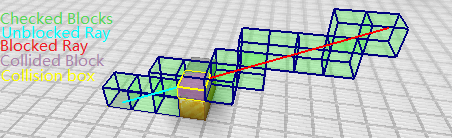
Check if the direction-ed line between two points given in the command is blocked by any block, in the way most projectiles check for collisions. After execution, the coordination of checked blocks will be output, and if the line was blocked, the coordination of the block that blocked the line, the face that blocked the line, and the coordination of the point where the line was blocked will be output. If visual is present, the process of the checking will be visualized, that is, all grids which checked blocks are in is displayed in light green, the colliding shape of the block which blocked the line is displayed in orange, the grid the block is in is displayed in purple, the part of the unblocked line is displayed in magenta and the blocked part is displayed in red.
Here is an example:
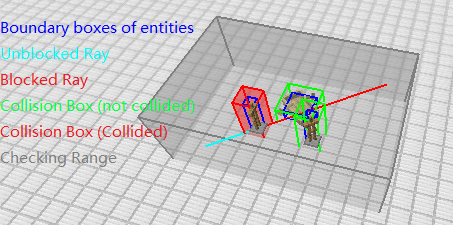
Check if the direction-ed line between two points given in the command is blocked by any entity, in the way most projectiles check for collisions. After the execution, if the line was blocked, the type or the custom name of the entity that blocked the line and the coordination of the point where the line was blocked will be output. The argument <expand> determines the range of checking, which should be one-half of the width of the bounding box of the projectile plus 1 in projectile collision checking simulations.
Example:
Repeat executing a command for a given number of times, the argument <feedback> can be used to indicate if the feedback of the command is enabled.
Make <passengers> ride <vehicle>
Get the current seed of the RNG of the dimension.
Get the next integer generated by the RNG of the dimension in the range [0, bounds).
Get the next value generated by the RNG of the dimension.
Do something with the RNGs of <target> (some entities), just like the last three commands.
Set blocks with the setBlockState() method directly.
This can be used to generate "ghost blocks" when the <flag> has the value 8.
If <p2> is present, the command behaves like /fill, setting blocks between <pos> and <p2>.
Make explosions place <blockState> instead of air and <fireState> instead of fire.
Summon (<count> - 1) entities at the position of <entity>, to make a stack with <count> entities. If there is no initial entity, it would be preferable to use /repeat.
Add a block entity at <pos>. Optionally, you can specify a <tag> as the initial data. (It may fail to take effects when the block at <pos> is not suitable.)
Get the information about the block entity at <pos>.
Set the block entity at <pos> to <type>. Optionally, you can specify a <tag> as the initial data.
Remove the block entity at <pos>.In the current version of the mod, if a block needs a block entity, the block entity will be recreated after its removal that is a bug).
Update the blocks between <from> and <to> (or only the block at <from> if <to> is omitted) with both PP and NC updates, from all directions.
Update the blocks between <from> and <to> with NC updates.
If no optional argument is supplied, selected blocks will receive updates from all directions; if specified, the block will be updated with the World.updateNeighbor() method, with arguments passes as-is. If <srcBlock> is omitted, it will get the block at <srcPos> as the default value.
Update the blocks between <from> and <to> with PP updates.
Read the source code at TouchCommand.java as too many technical details are involved.
Create a new object with a given <constructor> and put into a given <slot>. Constructors may be specified using a syntax similar to method nodes, that is:
packagename/ClassNamepackagename/ClassName<ArgumentNumber>packagename/ClassName<Descriptor>
Literals separated by commas may be served arguments when necessary.
Put the value of the literal specified by argument <value> into <slot>.
Put an entity into <slot>. An optional accessing path can be specified to transform the entity and store the output of the path, instead of the entity itself, to the variable list.
Put the object supplied by <objSrc> into <slot>. Available suppliers:
server: CurrentMinecraftServerinstance.sender: TheServerCommandSourceinstance of the sender;world: TheServerWorldwhere the sender is in.senderEntity: TheEntityinstance of the sender.client:MinecraftClientinstance.clientWorld: CurrentClientWorldinstance.clientPlayer: Client side player entity.new: An object created anew. Example:java/lang/Thread<0>()
An optional accessing path can be specified to transform the object and store the output of the path, instead of the object itself, to the variable list.
Process the value in <slotSrc> with a given Accessing Path and put the result into <slotDst>.
Get the value in <slot>.
array: Format the value withArrays.toString(), thus only arrays are permitted.toString: Format the value using itstoString()method. An optional accessing path may follow to apply some transform before outputting.dumpFields: Print all non-static fields of the value. An additional argument[<depth>]may follow to specify the maximum depth of nested objects to have their fields dumped.
List all variables.
Make the loom block at <pos> a wave generator (a.k.a. function generator), with an output defined with <wavedef>. Note that the wave generator works only when the block at <pos> is a loom.
Waveforms can be defined with either of following two syntax:
-
Simple Mode The waveform definition start with character S (upper case), which indicates (S)imple Mode, and a series of stages in the form of or Hticks or Lticks immediately follows, where H, L stands for (H)igh (15 levels of redstone power) and (L)ow (0 level), respectively.
For example,
SH15L9stands for a periodic wave which is on for 15 gameticks of, and then off for 9 gt.Outputs changes at the very beginning of scheduled tick phase.
-
Standard mode The waveform definition is composed of several stages, each of which has a full format of
(From=>To)LlevelST, specifying its start time, end time, output level, and whether block updates are emitted when it starts or ends.Time (field
fromandto) has two formats, one of which is+TickOffset Phase, meaning the stage startsTickOffsetticks after the previous stage (see/entitysidebarcommand) ends (or endsTickOffsetticks after its start), at the ticking phase specified byPhase. IfPhaseis omitted, it will use a default value ofSCHEDULED_TICK. The other format is!TimeOffset Phase, meaning the stage starts of endsTimeOffsetticks after the start of the whole waveform.Abbreviated form of ticking phases listed below are allowed:
Ticking Phase Abbreviation WEATHER_CYCLEWTUCHUNKCUSCHEDULED_TICKNTEVILLAGERAIDBLOCK_EVENTBEENTITYEUTILE_ENTITYTEDIM_RESTENDIn theory, you may specify a signal level above 15, and even a negative value.
SandT(all in upper cases) is two optional flag to (s)uppress the updated emitted at the start of end of the stage respectively.Meanwhile, there is a syntax in the form of
num[stages](ornum*[stages]) to repeat a sequence ofstages. Equivalently, the effect of this syntax is to repeat the exact input between the square bracketsnumtimes as-is, which implies that absolute time offset (in the form of!Time) is not permitted in repeated sequences. The structure can be nested in other ones.Well, it may be a little bit hard to detail the format, and so do to understand. Thus, we are going to consider some examples.
(+5SCHEDULE_TICK=>+2DIM_REST)L15T: Output 15 levels of redstone signal for 2 gt, starting from 5 gt after the end of previous stage, at the start of theSCHEDULE_TICKphase, and turn off 2 gt after, at theDIM_RESTphase (the end of world ticking), emitting updates at start but do not emit at end.(!0=>!5ENTITY)L10: Output 10 levels of redstone signal, from the 0 th tick of the waveform, at theSCHEDULED_TCIKphase, and turn off at the 5 th tick, at the start of theENTITYphase, emitting updates on both ends.3[(+0=>+0)L15 2[(+2=>+0)L15 (+0=>+0)L0]] (+1=>+3)L15: Expanded as(+0=>+0)L15 (+2=>+0)L15 (+0=>+0)L0 (+2=>+0)L15 (+0=>+0)L0 (+0=>+0)L15 (+2=>+0)L15 (+0=>+0)L0 (+2=>+0)L15 (+0=>+0)L0 (+0=>+0)L15 (+2=>+0)L15 (+0=>+0)L0 (+2=>+0)L15 (+0=>+0)L0 (+1=>+3)L15Additionally, a time offset can be specified at the beginning of a waveform definition, to offset its start time. The offset is relative to n times of the length of the whole waveform (determined by the end of the last stage), and a sign must be present (
+1instead of1). For example +3 means the waveform starts each time the remainder produced when the current game time is divided by the length is 3.
Remove the wave generator at <pos>.
The following options could be set with the command /messcfg <option> <value>. For example, to enable the entity boundary box renderer, enter /messcfg serverSyncedBox true.
Support suggestions for fields and methods when auto completing Accessing paths.
Available values: true / false
Default value: true
There are there initializing strategies available:
- Legacy strategy: Accessing paths are only initialized once for its first input, then the result, including the resolved
Memberinstances and so on, will be used to handle all subsequent inputs. - Standard strategy: Accessing paths are parsed for every different inputs, and the parsed copies are cached until the inputs are discarded by the garbage collector.
- Strict Strategy: Accessing paths are reinitialized each time they are used.
Available values:
LEGACYSTANDARDSTRICT
Default value: STANDARD
Allow entity selector @e to select dead entities.
Available values: true / false
Default value: false
Allow the player to target entities like items, snowballs and arrows, enabling command suggestions for them.
Available values: true / false
Default value: false
Enable anti-cheating for the host player in the SP & LAN game.
Available values: true / false
Default value: false
TNT entities can be killed by players' attacking.
Available values: true / false
Default value: false
The minimum confidence level at which a cause can be believed and recorded. Never set it to IMPOSSIBLE.
Available values:
IMPOSSIBLEUNLIKELYPOSSIBLEPROBABLEDEFINITE
Default value: POSSIBLE
Specify how the causes of events like chunk loading are recorded.
DISABLED: Disable cause recording completelySIMPLE_TRACE: Record the stack trace from where the events happened, without applying any deobfuscation.DEOBFUSCATED_TRACE: Record deobfuscated stack trace, which is the most decent but leads to larger logs and higher performance costs.ANALYZED: Compute a couple of tags from the stack trace. This can make logs significantly smaller than ones with stacktraces, however, the performance cost may be even higher.
Available values:
DISABLEDSIMPLE_TRACEDEOBFUSCATED_TRACEANALYZED
Default value: DISABLED
What the block information renderers should do in ticks frozen by the Carpet.
Available values:
NORMALLYPAUSENO_REMOVAL
Default value: NORMALLY
Record what the players have placed recently so that you may undo or redo these operations later. Note that if the blocks are changed by something other than the player, undoing these related operations may result in unexpected behaviors.
Available values: true / false
Default value: false
The type of block shape rendered when renderBlockShape is enabled. The COLLIDER shape is the shape used to do calculations about collisions, while the OUTLINE shape is the shape used to let the game know which block the player is looking at. See the wiki on Github for details.
Available values:
OUTLINESIDESVISUALRAYCASTCOLLISION
Default value: COLLISION
The radius of the area where chunk loading statuses are displayed, in chunks.
Available values: Any non-negative integer
Default value: 4
Display the loading status when holding a nautilus shell. May be moved to the ChunkMap later.
Available values: true / false
Default value: false
Archive the chunk behavior log produced within a single session automatically, if any. These archives can be found in the folder World Folder/chunklog/archives.
Available values: true / false
Default value: true
Place any technical blocks (e.g. nether portals) with clay balls.
Clay balls should be named to specify the block to place. For example, with a clay ball named grass_block[snowy=true], you can place snowy grass blocks by right clicks.
Available values: true / false
Default value: false
Whether or not the execution of commands defined by this mod require OP permission.
Available values: true / false
Default value: true
Detect the block updates received by crafting tables.
Available values: true / false
Default value: false
Disable void damage for players in creative-like modes.
Available values: true / false
Default value: false
Set the vertical speed flying speed in the creative mode. The actual terminal speed (in m/s) of players is roughly 150 * creativeUpwardsSpeed. Set to NaN to leave vanilla settings untouched.
Available values: Any real number, and NaN
Default value: NaN
Prevent debug sticks from changing blocks to an invalid state. By now, the option doesn't work in many cases, for example, changing the shape property of a rail can still turn the rail into an illegal state and have the rail broken.
Available values: true / false
Default value: false
Enable commands for dedicated servers in single-player games.
Available values: true / false
Default value: false
Save components that are included in export saves by default.
Available values: [] (empty list) or some of the following elements, separated by ',':
REGIONPOIGAMERULESRAIDMAP_LOCALMAP_OTHERICONADVANCEMENTS_SELFADVANCEMENT_OTHERPLAYER_SELFPLAYER_OTHERSTAT_SELFSTAT_OTHERSCOREBOARDFORCE_CHUNKS_LOCALFORCE_CHUNKS_OTHERDATA_COMMAND_STORAGECARPETMESSMOD
Default value: REGION,POI
More details of chunk tasks are included in log files generated with /logchunkbehavior.
Available values: true / false
Default value: false
Some continuously working parts in MessMod like renderers can access chunks from ThreadedAnvilChunkStorage directly, without using ServerChunkManager, to avoid potential impact on the behaviors of the chunk managerment system.
Available values: true / false
Default value: true
As the name says, you can fill some blocks in unloaded chunks.
Available values: true / false
Default value: false
Ignore chunk unloading requests from the server.
Available values: true / false
Default value: false
Creative players with full a inventory don't pick up items and arrows anymore.
Available values: true / false
Default value: false
Remove the restriction on enchantment level and compatibility from /enchant.
Available values: true / false
Default value: false
Disable the calculation of explosion exposure to reduce the lag caused by stacked TNT explosions, especially when the TNTs are at the same spot. This will also mean that blocks cannot prevent entities from being influenced by explosions. This feature may not work properly if the Lithium is loaded.
Available values: true / false
Default value: false
Disable item usages cooldown for ender pearls and chorus fruits, etc.
Available values: true / false
Default value: false
Remove the random speed of projectiles. It could be used to test pearl cannons, but don't forget to disable it if not needed.
Available values: true / false
Default value: false
Output the information of the client-side entity instead of the one of server-side one.
Available values: true / false
Default value: false
Output the data of currently target entity with Ctrl + C.
Available values: true / false
Default value: false
Output the data of currently target entity by right clicking while holding a paper.
Available values: true / false
Default value: false
Output the NBT data of targeted entity. If the item on the main hand of the player has a custom name, the name will be interpreted as a NBT path to be applied to the NBT data of the entity when the item has no enchantment, or be served as an Accessing Path to be applied to the Entity instance of the entity.
Available values: true / false
Default value: true
Generate a command to summon the target entity. If the held item is enchanted, the full NBT data with UUID(s) stripped off are included in the generated command, otherwise, only the entity type, dimension, position, motion and rotation are present in the command.
Available values: true / false
Default value: true
Item tools, which make bone and bricks useful. Requires carpet-fabric.
- Bone:
/tick step <countOfBones> - Brick:
/tick freeze - Netherite Ingot:
/kill @e[type!=player]
Available values: true / false
Default value: false
When the player uses ender eyes, teleport it to where it looks at.
Available values: true / false
Default value: false
Scale the acceleration caused by explosions.
Available values: Any non-negative real number
Default value: 1.0
Tell you how entities are affected by explosions. Remember to turn it off if you are going to test something like TNT compressors, or the game will be frozen. Incompatible with Lithium.
Available values: true / false
Default value: false
The number of ticks the rendered rays remains.
Available values: Any integer
Default value: 300
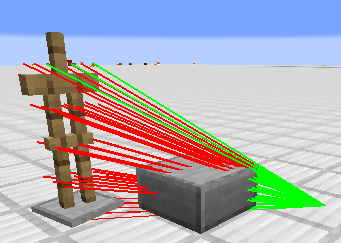
Explosion ray (used in the calculation of the exposure of entities) renderer. Remember to turn it off if you are going to test something like TNT compressors, or the game will be frozen.
Available values: true / false
Default value: false
Archive the entity log produced within a single session automatically, if any. These archives can be found in the folder World Folder/entitylog/archives.
Available values: true / false
Default value: true
Expand the maximum visible distance of structure blocks.
Available values: true / false
Default value: false
Record block changes caused by /fill so that they can be undone or redone later.
Available values: true / false
Default value: false
Specify which type of pulses are recorded.
Available values:
POSITIVENEGATIVEBOTH
Default value: POSITIVE
Record the lengths of redstone signal pulses received by fletching tables.
Available values: true / false
Default value: false
Displays which type of flower can generate within a given area when using bone meals.
Available values: true / false
Default value: false
Maximum rendering distance of flowerFieldRenderer.
Available values: Any positive integer
Default value: 16
Render flower fields at the same level (the highest level within range).
Available values: true / false
Default value: false
Generate a layer of glass on the ground to show the chunks.
Available values: true / false
Default value: false
In the vanilla getEntities() method, only entities that are in subchunks whose Cheshev distances to the given AABB are smaller than 2 blocks are seen. Usually, it doesn't matter, but when the height of some of the entities is greater than 2 blocks or the width is greater than 4 blocks, it can lead to some problems, especially when the entity is close to the boundary of subchunks. Changing it to a higher value may fix some bugs about the interaction between entities and something else.
Available values: Any positive real number
Default value: 2.0
Make hay block a oscilloscope / logic analyzer.
Available values: true / false
Default value: false
Synchronize visibility setting of oscilloscope channels on all clients.
Available values: true / false
Default value: true
Hide worlds that are likely to be survival saves to prevent it from being opened accidentally. Can only be set globally.
Available values: true / false
Default value: false
The number of item stacks the hotbar can contain. Note that this feature is not finished currently, some features like saving hotbars are not available.
Available values: Any integer between 1 and 36 (inclusive)
Default value: 9
Move the HUDs to a given location.
Available values:
TOP_LEFTTOP_RIGHTBOTTIM_LEFTBOTTOM_RIGHT
Default value: TOP_RIGHT
The style of the HUDs, containing zero or more flags below:
- B: Render a gray background
- L: Align the headers on the left and the data on the right
- R: Change the color of headers to red
Available values: Any string
Default value: (BL)^2/(mR)
Set the size of the text in the HUDs.
Available values: Any positive real number
Default value: 1.0
Pick crosshair-targeted entities for information providers (currently only the UUID suggestor) independently.
Available values: true / false
Default value: false
Allow players to break block-36s and place something against it.
Available values: true / false
Default value: false
The main language of the Mod.
Available values:
-FOLLOW_SYSTEM_SETTINGS-zh_cnzh_cn_FORCELOADen_usen_us_FORCELOAD
Default value: -FOLLOW_SYSTEM_SETTINGS-
Make loom blocks a wave generator, whose output can be configurated with /wavegen.
Available values: true / false
Default value: false
The maximum number of client-side ticks can be processed within a single frame when the FPS is lower than 20.
Available values: Any positive integer
Default value: 10
Set the maximum range of teleportation with endEyeTeleport.
Available values: Any positive real number
Default value: 180
Allow players to place minecarts directly on the ground.
Available values: true / false
Default value: false
/kill kill mobs by removing them directly instead of damaging them.
Available values: true / false
Default value: false
Skip the calculation of cramming between entities which wouldn't be pushed. The damage caused by entity cramming will be influenced.
Available values: true / false
Default value: false
Allow projectiles to load chunks for themselves in their calculations, which may be helpful in testing pearl canons. Note that if a projectile flies at a extremely high speed when the option is set to true, the server may be lagged greatly.
Available values: true / false
Default value: false
Allow players to move and turn around while typing commands, etc., if a hotkey, F6 by default, is pressed.
Available values: true / false
Default value: false
Hotkeys for playerInputsWhenScreenOpened, specified by a key code.
F1-F12: 290 - 301
Available values: true / false
Default value: false
Projectiles load the chunks permanently when projectileChunkLoading is enabled.
Available values: true / false
Default value: false
Set the radius of entity processing chunks loaded by projectileChunkLoading.
Available values: Any non-negative integer
Default value: 3
The amount of the randomness of projectiles. Most projectiles will have their additional random initial speeds multipled by the value of this option.
Available values: Any real number
Default value: 1.0
Placing mobs into vehicles.
Available values: true / false
Default value: false
Kill the entity being knocked by a brick, along with all entities being at the same position as it.
Available values: true / false
Default value: false
Only entities of the same type as the entity the entity directly attacked by the play are killed when using quickStackedEntityKilling.
Available values: true / false
Default value: false
Prevent the shape of rails from being changed by surrounding rails.
Available values: true / false
Default value: false
Prevent the chunks from being loaded in some ways.
Available values: [] (empty list) or some of the following elements, separated by ',':
startdragonplayerforcedlightportalpost_teleportunknown
Default value: []
Enhanced block outline renderer.
Available values: true / false
Default value: false
Display the outlines, heights, and vectors describing the flowing directions of the target fluid blocks.
Available values: true / false
Default value: false
Display the output level of repeaters and comparators the player looks at.
Available values: true / false
Default value: false
Entities with resistance effect are protected from void damages.
Available values: true / false
Default value: false
Enable or disable the server-side hitbox renderer.
Available values: true / false
Default value: false
The maximum Cheshev distance between the player and the entities with their bounding boxes rendered. All non-positive values are considered as positive infinite.
Available values: Any real number
Default value: -1
What the server-side hitbox renderer should do in ticks frozen by the Carpet.
Available values:
NORMALLYPAUSENO_REMOVAL
Default value: NORMALLY
Ignore potential collisions in unloaded chunks in raycasts. Enabling it may speed up long-distance raycasts.
Available values: true / false
Default value: false
Skip some stages in the world generation. Skipping stage biome and full is not supported, as the absence of them will make the server crash.
Available values: [] (empty list) or some of the following elements, separated by ',':
emptystructure_startsstructure_referencesnoisesurfacecarversliquid_carversfeatureslightspawnheightmaps
Default value: []
A list of word delimiters, used when smartCursorMode = CUSTOM. Any characters apperas in this option will be recognized as a word delimiter.
Available values: Any string
Default value:
Allow cursors to stop at word delimiters other than spaces (e.g. commas in entity selectors) when editing commands with Ctrl + Arrow or Ctrl + Backspace.
Available values:
VANILLANON_LITERALNERDYNORMALGREEDYCUSTOM
Default value: VANILLA
Make the location of HUDs more stable when the length of lines change frequently.
Available values: true / false
Default value: true
Parse accessing paths more strictly, to make them more reliable. Currently the strictly checking system is not completed, so it is not recommended to enable it.
Available values: true / false
Default value: false
wlujkgfdhlqcmyfdhj...Never turn it on!
Available values: true / false
Default value: false
Dispaly survival status bar (health & hungry) in creative mode.
Available values: true / false
Default value: false
Dispaly experience bar in creative mode.
Available values: true / false
Default value: false
Allow TNT entities to load chunks for themselves in their ticking, which may be helpful in designing some kinds of TNT canons.
Available values: true / false
Default value: false
TNT entities load the chunks permanently when tntChunkLoading is enabled.
Available values: true / false
Default value: false
The radius of entity processing chunks loaded by tntChunkLoading.
Available values: Any non-negative integer
Default value: 3
Scale the TPS (MSPT) graph so that it can be held by the screen.
Available values: Any positive real number
Default value: 1.0
Enable some vanilla debugging renderers, some of which won't actually work.
Available values: [] (empty list) or some of the following elements, separated by ',':
pathfindingDebugRendererwaterDebugRendererchunkBorderDebugRendererheightmapDebugRenderercollisionDebugRendererneighborUpdateDebugRenderercaveDebugRendererstructureDebugRendererskyLightDebugRendererworldGenAttemptDebugRendererblockOutlineDebugRendererchunkLoadingDebugRenderervillageDebugRenderervillageSectionsDebugRendererbeeDebugRendererraidCenterDebugRenderergoalSelectorDebugRenderergameTestDebugRenderer
Default value: []
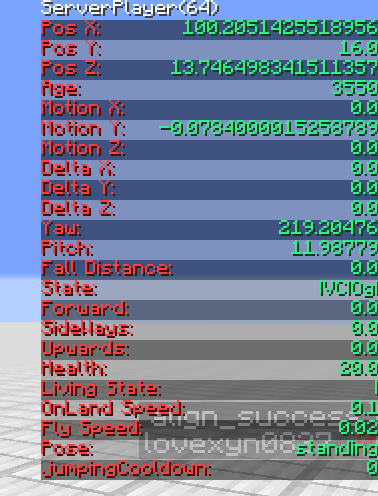
F3 + E: Toggle the HUD containing the information of the entity that the player is looking at.
F3 + M: Toggle the HUD containing the information of the local player.
F3 + S: Toggle the HUD containing the information of the server-side player.
Ctrl + Z: Undo block placement or breaking. (Requires blockPlacementHistory)
Ctrl+ Y: Redo block placement or breaking. (Requires blockPlacementHistory)
Ctrl + C: Output the NBT data of the targeted entity or the command to summon such an entity. (requires dumpTargetEntityDataWithCtrlC)
Information about the entity that the player is looking at is obtained at the end of server ticks, and the information about the local player is obtained at the end of client ticks. Further discussion on them are available in the next section.
It renders the lines between the center of an explosion and some chosen points in the hitbox of entities affected by the explosion, which determines how much damage the entities will take, how much the velocity of the entity will change, etc.
Don't always believe the hitboxes provided by F3 + B because they are adjusted by the client to make movements smoother and move slower than the one on the server when the entity is moving. Sometimes vanilla hitboxes could even be missing if the server has experienced a very long tick but the client hasn't.
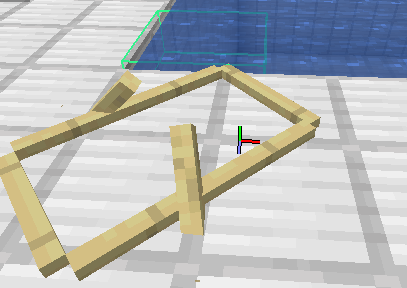
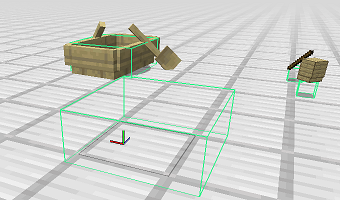
Display the bounding box, height, level, and a vector describing the flowing direction of the targeted fluid block.
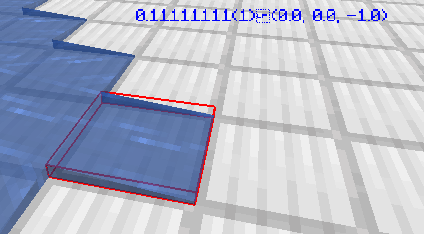
Display the bounding box (the collision box or OUTLINE Shape) of the targeted block.

Display the redstone signal level of the targeted redstone gate (i.e. repeaters and comparators).
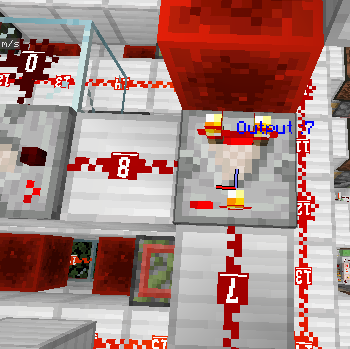
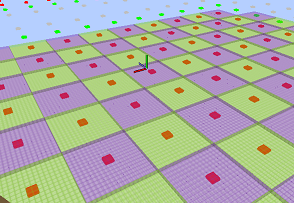
Display the loading state of chunks. Entity processing chunks, lazy load chunks and other chunks have a cube, with a color of red, green and grey, displayed on the top of its center. Requires enabling chunkLoadingInfoRenderer and holding a nautilus shell.
Brick: Pause or continue ticking using /tick freeze provided by the Carpet
Bone: Continue ticking for some ticks when ticking is paused by /tick freeze. The number of ticks equals the count of the stack of bones.
Netherite Ingot: Remove all non-player entities.
Header line: Include the ID (usually equals to the number of Entity instances created before the entity is loaded), name (custom name or the type used in /summon), and age (ticks since the entity is loaded).
Pos: The position of the entity.
Motion: The value of field motion (MCP), velocity (Yarn), or deltaMovement (Offical) of the entity.
Delta: The displacement of the entity in the last tick. It can be treated as the velocity.
Yaw, Pitch:The direction the entity is facing.
Fall Distance: The distance the entity has fallen since the last time the entity left the ground, but it can be influenced by various factors like water and lava.
General State: Some boolean states that are available in all entities. More information can be found below.
Health: LivingEntity (including players, armor stands, and mobs)s' health.
Forward, Sideways, Upward: Some values related to mobs' AI or player's input.
Speed: Two values determining how fast a LivingEntity moves.
Living State: Some boolean states that only exist in LivingEntity. More information can be found below.
Fuse: The length of a TNT's fuse, or the number of ticks before its explosion.
Pose: The pose of the entity, usually standing.
Power: The acceleration of a fireball. Note: A fireball has a drag of 0.05gt^(-1), so the fireball won't accelerate forever.
Velocity Decay: The drag of a boat, which varies when the boat is on different grounds.
Gl: Rendered with a glowing outline.
Inv: Won't be affected by most damages.
Col: Can collide with blocks and other entities that have the state.
NG: Won't be influenced by gravity.
HC: Collided with a block horizontally.
VC: Collided with a block vertically.
Wet: Some parts of the entity are in water.
Sbm: The entity is seen as submerged in water by the game.
Sp: Sprinting.
Sn: Sneaking.
De: Descending (like sneaking).
Sw: Swimming.
Og: On the ground.
Hurt: The entity has taken any damage(including 0 and negative amounts) in the last tick.
Fly: The entity is fall flying, using an elytra.
Slp: The entity is sleeping.
Dead: The entity's health is zero or lower, meaning the entity is dead.
See the wiki.
Possible values: An integer or a range, just like the level option in the vanilla entity selector.
Select entities with numeric IDs (field entityId, networkId) that match the given one or are within the given range.
Possible values: client or server
Where the entities are selected from. Note that this feature is not thread-safe, so it should be used in some simple commands without side effects (in other words, commands that only read something but don't write).
Only available in single-player games.
Possible values: A quoted regular expression.
Specify a regular expression matching the ID (including the namespace) of selected entities.
Possible values: A quoted regular expression.
Specify a regular expression matching the name of selected entities.
Possible values: A quoted regular expression.
Specify a regular expression matching the class (package name is optional) of selected entities.
When option hayOscilloscope is set to true, hay blocks can be used as an oscilloscope to record redstone signal input.
By clicking a hay block, a GUI can be opened:
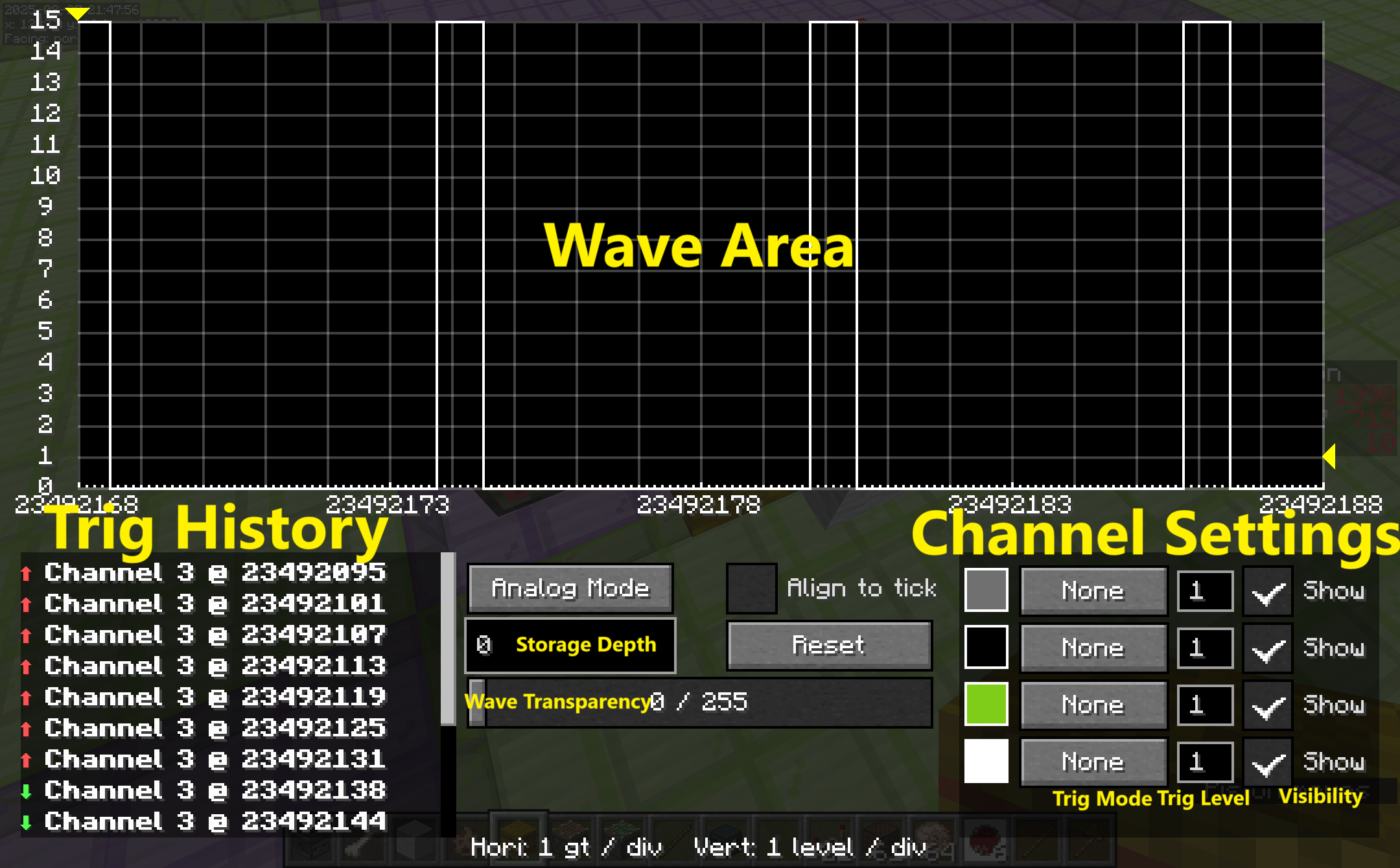
Each position with a hay block receiving redstone signals is a channel. Channels are marked with an numerical ID (starting from 0) and the material color (or map color) of the block beneath. When a hay block detects a change of redstone power for the first time, a channel is created, and its ID and color won't change anymore.
A notable consequence of the one-to-one corresponence between channels and positions is that if a hay block is moved, possibly by a piston, it would be associated with a new channel. That is, channels cannot be moved.
The oscilloscope has two working mode, analog mode and digital mode.
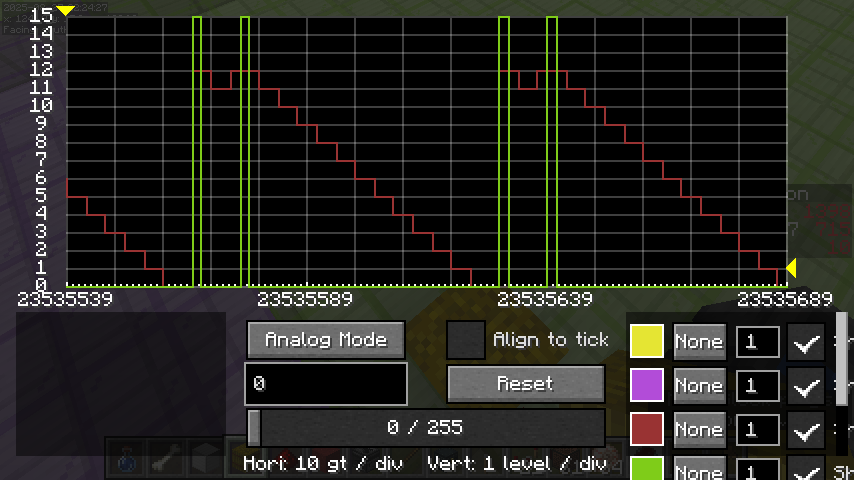
In analog mode, waves from different channels are drawn at the same place in the wave area, as shown in the below.
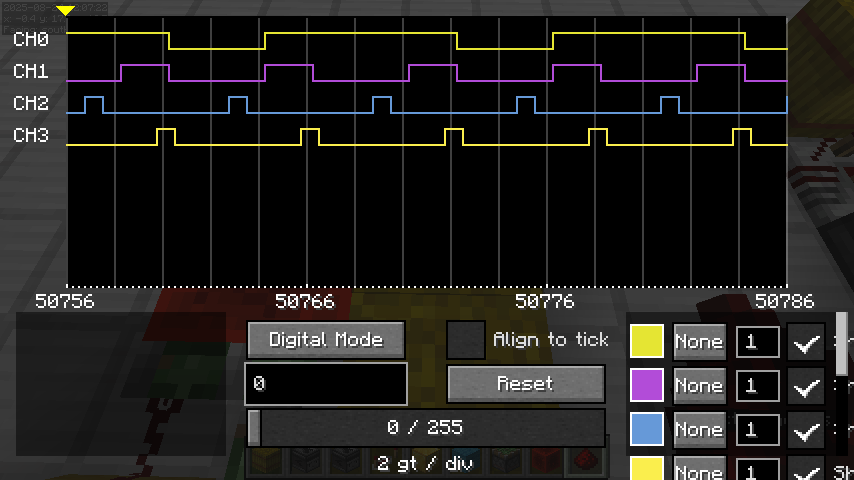
In digital mode, waves are drawn in parallel, and only show if any redstone signal is received, ignoring their levels.
In both modes, holding left button of the mouse when the cursor is on some waves, a tool tip is drawn to display the level, start time, end time, and length of pulses.
You can easily navigate in the wave area with mouse scroll wheel:
Scroll: Scroll horizontally.
Shift + Scroll: Zoom horizontally, faster.
Crtl + Scroll: Zoom horizontally.
Alt + Scroll: Scroll vertically.
Alt + Shift + Scroll: Scroll vertically, faster.
Crrl + Alt + Scroll: Zoom vertically.
Besides, the arrow key on the keyboard can also be used to scroll / zoom (with Ctrl down).
When the signal level some channels receives rise or fall to a set level (trig level), an event called "trigger" is emitted, and the wave area would be automatically scrolled to where the trigger happens. By clicking the Trig Mode setting in the channel settings bar, we can monitor triggers emitted by some channels.
When a trigger is detected, the wave will be scrolled to move the triggering edge to the horizontal marker (a yellow triangle above the wave area, which can be dragged with mouse).
There is also draggable triangles on the right side or the wave area, to mark triggering level of different channels.
Active probing enables the oscilloscope to detect signal level changes without block updates. (Conside when a redstone wire changes its shape and thus connect to or disconnect from a block, for example.) In this mode, hay blocks would try to measure the signal level they receive at the beginning of each ticking phases, to see if the level has changed since the last measurement.
All channels are probing actively by detault. To disable, uncheck the check box labelled Ac in the channel list area.
Note that channel must be created with some level changes with block updates to probe actively.
By default, on the horizontal axis, a game tick is divided into several smaller parts, each of which stands for a ticking phase like scheduled ticks and entity processing. Edges at different phases are also displayed at different horizontal positions according to the ticking phase it is at.
You can check Align to tick to ignore micro-timing information and align all edges to corresponding horizontal position of the tick it is in.
- If Minecraft is deobfuscated, the mapping won't be loaded.
- Check the
mappingfolder for corresponding mapping (i.e.<mcversion>.tiny, like1.16.4.tiny). - Otherwise, try to download the latest compatible mapping from Fabric's official maven repository.
- Otherwise, if the TIS Carpet Addition is loaded, try to load its bundled mapping.
- Otherwise, the mapping won't be loaded.
Some mixins is this Mod may bring about significant performance cost and may has unexpected impact on the vanilla multi-thread mechanism. Therefore, these mixins are optional. By default, all advanced mixins are disabled since 0.10.0+v20251019. If you want to enable some advanced mixins, you can press F8 (not available on MacOS) in the title screen or edit advanced_mixins.prop in the game directory. Note that modifications to advanced mixin configurations requires a restart to take effect.
Disabling advanced mixins may make related features no longer available.
- Stacktrace will be printed when the Carpet Mod is not loaded. If the Carpet Mod is loaded, enabling the
superSecretSettinghas the same effect. - A warning screen is popped when trying to open a survival with MessMod installed for the first time.
- Players can select entities targeted by the crosshair with entity selector
@t.
- The mod is still in development, some feature is not available or buggy, please tell me if you find something working not properly.
- Dedicated servers are not supported well currently and there are many unsolved bugs related to the connection between the server and the client, so only use the mod in single-player mode or the host client of a LAN server.
- Some commands like /explode ~ ~ ~ 2147483647 true can freeze the server, be careful.
- The Mod is not intended to be used in survival saves, as it may break vanilla mechanisms or enable the players to cheat accidentally, especially when some options are modified. To ensure this, the option
hideSurvivalSavescould be enabled. - To minimumize potential impact on the game and make the usage of this mod as convenient as possible, almost no measures are taken to check if any operation can cause server crashes or any other serious impacts, so using the Mod only on singleplayer mode or servers played by trusted players.
Initially, I started this mod in Feb 2021 to do some research on the motion of entities, thus the HUDs, bounding box renderer, tool items and command /entityfield were the earliest features of this mod. Later, more features were introduced gradually when needed.
After April 2022, I speeded up the development of the mod, more features were added while many previously added ones were completely refactored. By 2025/10/19, 38 commands, 100 options (or rules) and 10 renderers had been added.