

Run your Herdr workflow from your phone or tablet.
Monitor and chat with remote agents, work in their terminals, and move files over SSH from a native Android or iOS interface.








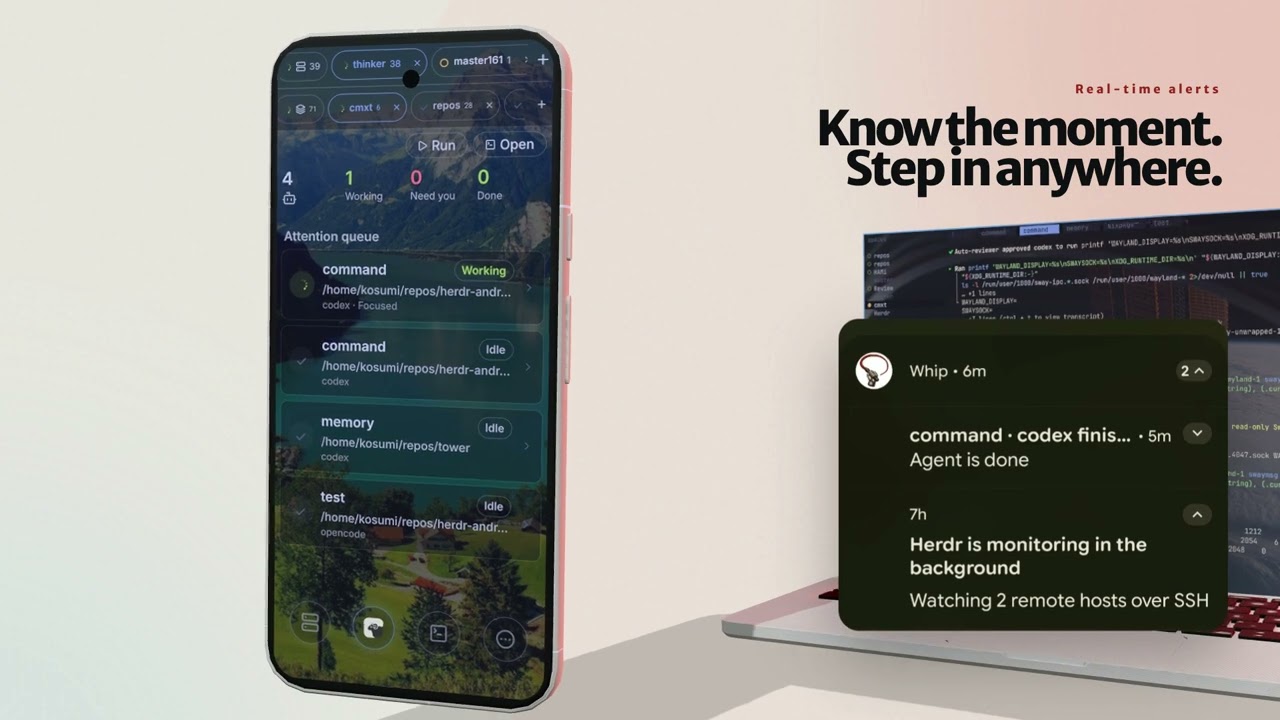
Whip gives Herdr a touch-friendly mobile interface without exposing Herdr itself to the network or requiring changes on the host. It connects to your machine over SSH—directly or through saved jump hosts, ideally over Tailscale—and rebuilds the management experience as native screens. You can watch the whole herd, prompt an agent through a native chat composer, browse remote files, or attach to a full terminal when you need it.
With Reverse Control, a remote Claude Code, Codex or OpenCode agent can also use Whip's in-app browser and phone tools through that same SSH connection.
Built for blazing-fast remote work. Watch a build, check another agent’s reply, then return to the same open terminal. Your connections keep running while you move between tasks. See it in everyday use.
The app separates connection management from daily supervision: Hosts manages saved SSH endpoints and exposes their live Herdr state, Herd merges connected agents into a scoped attention queue, Terminal keeps open pane sessions and their full-screen Chat View within reach, and More holds security, notification, appearance, and terminal preferences.
Whip is not developed, maintained, or endorsed by the Herdr project or its authors.
- Opinionated by design
- Preview
- What you can do
- Install Whip
- Connect your first host
- How it works
- Performance
- Architecture
- Development
- Community
- Credits
- License
Whip is opinionated: Herdr is the only tool that will receive first-class support. Our native supervision, navigation, and agent workflows are built around Herdr's hosts, spaces, tabs, and panes.
We will not add first-class support for tmux, Zellij, or Mosh. This focus lets us build a cohesive mobile experience for Herdr.
 |
 |
| Manage every host See live connection state, latency, and saved authentication at a glance. |
Watch the whole herd Merge open hosts into one attention queue, then scope it to a host or space. |
 |
 |
| Work from anywhere Keep remote terminal tabs warm, use mobile controls, and open discovered web links or remote files in one tap. |
Read the conversation Follow native Codex and OpenCode transcripts with rich text, links, code, and tool activity. |
 |
 |
| Chat naturally Prompt a remote agent from the native multiline composer with Android keyboard, suggestion, and voice-input support. |
Bring the filesystem with you Browse, sort, upload, download, edit, delete, or preview the terminal's remote files over SFTP. |
 |
 |
| Reach private hosts safely Build nested jump-host routes and opt into SSH agent forwarding without placing the private key on the server. |
Make Whip yours Place translucent app surfaces over a custom background, then tune alerts, speech, security, navigation, and terminal behavior. |
Screenshots were captured from the current ARM64 release build on a Pixel 9 Pro.
- Monitor every open host in one native attention queue, with per-host and per-space scopes.
- See working, blocked, done, idle, and unknown agents, including their host and space context.
- Keep connected hosts first and order them by the same agent-status priority as the Herd queue; see each host's agent count, Herdr protocol, measured latency, and jump-host route.
- Move through Herdr hosts, spaces, tabs, panes, and agents without living in a terminal.
- Create, focus, rename, split, zoom, inspect, and close space resources, including swipe-to-close Herd tabs.
- Launch agents and chat through a native multiline composer with mobile keyboard, dictation, selection, and suggestion support.
- Run editable commands from the Herd screen and reuse the same persistent input history available in the terminal.
Chat View is currently available for active OpenCode and Codex panes. Tap the book icon in the bottom terminal controls to replace that terminal with a full-screen, native transcript; tap the same control again to return to the same warm terminal. Each open terminal remembers its own Terminal or Chat View when you switch between panes.
- Read a normalized, OpenCode-style conversation instead of terminal scrollback, including user prompts, Markdown responses, plans, reasoning, live Thinking state, token and timing metadata, attachments, and images.
- Inspect expandable tool activity without duplicate shell rows. Related read, list, and search operations are grouped; shell commands, output, diagnostics, and changed-file diffs remain available on demand.
- Render GitHub-flavored Markdown, monospaced inline and fenced code, clickable remote file references, and inline or display math on Android and iOS.
- Read CJK characters supported by UKai in that font throughout chat text, Markdown, code, and tables; Latin text keeps Inter or JetBrains Mono. Chat and the terminal share the original
ArphicUKaiHK.ttf, restored from commit7cdf933and verified against the upstream UKai HK face. Regenerate CJK coverage withnix develop -c uv run scripts/generate-chat-cjk-coverage.py; font provenance is recorded inassets/gui-fonts/WhipChatCJK.source.json. - Load the existing history once, then follow new Codex rollout records or official OpenCode durable events incrementally. Whip reads the locally installed agents through the existing SSH connection; it does not require a hosted chat relay.
- Keep using the terminal control strip in Chat View. Its Compose control opens the same native composer, draft, attachments, and per-tab send queue used by Terminal; closing the composer leaves Chat View open.
- On Android, enable Voice announcements in Settings to announce agent status changes and read new replies from the focused chat aloud, including with Whip in the background or the screen locked. Voice announcements are off by default. Chat reading skips loaded history, reasoning, tools, and code blocks, and follows only the selected chat. Switching to Terminal or leaving the session stops playback; the ongoing notification also has a Stop listening action. Calls and headphone disconnection stop listening.
- Follow Whip's existing system, GitHub Light, and Tokyo Night themes. When the app background and glass mode are enabled, Chat View applies the same translucent material while keeping the transcript legible.
Reverse Control is available on Android and iOS for Claude Code, Codex and OpenCode (v1 and v2). It gives an opted-in agent a whip MCP server with browser.* and device.* tools for the connected mobile device.
- In the Herd command launcher, enter a
claude,codexoropencodecommand, turn on Reverse Control, and run it. The switch starts off and is offered only for supported commands. - For an existing agent, long-press its Herd row, enable Reverse Control, then tap Restart when it shows Restart to enable. Restart resumes the same conversation; Whip asks before interrupting a busy agent.
- Use Open Browser for that pane to view or interact with the agent's browser. Closing the browser hides it while retaining its tabs.
The preference saves immediately and survives app restarts. Turning it off revokes that pane's access immediately. Copy starts a new conversation in another tab with the same preference; each agent then has independent access.
| Capability | What the agent can do |
|---|---|
| Browser | Navigate websites and SSH-forwarded previews, inspect and extract page content, fill forms, click controls, manage tabs, capture screenshots, and run page-context JavaScript. |
| Downloads | Download a file using the browser's login session and transfer it to the SSH host over SFTP with browser.download. |
| Phone | Read device, battery, network, location, and motion/sensor information; read or write clipboard text; trigger haptics, local notifications, and speech. |
| Android Shizuku | Check Shizuku status and run commands on the phone as Shizuku's shell/root identity after you authorize Whip in More → Shizuku → Pair with Shizuku. |
For example, ask the agent:
- “Use Whip's browser to open http://localhost:3000 and check the mobile sign-in form.”
- “Download the report from the page I'm signed into and save it to ~/report.csv on the host.”
- “Read my phone's clipboard and send me a phone notification when the build finishes.”
Keep Whip in the foreground for location, clipboard, and sensor access. Tools request OS permissions when needed; location returns a single fix. Shizuku authorization is handled separately in More. Phone tools act on the mobile device; the agent's usual shell tools still act on the SSH host.
The SSH server must allow reverse TCP forwarding (AllowTcpForwarding). Whip configures MCP for the launched process and carries requests between loopback endpoints over the existing SSH connection, with no additional host software or permanent agent configuration. Temporary connection loss shows Recovering; interrupted tool calls are cancelled and are not replayed automatically.
See the browser and device tool reference, agent Restart and Copy behavior, and Shizuku setup and commands for details.
- Attach to any selected pane through an immersive, xterm-compatible terminal.
- Open a plain SSH login shell when Herdr is stopped, unavailable, or not installed yet.
- Keep multiple terminal surfaces warm while switching or swiping between tabs, with a buffered composer, ANSI colors, modifier keys, touch scrolling, Page Up/Down, selection, live resizing, and configurable appearance.
- Keep reading an open Herdr pane when its live connection drops: Whip switches the terminal to a local, read-only virtual Herdr backend backed by a bounded cache of recent ANSI output. Arrow keys, Page Up/Down, Home, End, and touch scrolling remain available while terminal writes stay disabled.
- Queue native-composer submissions in a per-terminal outbox while offline, review or move them back into the composer, and send them in order when that terminal reconnects.
- Reuse persistent input history, copy previous commands with a long press, and configure volume-key and double-tap actions and the number of cached xterm surfaces.
- Scan terminal scrollback for web links and open local or LAN services in the in-app browser through an on-demand SSH tunnel.
- Recover open control connections after network changes and app resume without restarting healthy sessions.
- Browse the active terminal's current directory over SFTP, remember a location per terminal, and sort by name, modification time, or size.
- Upload, download, edit, or swipe-delete remote files; preview code, text, Markdown with remote links and images, raster images, SVG, standalone Mermaid diagrams, streamed PDF, audio, and video, and sandboxed HTML.
- Upload a photo, file, camera capture, or clipboard image to the host and paste its remote path into the terminal composer.
- Import, inspect, copy, remove, or generate SSH keys, and reuse them from a biometric-protected global keychain.
- Authorize a generated, global-keychain, or clipboard public key by scanning a one-time QR code from
whipair, using the host's existing SSH port without a relay. - Route connections through nested, OpenSSH-compatible jump hosts and optionally forward a profile's key as an SSH agent without copying the private key to the server.
- Verify every direct and jump-host connection against a global known-hosts list, prompting for unknown fingerprints and rejecting changed host keys.
- Store each host's password or private-key credential in Android Keystore or iOS Keychain, with encrypted, device-authenticated Block Store recovery on supported Android devices.
- Keep several named Herdr hosts open and switch between their live sessions.
- Hide the status bar across the app or while a terminal is open with Rancher fullscreen settings.
- Receive local notifications, vibration, and optional speech when an agent becomes blocked or finishes.
- Set the duration of background agent alerts, dismiss active alerts by returning to Whip, and customize terminal gestures, controls, history, fonts, and cached sessions.
- Use the app in English, Japanese, Spanish, Simplified Chinese, or Traditional Chinese, with system, light, GitHub Light, dark, and Tokyo Night appearance options.
- Choose an app background image and optionally layer translucent glass bars, rows, controls, and navigation over it.
Get Whip opens the appropriate store on your phone. You can also scan the QR at the top of this README.
For sharing or printing, use the PNG or SVG. Publishing instructions.


Whip is available as a production release on Google Play. Google Play is the recommended installation source.
Signed ARM64 APKs are also published as normal latest releases on GitHub Releases. They use the project's existing release key and include a SHA-256 checksum alongside the APK.
- Read the security policy and privacy notes.
- Install through Google Play, or download
whip-arm64.apkand its checksum from the latest GitHub release. - Allow installation from the app that downloaded the APK, then open Whip.
- Make the host reachable over SSH, preferably through a Tailnet you trust. Whip can open a plain SSH shell even when Herdr is not installed, and a private destination can be reached through a saved jump host.
Whip supports Android 7.0 and newer (minSdk 24). The current direct APK distribution targets 64-bit ARM Android devices. Keep using the same distribution source when updating: Google Play may re-sign store builds through Play App Signing, so Android can require an uninstall when switching between Play and GitHub packages.
Install Whip Herd from the App Store on an iPhone or iPad running iOS or iPadOS 16.4 or newer. Make your host reachable over SSH, preferably through a Tailnet you trust.
CI also compiles a thin unsigned device app and uploads whip-ios-unsigned-compile-only.app.zip as a short-lived GitHub Actions artifact for compile validation. That artifact is not signed or directly installable. For a locally signed device build, follow the development instructions below.
You need an SSH server on a laptop or server reachable from the mobile device. If Herdr is already installed, confirm the same connection outside Whip first:
ssh user@laptop.tailnet.ts.net 'herdr status server --json'In Whip, open Add host and choose Scan pairing QR. On the Mac or Linux host, run the pairing helper with any one of these package managers:
# Nix (GitHub flake)
nix run github:kosumic/whip#whipair

# uv
uvx whipair

# npm
npx whipair

# Cargo
cargo install --locked whipair
whipair
Select the reachable network and confirm the SSH port, then open Add host in Whip. Choose a newly generated key, a key from the global keychain, or a public key from the clipboard; scan the displayed QR and approve the key in the host terminal. Pairing uses the existing SSH port and automatically stores the verified SSH host key. A clipboard public key has no private credential in Whip, so it authorizes and saves the host without making it immediately connectable from that device.
The uv, npm, and Cargo versions require ssh-keyscan from an OpenSSH client
package. The Nix app includes it. See the
whipair documentation for the protocol, security
boundaries, local-checkout Nix command, and nonstandard-port options.
To enter the host without QR pairing:
- Tap Add your first host.
- Enter the Tailscale DNS name or
100.x.y.zaddress, SSH user, and password or private key. You can import, paste, or generate an Ed25519 key in the app. - Leave Command as
herdr, or enter its absolute path if it is not in the non-interactive SSHPATH. - Choose the Herdr session name and connect.
- On first connection, compare the displayed SSH fingerprint with the host through an independent trusted channel, then choose Trust host. Whip refuses a changed key on later connections.
Whip saves the credential after you save or connect to a host, enabling one-tap reconnects. Host profiles can also reuse a key from More → Global SSH keychain.
For a destination that is not directly reachable, save and connect to the outer host first. Edit the destination, select that profile under Jump host, and connect. Jump hosts can themselves use another saved jump host; each hop keeps its own authentication, host-key verification, and optional agent-forwarding setting. Manage trusted fingerprints under More → Known SSH hosts.
If Herdr is not installed yet, Whip still keeps the SSH connection open. From the offline host screen, choose Open SSH shell and install or troubleshoot Herdr yourself; Whip never installs software on the host.
Whip accepts Herdr releases that report protocols 17 through 22 and rejects other protocol versions to avoid sending incompatible commands. The About Whip screen shows both sides of the active connection.
Whip connects from the mobile device to the configured SSH host, either directly or through its saved jump-host chain. There is no Whip-operated relay service, and Herdr remains bound to the host as usual. Strict known-host verification applies to every hop.
Native screens read snapshots and live events from Herdr's local API sockets through the authenticated SSH connection. Actions use the same structured API, while each open pane terminal uses Herdr's client-protocol socket for live input, resize, scroll, and render frames. The remote file manager and terminal attachments use SFTP on that connection. Links found in terminal scrollback open directly when they are public; loopback and private-network addresses are forwarded through SSH first.
Chat View does not derive conversations from terminal pixels or scrollback. For OpenCode, the Rust host runtime takes an initial snapshot with the official opencode export command and then requests only newer durable session events through the official opencode db query interface. For Codex, it resolves the rollout matching Herdr's exact native session ID, reads the initial JSONL snapshot, and follows appended records. Both sources are adapted into one typed Rust transcript model on the device, so the native renderer and shared composer behave consistently without adding a Whip service to the host.
For an open, visible Herdr terminal, Whip periodically caches a bounded recent ANSI transcript in memory. If the terminal transport is connecting, disconnected, or in error, a local virtual backend owns that transcript and its per-terminal logical scroll position while the renderer presents it read-only; it does not run Herdr or an agent on the mobile device. Messages submitted through the native composer wait in an in-memory, per-terminal outbox and are retried in order after the live connection returns. The transcript, scroll position, and outbox are session fallbacks, not durable offline storage, and do not survive an app restart.
An unknown server key requires explicit fingerprint approval before Whip stores it in the device-wide known-hosts list. A changed key is rejected until you investigate it and deliberately forget the old entry. See SECURITY.md for the current security posture and PRIVACY.md for the data flow and on-device storage details.
Quick switches while your agents are busy. A build is running in one terminal while an agent writes a reply in another. Open the agent's Chat View, read the reply as it arrives, then return to your build's open terminal. Whip keeps the connection running while you move around the app.
- Watch work unfold. Follow build logs, command output, and agent activity as the host sends them.
- Pick up where you left off. Switch between open terminal tabs or back to the Herd queue, then return to the terminal you were using.
- Keep reading as replies arrive. New text and tool activity update the conversation you already have open, without reloading its entire history.
Whip keeps terminals connected and reuses loaded conversations so checking on another task does not mean starting a new session. For capture results and methods, see the Android performance measurements.
Whip is split between the React Native presentation layer and one Whip-owned
Rust/native core. React Native owns presentation and platform integration;
Rust AppCore owns application/session state across hosts above the
authoritative per-host runtimes. The diagrams below show those ownership
boundaries together with the terminal and remote-host paths.

Edit the React Native frontend diagram.

Edit the Whip Rust Core diagram.
react-native-whip-ssh exposes one New Architecture module and links one Rust
static library with one Tokio runtime. Immediately below that boundary, Rust
AppCore owns application sessions, active-session and client workspace/tab/pane
selection, selection repair, logical terminal rails, multi-host Herd aggregation,
and revisioned typed application views. It references one HostRuntime per
application session without taking ownership of Herdr server truth. Each
HostRuntime owns its authoritative HostState, reconnect/restoration lifecycle,
monitoring and diagnostics, terminal transports, agent sessions, and remote
operations. Its stable HerdrConnection is the sole owner/coordinator of the
currently installed authenticated SshSession and generation; Rust services
request guarded logical streams instead of retaining transport handles.
React Native caches the actual AppCoreProjection; presentation selectors join
saved host profiles and format snapshots without maintaining another session or
terminal domain model. Rust serializes terminal resume data as an opaque string
for AsyncStorage, including migration of older records. Terminal font sizes are
stored separately as presentation preferences. React Native sends typed semantic
operations through thin AppCore adapters and the HerdrClient runtime facade.
It still owns navigation, sheets/forms, platform credentials, pickers/share and
previews, presentation preferences, opaque SQLite transcript-cache storage, and
the mounted WebView/xterm rendering lifecycle. QR-pinned WP4 pairing and
key-management/native-diagnostic utilities share the same native module.
After editing either Mermaid source, regenerate the committed SVGs from nix develop with npm run generate:readme-diagrams.
Whip uses Expo SDK 57 with custom Android and iOS native builds. It cannot run in Expo Go because the shared Rust SSH transport, platform credential stores, and terminal renderer use native modules.
On NixOS, the included development shell provides Node.js 24, JDK 17, and the required Android SDK and NDK versions. Start Metro in one terminal, in offline mode with Whip's explicit development-client scheme and a LAN bind so the USB-reversed IPv4 endpoint works:
nix develop
npm ci
npm start -- --scheme whip --host lan --offline
Then connect an ARM64 device and build only its architecture from a second development shell:
nix develop
adb reverse tcp:8081 tcp:8081
ORG_GRADLE_PROJECT_reactNativeArchitectures=arm64-v8a npm run android -- --no-bundler
If the development client does not open the project automatically, launch the USB-forwarded localhost URL with Whip's scheme:
adb shell am start -W \
  -a android.intent.action.VIEW \
  -d 'whip://expo-development-client/?url=http%3A%2F%2Flocalhost%3A8081'
On other systems, install Node.js 24.3 or newer in the Node 24 LTS line, JDK 17, Android SDK Platform 36, Build Tools 36.0.0, NDK 27.1.12297006, and CMake 3.22.1, then use the same npm and adb commands with ANDROID_HOME set.
See DEBUG.md for the complete emulator and physical-device loop.
On macOS, the Nix shell supplies Node.js, CocoaPods, and the pinned Rust target while Xcode supplies the Apple build toolchain:
nix develop
npm ci
cd ios
bundle exec pod install
Open ios/HerdR.xcworkspace in Xcode for a signed device build. scripts/install-ios-device.sh provides a guided local build and in-place install, while CI invokes scripts/build-ios-app.sh --unsigned for reproducible thin-ARM64 compile validation.
After authenticating and initializing the Expo project:
npx eas-cli build --profile development --platform android
npx eas-cli build --profile preview --platform android
npx eas-cli build --profile ios-simulator --platform ios
The development profile creates an Expo development client, preview creates an installable Android APK, and ios-simulator creates an unsigned iOS simulator build.
The manually triggered EAS iOS Build and Submit GitHub Actions workflow builds
the production iOS app and uploads that exact build to App Store Connect. It waits
for both the build and EAS Submit to finish, so a failed build or upload fails CI.
The workflow reads EXPO_TOKEN from the existing google-play environment and
uses the App Store Connect API key stored with the Expo project. Configure that
key for EAS Submit with npx eas-cli credentials --platform ios if needed.
submit.production.ios.ascAppId in eas.json selects Whip's existing Apple app.
After Apple processes the upload, the build appears in TestFlight. To publish it on the App Store, create the matching version in App Store Connect, select the build, update the release notes, and submit it for App Review. A successful EAS upload does not submit the app for review or make it publicly available.
To upload an already completed EAS build without rebuilding:
nix develop -c npx eas-cli submit --platform ios --profile production --id BUILD_ID --waitThe root package.json version is the only marketing version source. Use
MAJOR.MINOR.PATCH (without a v prefix or prerelease suffix) for both mobile
stores. Expo reads it in app.config.js, Android Gradle reads it for versionName,
and Xcode's Prepare app Info.plist phase reads it for
CFBundleShortVersionString. Xcode writes its intermediate plist under DerivedData;
no version file is generated or committed in the source tree. Do not add a version
to app.json, the iOS plist template, or Xcode's MARKETING_VERSION settings.
Keep EAS's existing local version source and manual build-number management.
Because the iOS plist is prepared during compilation, EAS CLI may report that it
cannot read versions before the build; the compiled app carries the package
version, and the macOS CI build verifies it from the finished app.
For example, to bump 1.6.3 to 1.6.4:
nix develop -c npm version 1.6.4 --no-git-tag-version
nix develop -c npm run check:app-version
nix develop -c android/gradlew -p android :app:checkAppVersion -PreactNativeArchitectures=arm64-v8a
Commit package.json and package-lock.json. Android versionCode and iOS
CURRENT_PROJECT_VERSION remain separate build identifiers; increment them as
required for store uploads. This fix does not bump or reset either identifier.
The Build Android APK workflow accepts v1.6.4 or 1.6.4 only when the
package version is exactly 1.6.4. It rejects mismatches before compiling and
checks the finished APK with apkanalyzer before uploading or updating a release.
The Play workflow checks the finished AAB with pinned, checksum-verified
bundletool, and validates the tag too when dispatched against a tag.
Normal CI checks Expo/iOS configuration, evaluates all Android variant versions, and verifies the built Android and iOS artifacts. To inspect a local APK:
nix develop -c bash scripts/verify-android-version.sh android/app/build/outputs/apk/release/app-release.apkExisting mislabeled releases remain unchanged. Choose the next intended release version, bump the package, and rebuild; changing a GitHub tag alone cannot change an already installed binary's version.
The manually triggered Publish Android app bundle GitHub Actions workflow builds a signed ARM64 .aab and uploads it through EAS Submit. Its default internal-draft profile leaves an internal-track release in Google Play Console for review; production-draft creates a production draft, production submits a production release for review with a full rollout, internal publishes to internal testers, and closed creates a completed alpha/closed-testing release.
The production profile sets releaseStatus to completed and changesNotSentForReview to false. Google's review still applies. After approval, the release publishes automatically unless managed publishing is enabled in Play Console, in which case you must publish the approved changes there.
Before the first run, create a Google Play service account with Play Console access and an Expo access token, then configure these GitHub repository or google-play environment secrets:
ANDROID_UPLOAD_KEYSTORE_BASE64: the base64-encoded Play upload keystoreANDROID_UPLOAD_KEYSTORE_PASSWORDANDROID_UPLOAD_KEY_ALIASANDROID_UPLOAD_KEY_PASSWORDGOOGLE_PLAY_SERVICE_ACCOUNT_JSON: the complete service-account JSON documentEXPO_TOKEN
For example:
base64 -w 0 /path/to/upload-keystore.jks | gh secret set ANDROID_UPLOAD_KEYSTORE_BASE64
gh secret set ANDROID_UPLOAD_KEYSTORE_PASSWORD
gh secret set ANDROID_UPLOAD_KEY_ALIAS
gh secret set ANDROID_UPLOAD_KEY_PASSWORD
gh secret set GOOGLE_PLAY_SERVICE_ACCOUNT_JSON < /path/to/google-play-service-account.json
gh secret set EXPO_TOKEN
Increment versionCode in android/app/build.gradle for every Play upload, commit the release, and start a draft upload with:
gh workflow run publish-play.yml -f submit_profile=production-draftTo submit directly to production for review and a full rollout, choose production in the workflow dropdown or run:
gh workflow run publish-play.yml -f submit_profile=productionThe contents of android/app/src/main/assets/ and
modules/whip-terminal-assets/ios/TerminalAssets/ are generated and ignored by
Git. Edit scripts/sync-terminal-assets.ts, its imported helpers, or the
canonical fonts and manifest in assets/terminal-fonts/ instead.
npm ci regenerates these files through postinstall. Direct Gradle builds
also regenerate them from declared inputs and outputs. On iOS, pod install
generates files before CocoaPods discovers resources, and the resource bundle
build phase refreshes them before packaging. Run pod install after updating
the Podfile or adding/removing generated resource names.
To regenerate manually, including before tests after deleting generated assets:
nix develop -c node scripts/sync-terminal-assets.ts
nix develop -c node scripts/sync-terminal-assets.ts --check
The check verifies both rendered HTML and copied dependencies, fonts, and licenses without changing files.
Run the primary JavaScript and Rust validation sets before opening a pull request:
nix develop -c npm run doctor
nix develop -c npm run check:scripts
nix develop -c npx tsc --noEmit
nix develop -c npm run worker:check
nix develop -c npm run lint
nix develop -c npm test -- --runInBand
nix develop -c npm run bundle:ios
nix develop -c npm run check:license-notices

nix develop -c cargo fmt --manifest-path packages/react-native-whip-ssh/rust/Cargo.toml --check
nix develop -c cargo clippy --manifest-path packages/react-native-whip-ssh/rust/Cargo.toml --locked --all-targets -- -D warnings
nix develop -c cargo test --manifest-path packages/react-native-whip-ssh/rust/Cargo.toml --locked
CI additionally runs the live OpenSSH integration test, RustSec audit, ARM64 Android lint/build, unsigned thin-ARM64 iOS compile, and XCFramework validation. To reproduce the native compile checks locally, use nix develop -c android/gradlew -p android app:lintRelease app:assembleDebug -PreactNativeArchitectures=arm64-v8a --no-daemon on Android or nix develop -c scripts/build-ios-app.sh --unsigned on macOS after installing pods.
The native core is maintained in
packages/react-native-whip-ssh. Both mobile
platforms link the same Rust/Russh library and expose the same WhipSsh
TurboModule; there is no legacy or second SSH native fallback.
- Read CONTRIBUTING.md before opening a pull request.
- Ask usage and design questions in GitHub Discussions.
- Use the issue forms for reproducible bugs and scoped feature requests.
- Follow the Code of Conduct.
Feedback is especially useful around Android and iOS device compatibility, real-world Herdr workflows, terminal ergonomics, and safe SSH trust UX.
Whip learned from Voltius during the early stages of development. We are grateful to the Voltius maintainers and contributors for sharing their work.
Whip's Chat View is inspired by and adapted from the conversation design of OpenCode Web. Whip's git diff viewer is also inspired by OpenCode v2. OpenCode is available under the MIT License; its copyright notice and complete license text are included in Third-Party Notices.
Whip is licensed under the GNU Affero General Public License v3.0 or later.
Third-party work remains subject to its original terms; see Third-Party Notices.