Gifster is a simple desktop app for turning a group of pictures into an animated GIF.
You can drag in images, arrange them in the order you want, preview the animation, and save the finished GIF.
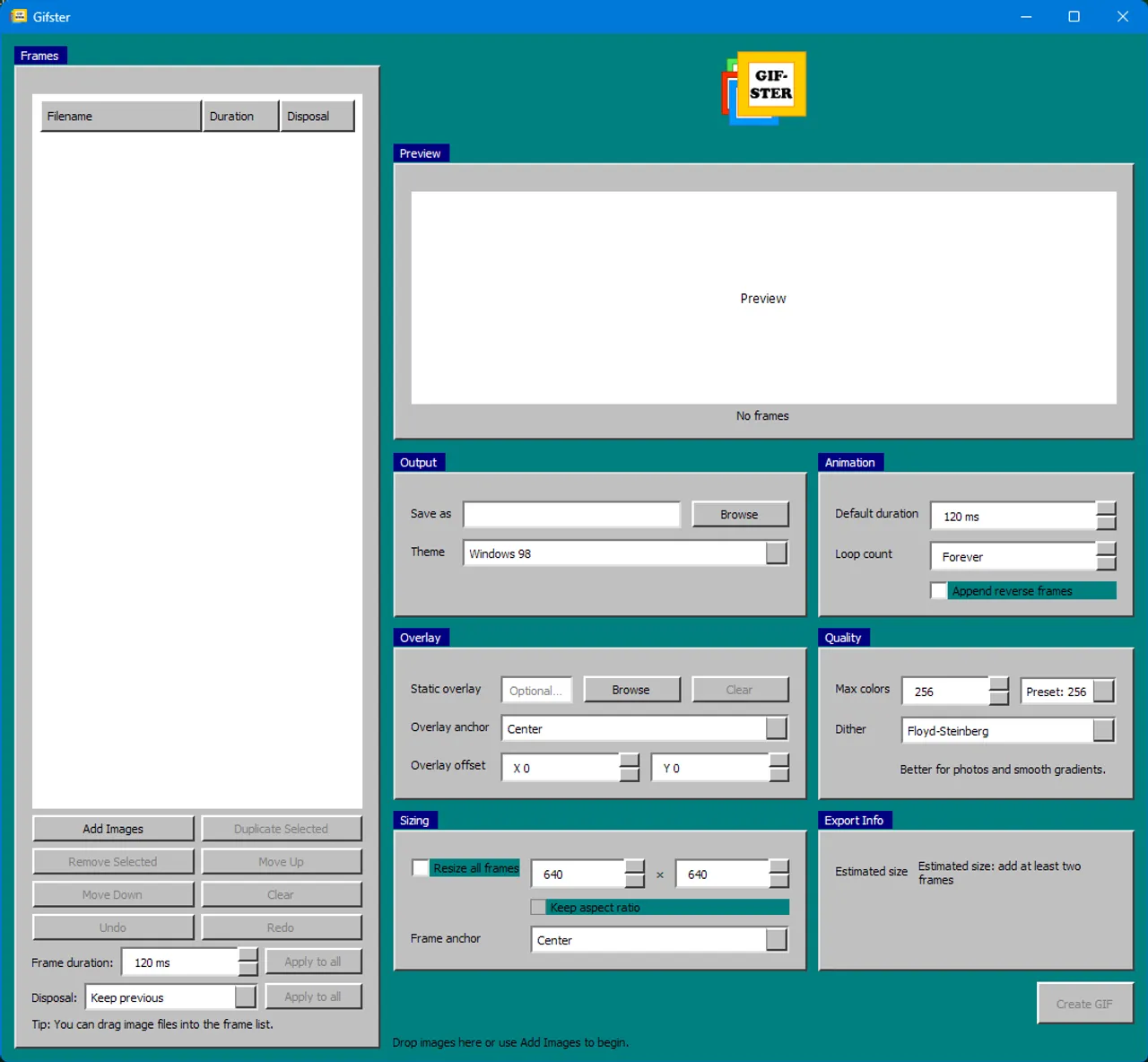

- Turns multiple images into one animated GIF
- Lets you see a live preview before exporting
- Gives you simple controls to adjust how the GIF looks and plays
Add image files from your computer or drag and drop them into the app.
Move images up or down so the animation plays in the right order.
Quickly copy a frame or delete frames you do not want.
Set how long each frame stays on screen. You can change one frame or apply the same timing to all frames.
Choose how each frame behaves before the next one appears. This helps control how overlapping or transparent frames look.
Resize all images to a chosen width and height. You can also keep the original shape so pictures do not look stretched.
Choose where smaller images sit inside the final canvas, such as center or corners.
Place one image on top of every frame, like a logo or watermark. You can anchor it or move it to a custom position.
Watch the GIF inside the app before saving it. You can also drag the overlay in the preview.
Add the frames in reverse order at the end to create a back-and-forth looping effect.
Choose the maximum number of colors and the dithering style. This helps balance image quality and file size.
See an estimated output size before saving.
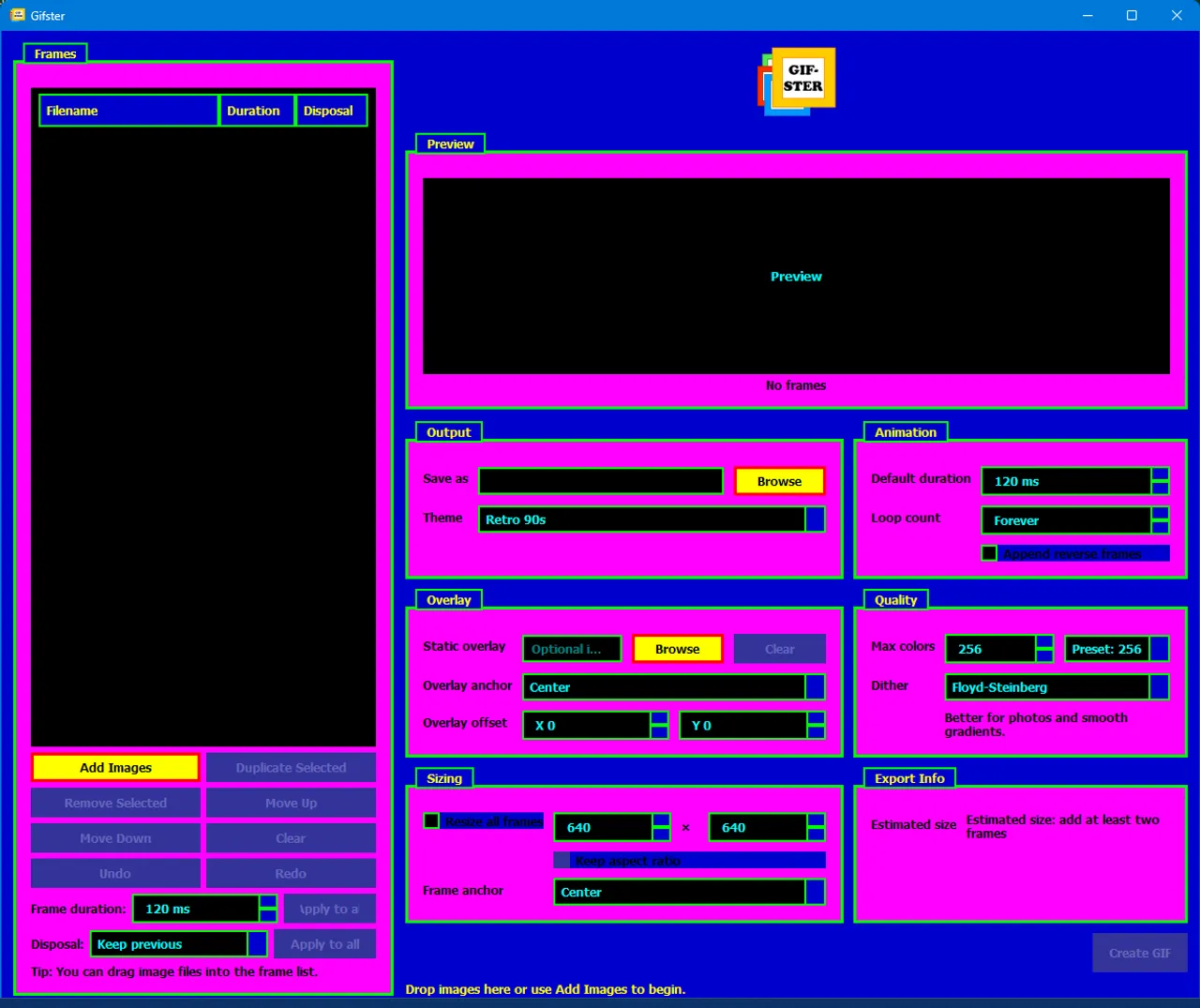
Switch between built-in themes to change the look of the app.
Built-in themes:
Windows 98Retro 90sArcade GlowCRT AmberSunset Miami
Undo or redo frame list changes while arranging your animation.
- Add at least two images.
- Put them in the order you want.
- Adjust settings if needed.
- Preview the result.
- Choose where to save the file.
- Click
Create GIF.
- Python
PyQt6Pillow
If Pillow is missing, GIF export will not work.